

Admin Guide
App Configuration
Administrators can adjust the app settings in the corresponding management section.
Example: enabled rate limiting
Please refer to this KB article to change the configuration using our app's REST API.
Since version 2, every configuration change creates an audit log record with details of the changes.
Jira
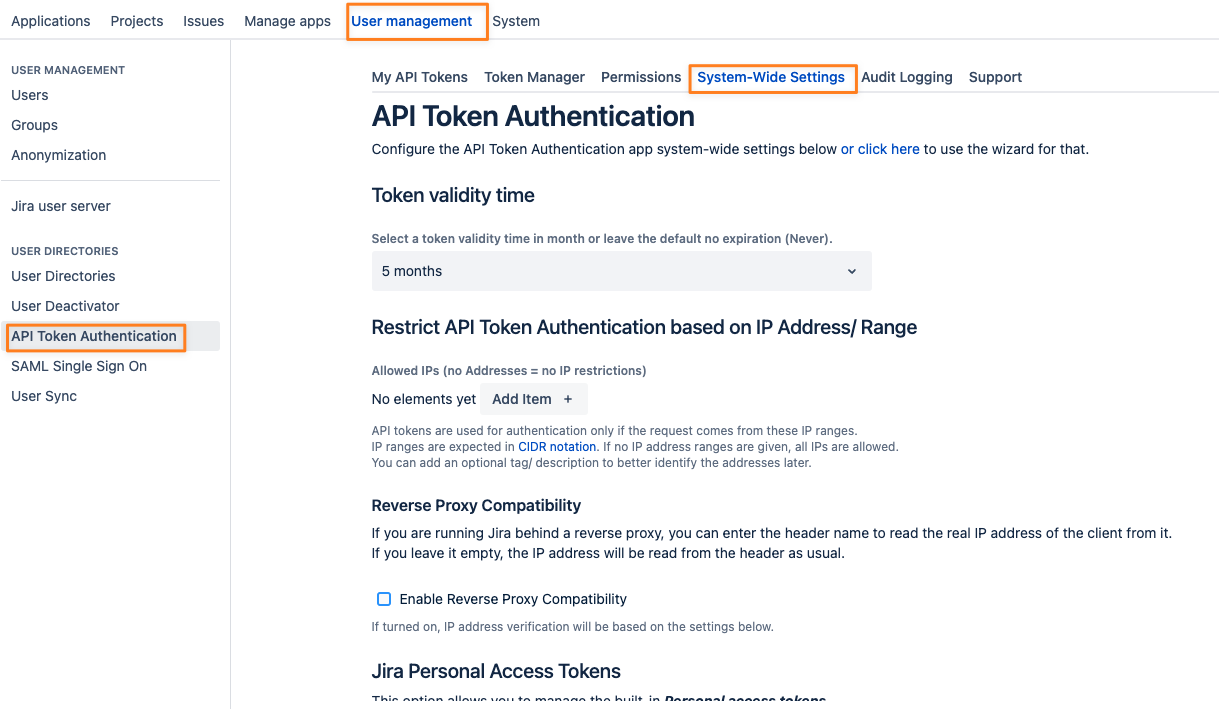
In Jira, navigate to the User management section and select API Token Authentication
The System-Wide Settings and the Permission tabs provide all settings and options to configure the app for all audiences.
Confluence
In Confluence, scroll down to the Users & Security section in the administration configuration panel and select API Token Authentication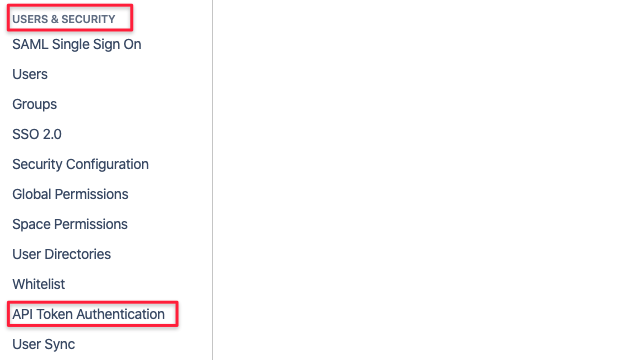
Bitbucket
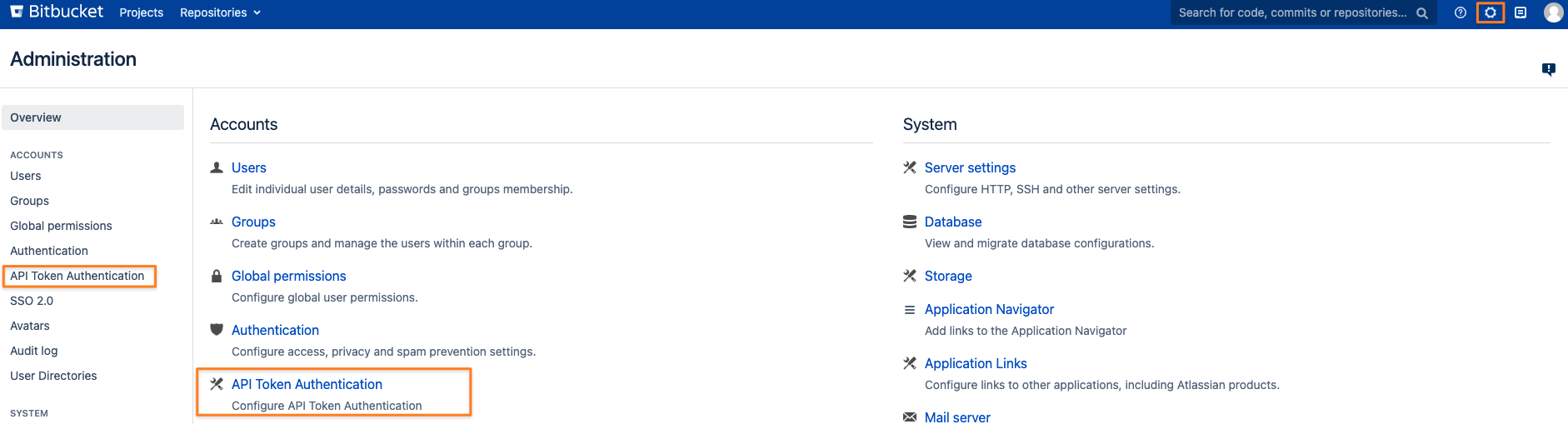
Open the admin settings via the top right corner icon and click on one of the API Token Authentication links
Permissions, Token Scopes and PGP Encryption
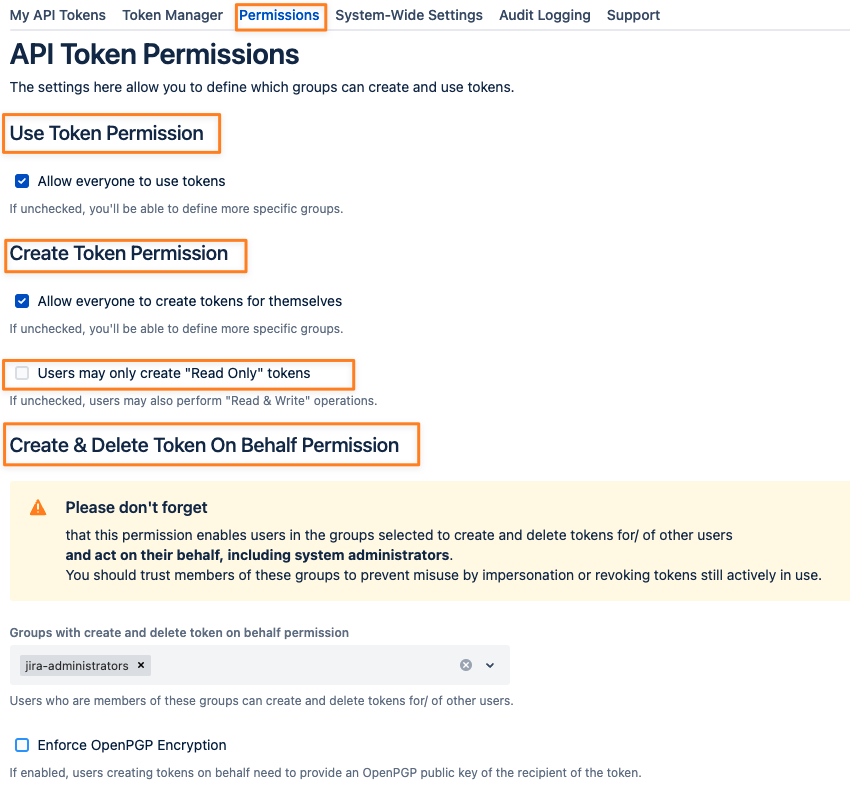
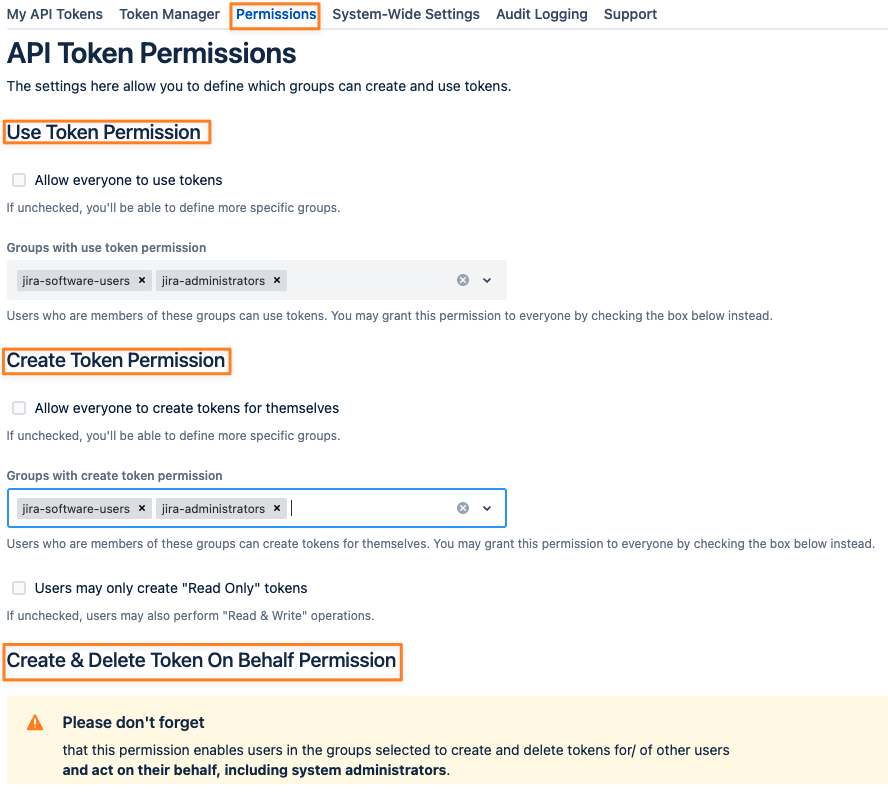
Administrators have control over the following permissions and can assign one or multiple groups to each:
Use Tokens
Create Tokens for yourself
Create & Delete Tokens for other users
Add Header/ Value Access Rules to tokens (since version 2.9.0)
These settings can be found in the permission tab:
Permissions
You can assign permissions to everyone or to groups of users. You can assign the Create & Delete Token On Behalf permission only to individual groups.

Token Scopes
Users with the "Create & Delete Token On Behalf Permission" can assign scopes to the tokens they create for other users.
For regular users with the "Create Token Permission", administrators can limit these tokens to always be Read-Only tokens by checking the corresponding box in the "Create Token Permission" section: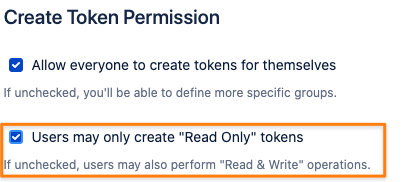
Read Only
Only the GET, HEAD, and OPTIONS HTTP request types are allowed; using a token on endpoints requiring any other type will result in a 403 Forbidden error.
There are two exceptions/ endpoints not affected by that:
The Jira Session endpoint, to which you can POST your username and token to retrieve a session cookie
Bitbucket only: Cloning, fetching, and pulling a repository with Git over HTTP(S), because Git technically sends a POST request for that
Read & Write
All HTTP request types are allowed.
Every type other than GET, HEAD and OPTIONS suggests that it is a write operation somehow, manipulating existing data in some way.
If your configuration wasn't migrated from an earlier version, where you might have restricted token creation and use to administrators only, the default settings allow all users to create and use their own tokens, and administrators to do that for other users.
OpenPGP Encryption
Since version 2, you can also enforce OpenPGP encryption of tokens created on behalf:
Please read here to see how users creating tokens for others can do that.
Header/ Value Access Rules Permission
Header/Value Access Rules allow or deny a token's requests depending on their request headers. Since version 2.9.0, administrators can switch this feature off or limit it to groups. If you do not use these rules, we recommend switching the feature off.
You can find the settings in the section Header/ Value Access Rules Permission at the end of the permission tab:
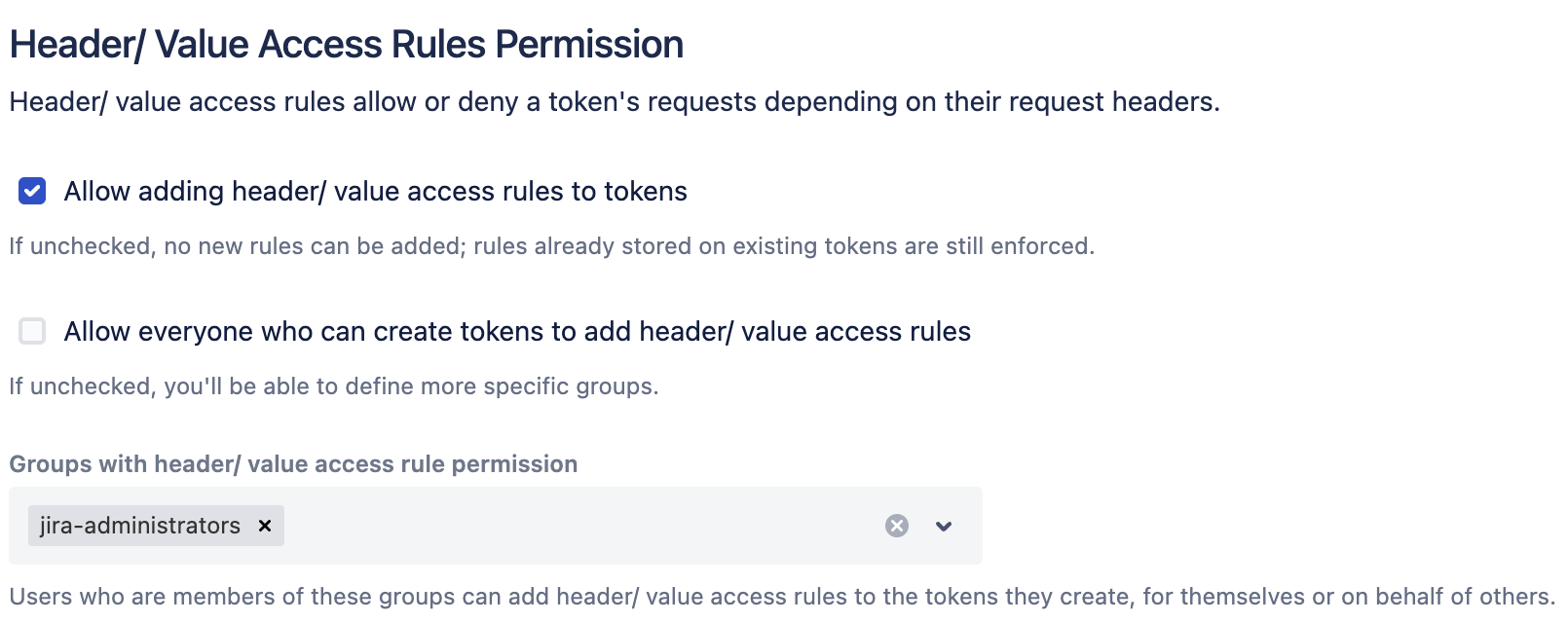
Allow adding header/ value access rules to tokens switches the feature on or off
If unchecked, nobody can add new rules: the rule section is hidden in the dialogs for creating tokens, and the REST API answers a request to create a token with rules with 403 Forbidden.
Rules that are already stored on existing tokens are still enforced, and the token details still show them.
Allow everyone who can create tokens to add header/ value access rules is shown when the feature is switched on.
If unchecked, you can select groups instead.
Groups with header/ value access rule permission: Members of these groups can add rules to the tokens they create, for themselves or on behalf of others.
Users always need the permission to create tokens, for themselves or on behalf of others, before they can add rules. If a token is created on behalf of another user, the permission of the user creating the token counts, not the token owner’s. Users with the Create & Delete Token On Behalf permission are no exception: without the rule permission, they cannot add rules to tokens they create for others.
The Test Rules function in these dialogs is only available to users who are allowed to add rules.
After an update from a version older than 2.9.0, the feature stays switched on for everyone who can create tokens, so nothing changes until you decide otherwise. New installations start with the feature switched off.
Warnings about Permission Settings
Depending on your changes, you might see some warnings and recommendations. These are of informational character only and won't prevent you from saving the settings.
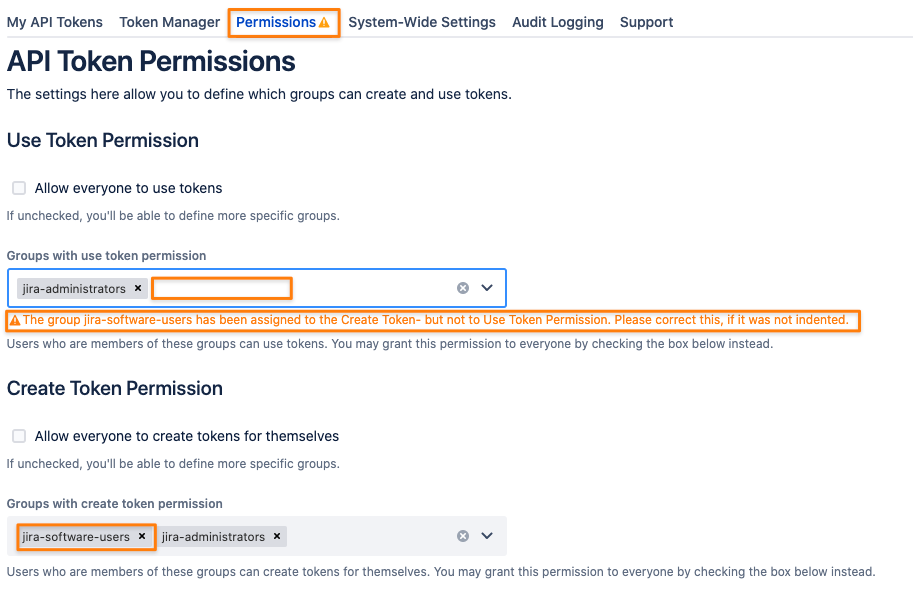
Since version 2.9.0, you will also see a warning if header/ value access rules are switched on, but nobody is allowed to add them, and if a group with the Create & Delete Token On Behalf permission is not allowed to add them.
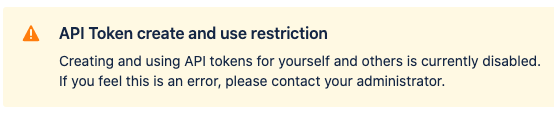
How Users See Permission Restrictions
If you remove permission for a user's group again, the API Token Authentication link will be removed from the users' top-right user profile picker
(see User Guide) and if they browse the page manually, users will see an info box instead:
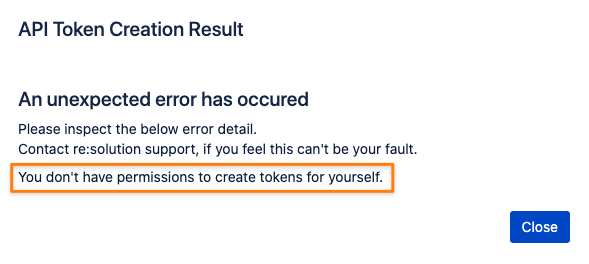
Trying to create a token from a page still open would result in a 403 Forbidden:
System-Wide Settings
The app contains a few System-Wide Settings, available for administrators only.
Settings here apply to all users accessing the REST API with Basic Authentication and any of the tokens they've created for their user in Jira or Confluence.
See below for more details on the options currently available.
Token Validity Time
An administrator can define a maximum token validity time, if required.
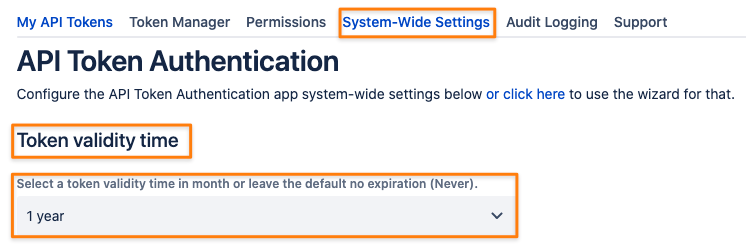
Options are:
Never
1 to 6 months
1 year
2 years
Users may override this within the boundaries you define as the system administrator.
Examples:
System-Wide Setting is 6 months - users can select 6 months only, nothing else
System-Wide Setting is 1 year - users can select 1 year or 6 months, nothing else
System-Wide Setting is 2 years - users can select 2 years, 1 year, or 6 months; nothing else
System-Wide Setting is Never - users can select any validity time from the select list
Since version 1.5.0, you can pass a custom ISO 8601 date-time string to set a specific expiration date time within the allowed boundaries. Read more about it here
Maximum Active Tokens per User
Administrators can define the maximum number of active tokens a user can create. An active token is one that has not expired yet.
A value of zero means a user can create an unlimited number of tokens.
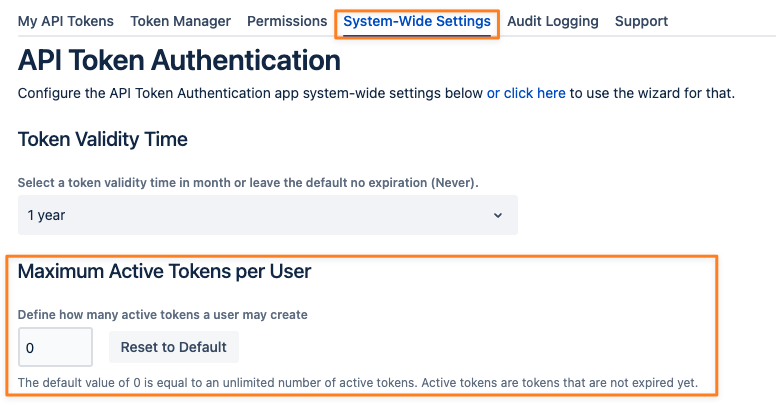
Exceeding the value and trying to create another token results in an error message: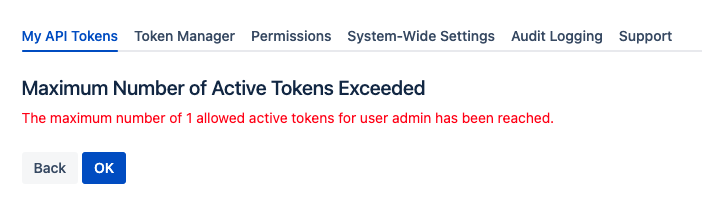
IP Address Restrictions
Admins may restrict REST API requests by IP addresses or ranges.
Here is what happens if the request comes from an IP address not allowed:
Authentication with API Token and Basic Authentication with User Password enabled (see chapter further below)
Error 401 (the request needs to be passed to the Atlassian Authenticator because it could potentially be a password, and since the token won't be one, a 401 is returned by the Atlassian Authenticator)
Authentication with API Token and Basic Authentication with User Password disabled (see chapter further below)
Error 401 with a message about more details in the log file, to not leak any sensitive data
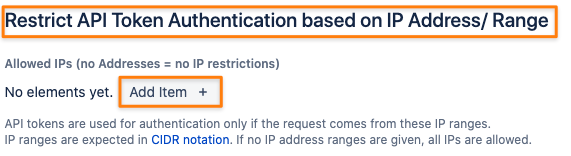
Enter one or more addresses or address ranges with the + button, or delete existing ones and save your settings.
Since version 2, you can also add tags to each of these. These might later help you to better identify restrictions.

 Requests from every IP address will be allowed if no addresses are provided.
IP Restrictions & Reverse Proxy
The above example will only work if you are not running Jira or Confluence behind a reverse proxy, as the client IP address is contained in a different header.
You can enable reverse proxy support by checking the corresponding box and adding one or more trusted reverse proxy IP addresses or ranges:
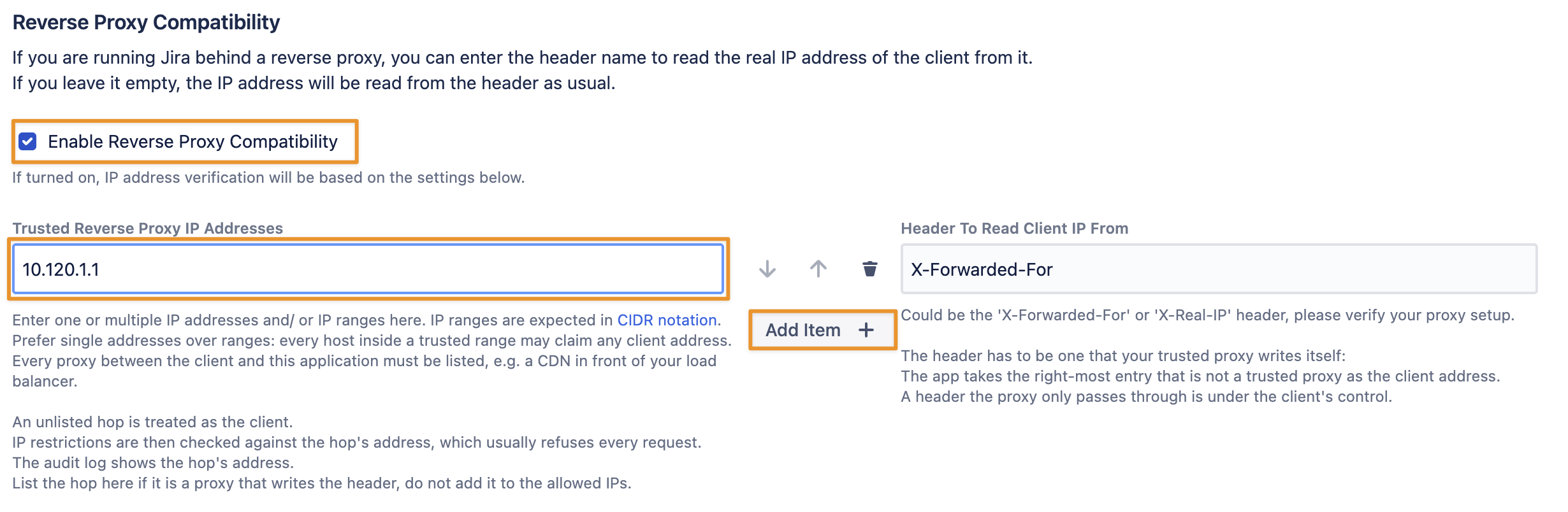
Since version 2.9.0, every proxy between the client and the application must be listed as trusted, for example, a CDN in front of your load balancer. A proxy that is not listed here is treated as the client. The IP restrictions are then checked against that proxy's address, which usually refuses every request. Prefer single addresses over ranges, because every host inside a trusted range may claim any client address.
You might also need to adjust the header name to read the client IP from, usually X-Forwarded-For or X-Real-IP:
The header must be one your trusted proxy writes itself. A header that the proxy only passes through is under the client's control.
If you need to find out why you can't access the REST API after applying IP restrictions, please read our troubleshooting guide: Troubleshooting IP range restriction issues
Disable Personal Access Tokens
This feature is only visible in Jira starting with version 8.14 and in Confluence starting with version 7.9, since these versions come with the Personal Access Token app. It is always visible in Bitbucket.
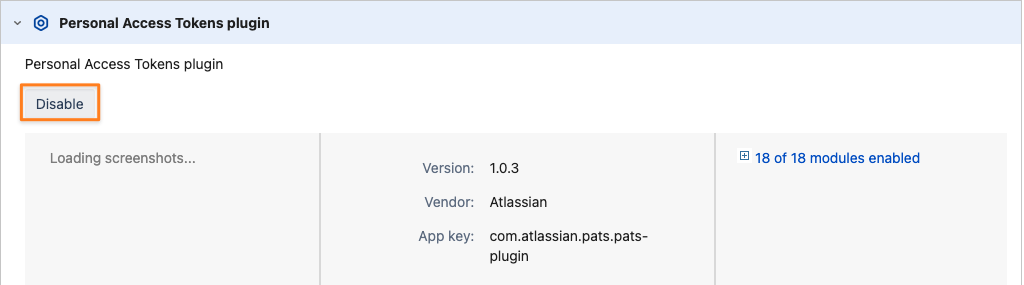
If you are running our app, you should disable it. It doesn't make sense to run both in parallel, mainly because the Atlassian app doesn't offer any token scope or other permission-based settings. Users could then create tokens with the Atlassian app and perform write operations, which our app's config doesn't allow.
You can do that with the button in the Jira/ Confluence/ Bitbucket Personal Access Tokens section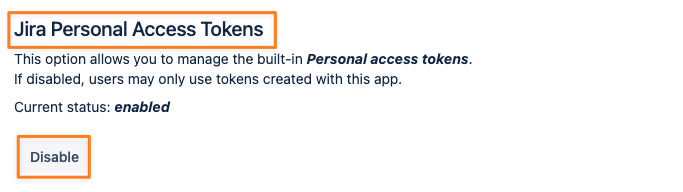
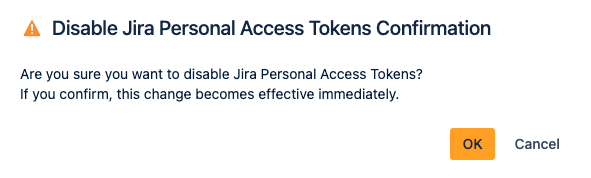
You can do this in the app management section (https://your-jira-bitbucket-or-confluence-url/plugins/servlet/upm/manage/system) as well.
If you've uninstalled our app and want to re-enable it, you can only do that from there, unless you didn't enable it before uninstalling ours.
Disable Authentication with Session Cookies
Enabling this option will invalidate any session after one request. While this can be more secure, it means you can't use sessions for subsequent requests, such as downloading attachments as described here.
You also won't be able to use sessions retrieved during authentication on the Jira session endpoint anymore. With that option, we provide the same as Atlassian already does in the Cloud.

Disable Basic Auth with Passwords
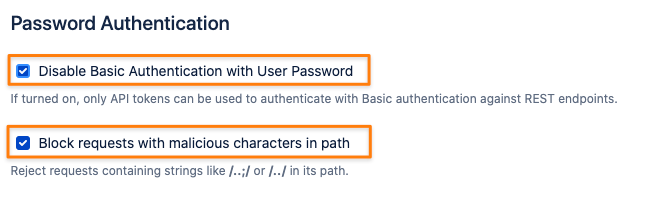
You may also want to disable password authentication for REST endpoints completely. If the provided token doesn't match any user's tokens, the server returns a 401 status code. With Basic Auth and user passwords enabled, Jira, Confluence, or Bitbucket will try to authenticate the user with a password.
You can also prevent path traversal in REST URLs to avoid users getting a session with a password and Basic Auth on a non-REST URL. This option is only available if Basic Authentication with User Password is checked.
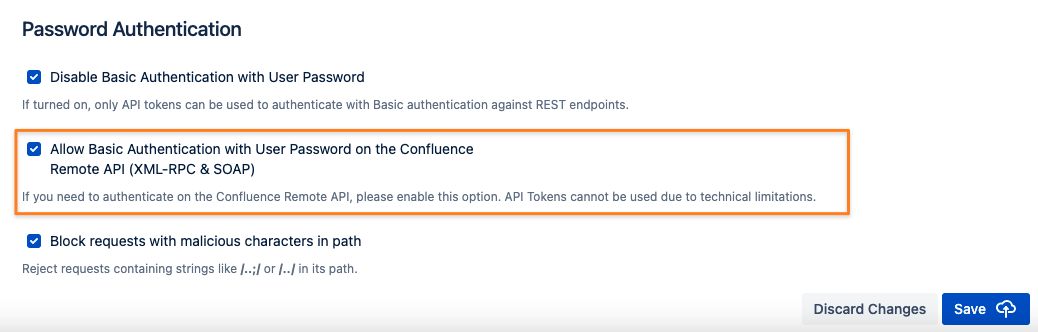
Confluence Only - Allow Basic Authentication With Passwords on the Confluence Remote API (XML-RPC & SOAP)
The Confluence Remote API can't be used with API Tokens, but it's sometimes required because not every method has been implemented in REST. Confluence admins can make an exception so that, even though Basic Authentication with passwords is disabled in general, it still works on the Remote API.
Endpoints/ Paths Allowing Basic Authentication

We recommend only enabling this setting if you need to use Basic Authentication with API Tokens on any other endpoint than those listed here. The page also contains more details about the default behavior.
Disable Bearer Authentication with other Authenticators

Enabling this option allows bearer authentication only with tokens created with this app. With this option enabled, you no longer need to disable Atlassian's Personal Access Token app to achieve the same. This was described on this page earlier. However, there may be other authenticator apps we don't know about. If you are using audit logging in Jira and Confluence and expecting that only bearer authentication failures with tokens from this app are recorded, enabling this option is your only chance.
Rate Limiting
Our rate limiting applies only to requests authenticated with API tokens. It works independently of the Atlassian built-in rate-limiting system and is intended to meet more specific requirements and use cases.
Please note that rate limits apply per node, not per cluster. So if users have used all their requests on one node, they could send requests again if they started a new session on a different node. Users can’t switch between cluster nodes, but it can still happen.
You might need to consider that when selecting the bucket lifetime and number of calls allowed.
We know many customers route REST requests to a single data center node, where you'd always have an exact rate limit.
Global Rate Limit Settings
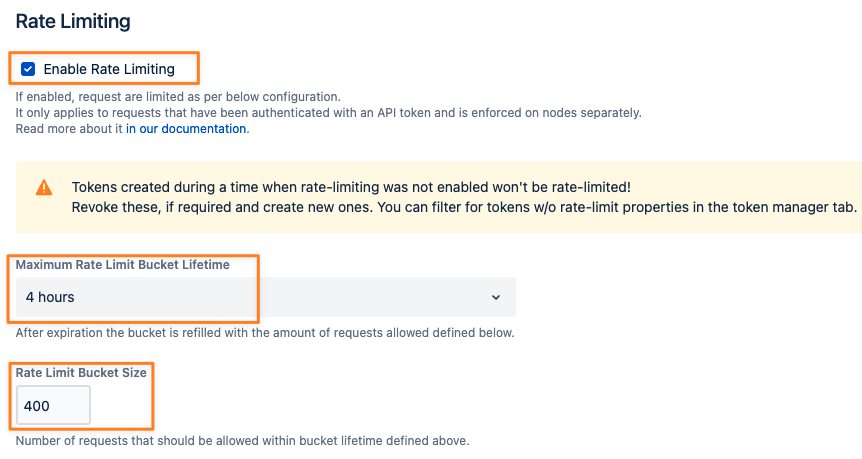
An administrator can enable rate-limiting in the system-wide settings tab.
The Maximum Rate Limit Bucket Lifetime defines how long requests with an API token are limited to the number of requests defined in the Rate Limit Bucket Size field below.
The values defined here are the global maximum. Trying to apply less strict rate-limiting properties to new tokens (i.e., via REST) will always default to the values defined here.
Creating Tokens For Other Users
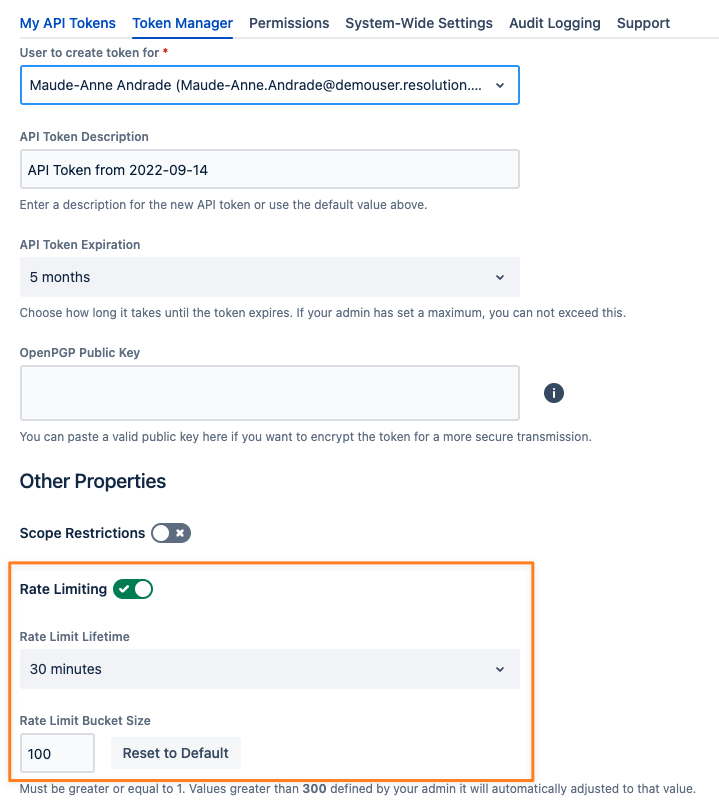
Users with the Create Token On Behalf Permission can apply different rate limits to individual tokens, as long as they don't exceed the globally defined values.
Example: While the global maximum is 300 requests within 1 hour, you can create a token with 100 requests within 30 minutes:
Rate Limit Default For Regular Users
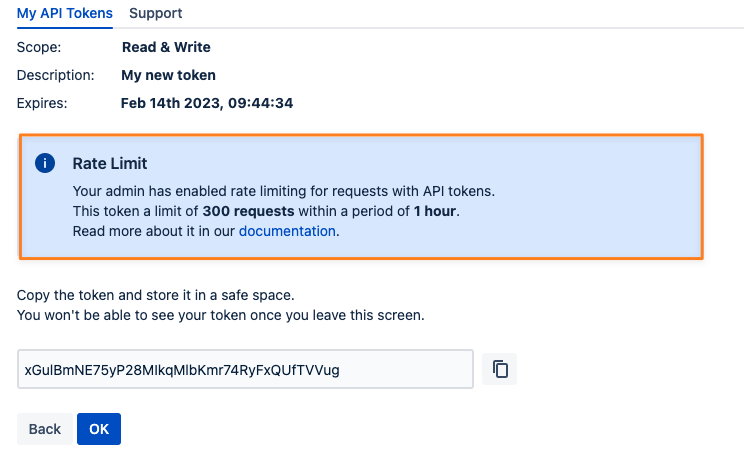
Users without the Create Token On Behalf Permission can see an info box on the screen with the new token:
Retrieving Rate Limit Details
Below is an example of how users can access the current rate limit status when executing requests.
At some point, users make their first request with a token
From that moment on, they are allowed to make 5 requests for the next 5 minutes
Details are contained in the response headers:

If the user exceeds that amount, they will receive error 429 (Too many requests) and some more information as JSON
- {
- "remainingMillisecondsUntilRateLimitReset": 283893,
- "requestBucketSize": 5,
- "currentRequestBucketSize": 0,
- "rateLimitMessage": "You've exceeded the rate limit for your token"
- }
The field remainingMillisecondsUntilRateLimitReset provides the amount of time in milliseconds until the request bucket is filled again and more requests can be executed
Logging
Please read here how rate-limited requests are being logged.
Cluster Node Configuration
Since version 2.2.0, system administrators can optionally select one or more nodes of a data center cluster that should be the only ones that allow authentication with our API tokens. All other nodes would ignore the request and delegate it to the default authentication handler.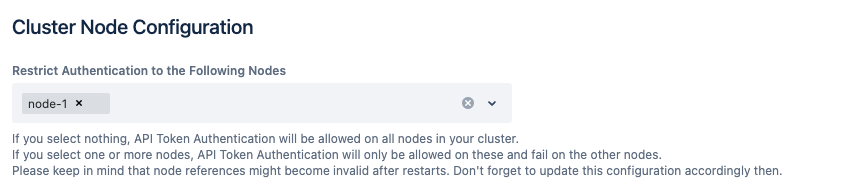
Please keep in mind that node references might become invalid after restarts. The node might also just not be available anymore in certain situations. The configuration will show an error in these cases, indicated in the system-wide settings tab and the configuration section:
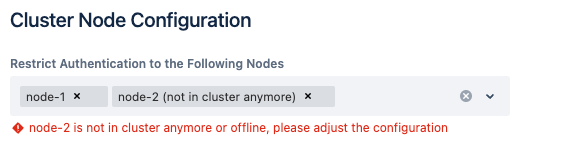
Don't forget to update the configuration accordingly then.
Time Between Updating Last Used Value
Since version 2.6.1, admins can control how often the Last Used value of a token is updated.

This can reduce database load, especially if tokens are used heavily in a short period. The default value is 0, which is the same as "Update the value with every successful authentication".

Pitfalls
When testing with passwords and API tokens, be aware that authentication failures can cause too many failed logins to be recorded.
Read more about it in our knowledge base.