

Jira Automation Flow: Notify Deactivated User
This page documents a Jira Automation flow that emails a deactivated user when somebody assigns a work item to them. The flow fills the notification gap that opens up after a user's product-access groups have been removed by the User Management for Cloud deactivation workflow.
This flow sits at the end of the deactivation workflow described in Deactivating and Reactivating User. It assumes the stable deactivated_users group exists and is populated by the UCM Automated Task (or your IdP).
Purpose
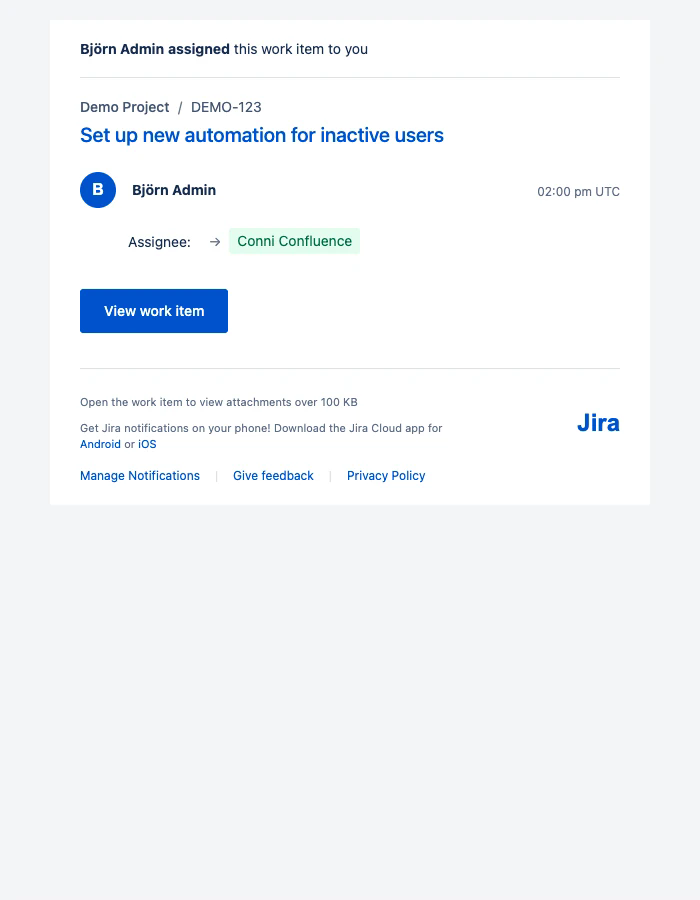
When a Jira admin removes a user's license seat, Atlassian's built-in assignment notifications stop reaching that user. This flow fills the gap. Every time a work item is assigned to a user who is still a member of the stable deactivated_users group, Jira Automation sends a hand-styled HTML email that looks like a native Jira assignment notification - with a View work item button, an Assignee field change pill, and a footer. The deactivated user can ask for license restoration if they still need access.
Flow at a glance
Setting | Value |
|---|---|
Scope | Global |
Trigger | Work item assigned (no configuration) |
Condition | Assignee is in group |
Action | Send customized email (HTML content) |
Actor | User who triggered the event |
Edit permission | All admins |
How to recreate this flow
Build the flow in your own Jira site so the same notification behaviour applies to any user you deactivate via UCM. Each step matches a section of the Jira Automation builder.
Sign in to Jira as a site or org admin.
Open Settings > System > Global automation (path:
/jira/settings/automation).Click Create flow (labelled Create rule on some Atlassian builds).
Trigger: pick Work item assigned. Save. The trigger needs no configuration.
Add a User condition with:
User: Assignee
Check to perform: is in group or team
Criteria: select the stable group you use for deactivated users (e.g.
deactivated_users). This group must exist and must be populated by the UCM Automated Task that runs at deactivation time, or by your IdP.
Add a Send email action (also labelled Send customized email). On the Settings tab:
Email name: anything internal, for example
Assignee notification for deactivated usersRecipient(s): Assignee (user field). Tick Send messages separately to each recipient.
From: leave on the default
jira@<instance>.atlassian.netSubject:
[JIRA] {{initiator.displayName}} assigned {{issue.key}} to you
Switch to the Content tab and set Content format = HTML. Paste the HTML template from the next section. Leave Convert line breaks to HTML line breaks unchecked.
Open Flow details and confirm:
Scope: Global (or pick a project / multi-project scope if you only want it for some projects).
Owner: a real human (failures send mail here).
Actor: User who triggered the event.
Who can edit this flow: All admins.
Click Save, then Turn on flow.
Smoke test: assign a Jira issue to a user in
deactivated_usersand check the rule's Audit log tab for a Success entry.
HTML email template
Paste this template into the Send Email action's Content field with Content format = HTML. The template is self-contained: no external image assets are required. The Jira logo renders as styled text and the avatar is the assigner's first initial in a coloured square.
- <!DOCTYPE html>
- <html>
- <body style="margin:0;padding:0;background-color:#f4f5f7;">
- <table width="100%" cellpadding="0" cellspacing="0" border="0" style="background-color:#f4f5f7;padding:20px 0;">
- <tr>
- <td align="center">
- <table width="600" cellpadding="0" cellspacing="0" border="0" style="background-color:#ffffff;font-family:-apple-system, BlinkMacSystemFont, 'Segoe UI', Roboto, 'Helvetica Neue', sans-serif;">
- <!-- Header -->
- <tr>
- <td style="padding:20px 30px 10px 30px;font-size:14px;color:#172b4d;">
- <strong>{{initiator.displayName}}</strong> <b>assigned</b> this work item to you
- </td>
- </tr>
- <!-- Divider -->
- <tr>
- <td style="padding:0 30px;">
- <hr style="border:none;border-top:1px solid #dfe1e6;margin:10px 0;">
- </td>
- </tr>
- <!-- Project and Issue Key -->
- <tr>
- <td style="padding:10px 30px;">
- <div style="font-size:14px;color:#44546F;margin-bottom:8px;">
- <a href="{{issue.baseUrl}}/jira/software/projects/{{triggerIssue.project.key}}/{{triggerIssue.project.id}}" style="color:#44546F;text-decoration:none;font-weight:500;">
- {{issue.project.name}}
- </a>
- <span style="color:#6b778c;margin:0 5px;">/</span>
- <a href="{{issue.url}}" style="color:#44546F;text-decoration:none;">
- {{issue.key}}
- </a>
- </div>
- <!-- Issue Title -->
- <div style="margin-top:8px;">
- <a href="{{issue.url}}" style="color:#0052CC;text-decoration:none;font-size:20px;font-weight:500;line-height:24px;display:block;">
- {{issue.summary}}
- </a>
- </div>
- </td>
- </tr>
- <!-- Actor Info -->
- <tr>
- <td style="padding:15px 30px;">
- <table cellpadding="0" cellspacing="0" border="0" width="100%">
- <tr>
- <!-- Avatar using nested table for better compatibility -->
- <td style="width:40px;padding-right:12px;vertical-align:middle;">
- <table cellpadding="0" cellspacing="0" border="0" width="36" height="36" style="background-color:#0052CC;border-radius:18px;mso-border-radius:18px;">
- <tr>
- <td align="center" valign="middle" style="color:#ffffff;font-family:Arial, sans-serif;font-weight:bold;font-size:16px;line-height:36px;mso-line-height-rule:exactly;">
- {{initiator.displayName.substring(0,1).toUpperCase()}}
- </td>
- </tr>
- </table>
- </td>
- <!-- Name -->
- <td style="vertical-align:middle;">
- <strong style="font-size:14px;color:#172b4d;line-height:20px;">{{initiator.displayName}}</strong>
- </td>
- <!-- Time -->
- <td align="right" style="vertical-align:middle;padding-left:10px;">
- <span style="color:#5e6c84;font-size:12px;white-space:nowrap;">{{now.format("hh:mm a z")}}</span>
- </td>
- </tr>
- </table>
- </td>
- </tr>
- <!-- Field Changes -->
- <tr>
- <td style="padding:5px 30px 15px 30px;">
- <table cellpadding="0" cellspacing="0" border="0" style="margin-left:48px;">
- <tr>
- <td style="padding-right:10px;white-space:nowrap;font-size:14px;color:#172b4d;vertical-align:middle;">
- Assignee:
- </td>
- <td style="font-size:14px;vertical-align:middle;">
- <span style="color:#6b778c;margin:0 8px;">→</span>
- </td>
- <td style="vertical-align:middle;">
- <table cellpadding="0" cellspacing="0" border="0">
- <tr>
- <td style="padding:4px 8px;background-color:#e3fcef;color:#006644;border-radius:3px;font-size:14px;line-height:18px;">
- {{assignee.displayName}}
- </td>
- </tr>
- </table>
- </td>
- </tr>
- </table>
- </td>
- </tr>
- <!-- CTA Button -->
- <tr>
- <td style="padding:20px 30px;">
- <table cellpadding="0" cellspacing="0" border="0">
- <tr>
- <td align="center" style="background-color:#0052CC;border-radius:3px;mso-border-radius:3px;">
- <a href="{{issue.baseUrl}}/browse/{{issue.key}}" style="display:inline-block;padding:12px 24px;color:#ffffff;text-decoration:none;font-size:14px;font-weight:500;line-height:20px;mso-line-height-rule:exactly;">
- View work item
- </a>
- </td>
- </tr>
- </table>
- </td>
- </tr>
- <!-- Divider -->
- <tr>
- <td style="padding:15px 30px 10px 30px;">
- <hr style="border:none;border-top:1px solid #dfe1e6;margin:0;">
- </td>
- </tr>
- <!-- Footer -->
- <tr>
- <td style="padding:15px 30px 20px 30px;">
- <table width="100%" cellpadding="0" cellspacing="0" border="0">
- <tr>
- <td style="vertical-align:top;width:75%;">
- <p style="margin:0 0 10px 0;font-size:11px;color:#5e6c84;line-height:16px;">
- Open the work item to view attachments over 100 KB
- </p>
- <p style="margin:0;font-size:11px;color:#5e6c84;line-height:16px;">
- Get Jira notifications on your phone! Download the Jira Cloud app for
- <a href="https://play.google.com/store/apps/details?id=com.atlassian.android.jira.core&referrer=utm_source%3DNotificationLink%26utm_medium%3DEmail" style="color:#0052CC;text-decoration:none;">Android</a>
- or
- <a href="https://itunes.apple.com/app/apple-store/id1006972087?pt=696495&ct=EmailNotificationLink&mt=8" style="color:#0052CC;text-decoration:none;">iOS</a>
- </p>
- </td>
- <td align="right" style="vertical-align:middle;width:25%;padding-left:20px;">
- <!-- Text-based Jira Logo -->
- <span style="color:#0052CC;font-size:24px;font-weight:bold;white-space:nowrap;font-family:Arial, sans-serif;">Jira</span>
- </td>
- </tr>
- </table>
- <!-- Footer Links -->
- <table cellpadding="0" cellspacing="0" border="0" style="margin-top:15px;">
- <tr>
- <td style="padding-right:15px;font-size:12px;line-height:18px;">
- <a href="{{baseUrl}}/jira/settings/personal/notifications?emailPreferences=true#emailpreferences" style="color:#0052CC;text-decoration:none;">
- Manage Notifications
- </a>
- </td>
- <td style="padding-right:15px;font-size:12px;line-height:18px;color:#dfe1e6;">
- |
- </td>
- <td style="padding-right:15px;font-size:12px;line-height:18px;">
- <a href="https://surveys.atlassian.com/jfe/form/SV_9X3zi1X4q1gKsqF" style="color:#0052CC;text-decoration:none;">
- Give feedback
- </a>
- </td>
- <td style="padding-right:15px;font-size:12px;line-height:18px;color:#dfe1e6;">
- |
- </td>
- <td style="font-size:12px;line-height:18px;">
- <a href="https://www.atlassian.com/legal/privacy-policy" style="color:#0052CC;text-decoration:none;">
- Privacy Policy
- </a>
- </td>
- </tr>
- </table>
- </td>
- </tr>
- </table>
- </td>
- </tr>
- </table>
- </body>
- </html>
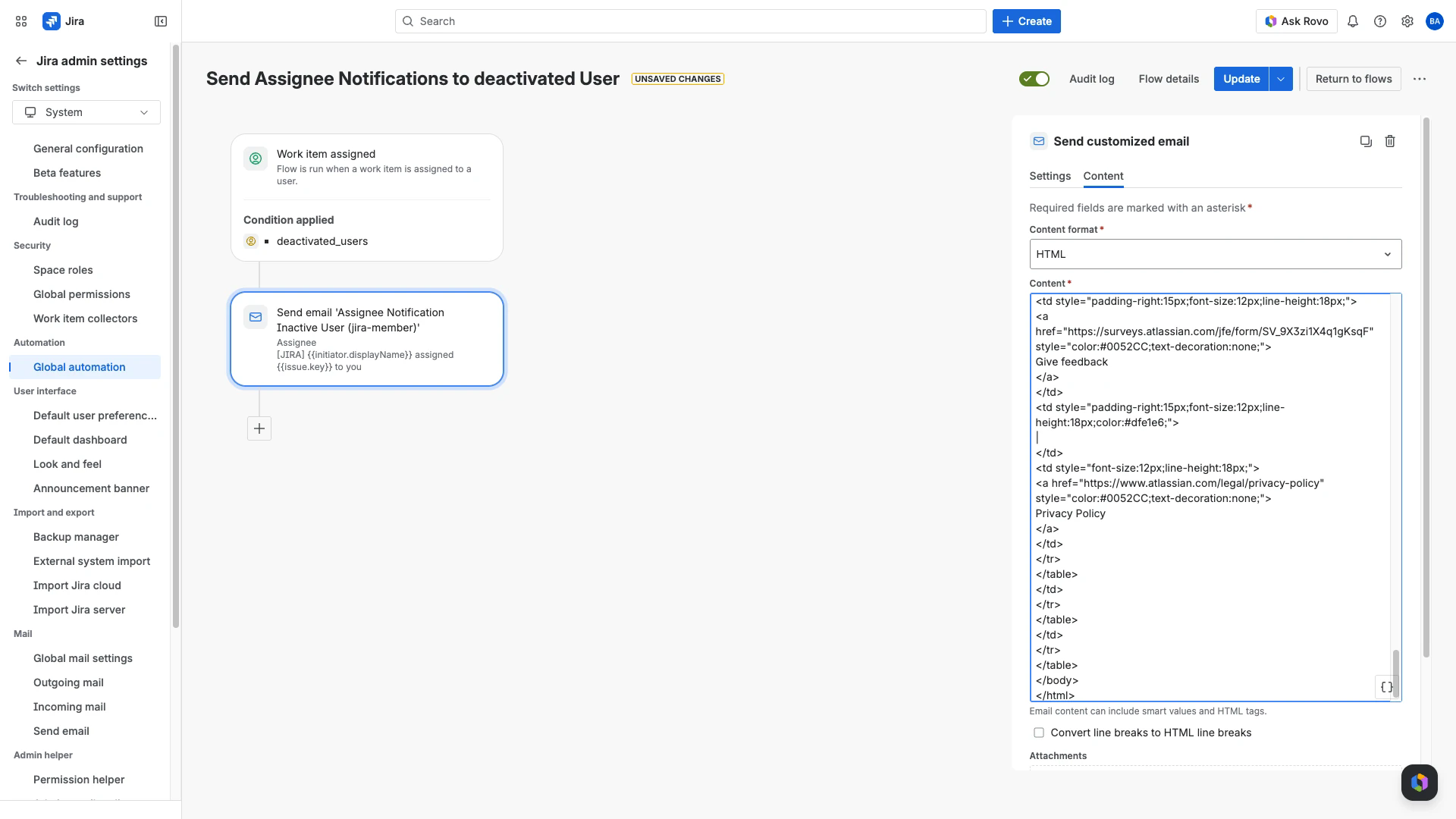
Configured content view
This is the Content tab of the Send Email action after applying the template above. Smart values render as text in the editor; Jira resolves them at send time.
Email preview
This is how the rendered email looks once Jira resolves the smart values. The sample below uses placeholder values such as DEMO-123 and Bjorn Admin; in production Jira substitutes the real assigner, issue, and project at send time.
Smart values used
Smart value | Purpose | Example |
|---|---|---|
| Name of the user who triggered the rule (the actual assigner). | Bjorn Admin |
| First letter of the assigner's name, upper-cased - used as the text avatar. | B |
| Issue key, in subject and as link text. | DEMO-123 |
| Issue title, large heading link. | Fix login bug on the marketing site |
| Project display name shown in the breadcrumb. | Test Space Conni Group |
| Project key, used in the project breadcrumb URL. | TSCG |
| Numeric project id, used in the project breadcrumb URL. | 10042 |
| Direct URL to the work item (used by breadcrumb and title link). |
|
| Instance base URL, used in the project breadcrumb and the View work item button. Keeps the template portable across sites. |
|
| Same instance base URL, used for the Manage Notifications link. |
|
| New assignee name shown in the green field-change pill. | Conni Confluence |
| Time the email is sent. | 11:51 am UTC |
Caveats and limitations
Mentions in Jira are not affected. This flow covers assignment notifications only. Jira delivers mention notifications natively, including to unlicensed users who remain in a stable group, so no additional automation is needed for mentions.
Depends on a stable group. The condition matches the literal group name deactivated_users. If your UCM Automated Task uses a different group name (for example inactive-jira-users or inactive-confluence-users), edit the condition to match. See Deactivating and Reactivating User for the stable-group concept.
Recipient has no license. Because the assignee was just deactivated, they cannot click into the issue without first regaining product access. The View work item button still works in the sense that it sends them to the Jira login page, which surfaces the Request access flow if your App access settings approved-domain configuration is in place.
Related Pages
Deactivating and Reactivating User - the workflow that puts users into the
deactivated_usersgroup in the first place.