
Teams
The Teams view provides visibility into the Atlassian teams defined in your organization. You can browse teams, see their membership type and state, and view individual team members with their roles.
Teams can only be viewed for one site at a time. Select a specific site from the site selector at the top of the page before accessing Teams.
Teams Overview
The Teams tab displays all teams for the selected site in a table with the following columns:
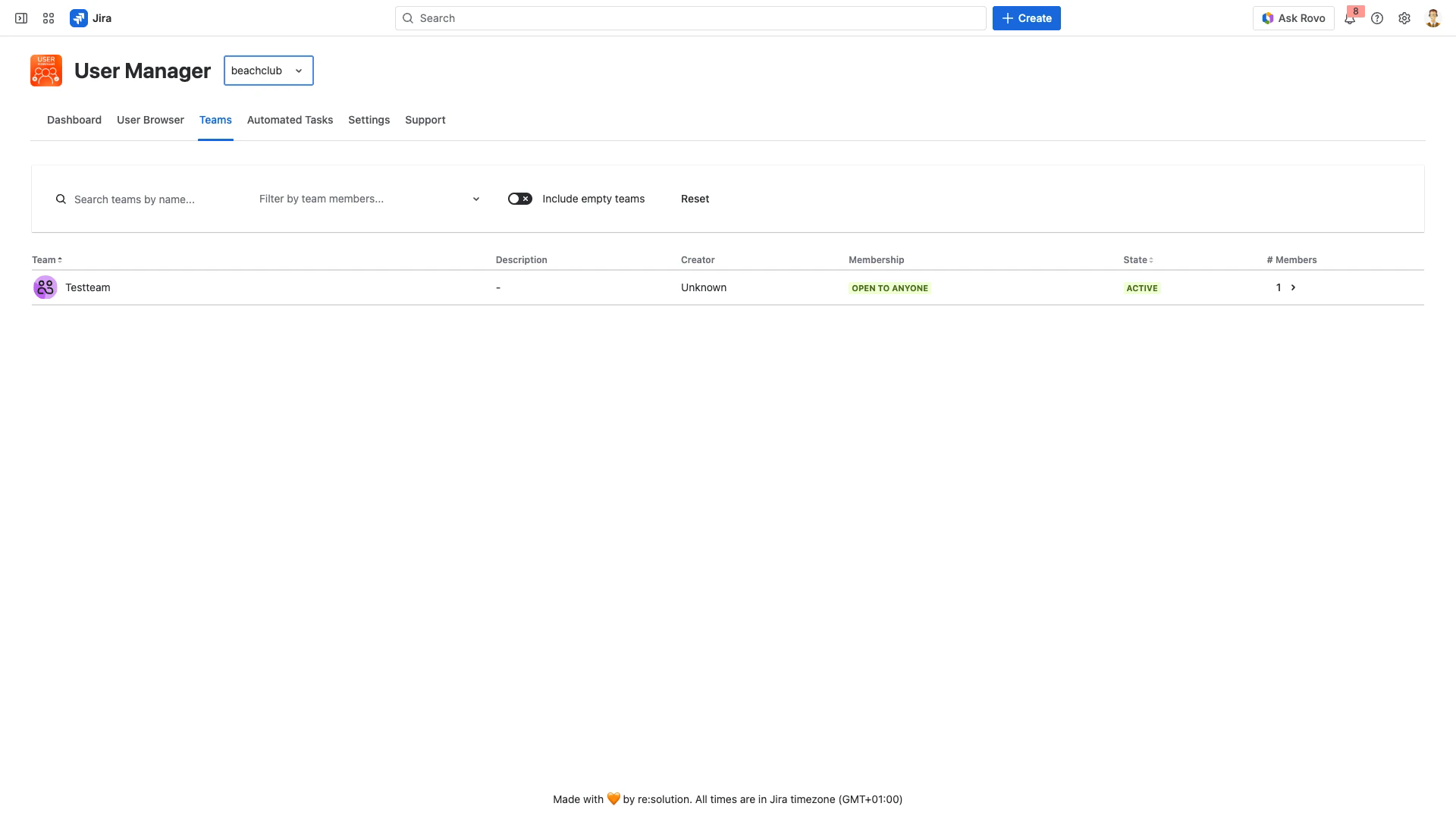
Team - The team name. Click to open the team's profile page in Atlassian's team directory.
Description - The team's description, if set.
Creator - The user who created the team.
Membership - How users can join the team (e.g., "Open to Anyone", "Invite Only").
State - Whether the team is Active or Inactive.
# Members - The number of members. Click the count to view the full member list.
Searching and Filtering Teams
Use the controls above the table to find specific teams:
Search by name - Type in the search box to filter teams by name.
Filter by team members - Select one or more users to show only teams that include those members.
Include empty teams - Toggle this option to show or hide teams with no members.
Reset - Clear all search and filter criteria.
Viewing Team Members
Click the member count in the # Members column to open a dialog showing all team members.
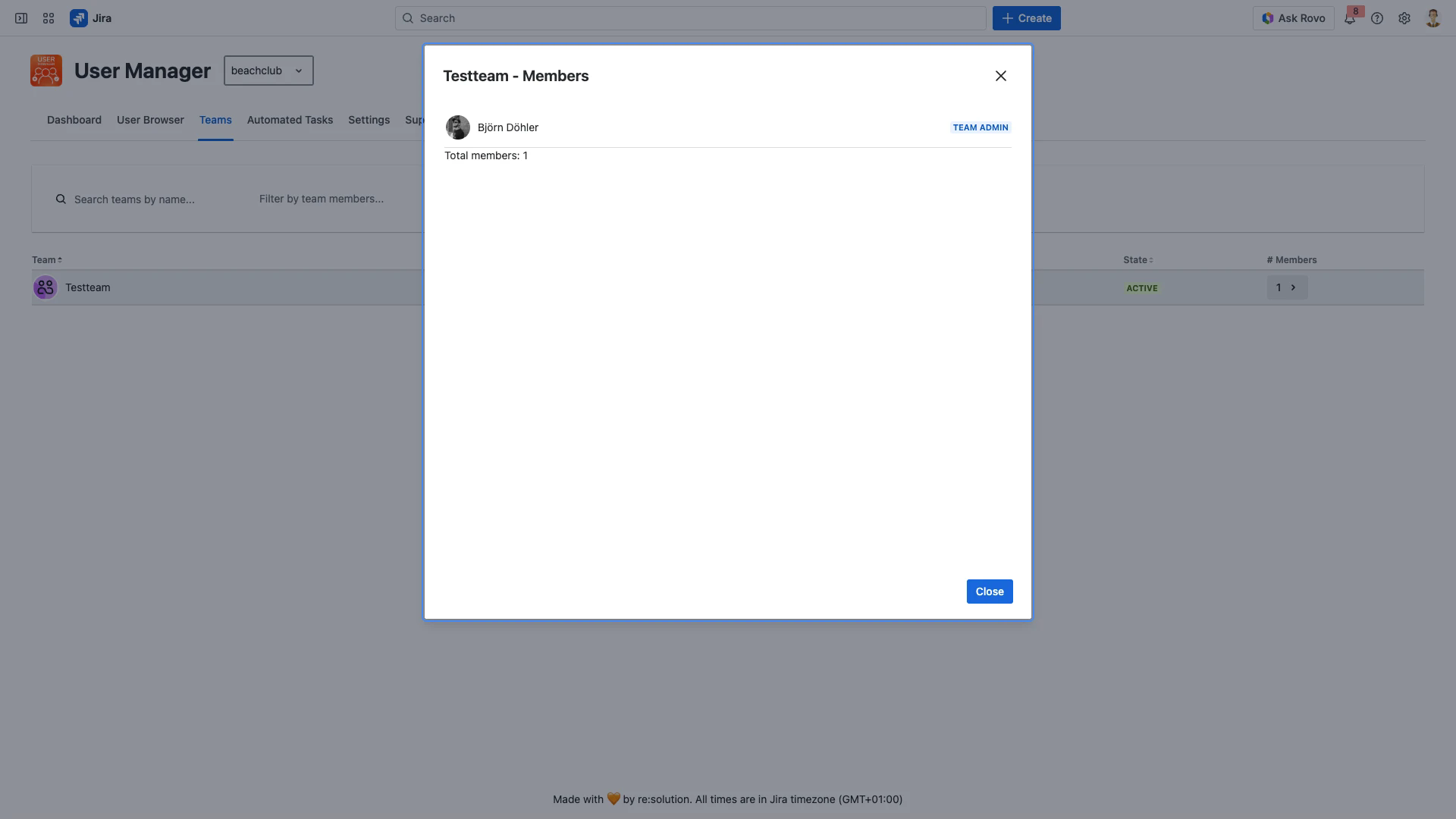
The members dialog displays each member with their avatar, name, and team role (e.g., TEAM ADMIN). The total member count is shown at the bottom of the list.
Related Pages
User Browser Overview - Browse and manage individual users
User Roles & Permissions - Understanding user roles in Atlassian Cloud
Multi-Site Views - Working with users across multiple sites
Organizations and Sites - How organizations and sites are structured