
User Manager Rovo Agent
The User Manager Rovo agent gives Atlassian admins a natural-language way to query users, license health, and audit history from Rovo chat - and to drive Atlassian Automation rules through the Use agent action. It is read-only - every action is a query, none of them change data - and every response includes a deep link into the User Manager UI so you can move from the chat answer into action with one click.
Finding the agent
Open Rovo chat (top bar of any Jira or Confluence page).
Click Change agent or Browse Agents.
Search for User Manager and select it.
The agent appears for users who can access User Manager (Org Admins, Product Admins or User Access Admins who have been granted App Access). If you do not see it, confirm the app is installed and that your account has access in Settings -> App Access Control.
What the agent can do
Five capability areas (returned when you send "What can you help me with?"):
User lookups & access checks - Find specific users by name or email, check products and roles.
License health & optimization - Active vs inactive seats by product.
Inactive user reports - Users not signed in for a given period.
Audit log queries - Recent user-management operations, or per-
processIddetail.Filtered user searches - By email domain, groups, sites, or roles.
Behind the scenes the agent calls one of three read-only actions:
search-users
Unified user query with the full set of User Browser filters. Supported criteria:
Filter | Example |
|---|---|
Name or email substring | "users matching @acme.com" |
Email domain | "all @contractor.acme.com users" |
Inactivity threshold | "have not used Jira Service Management in 90 days" |
App types | "Confluence users", "JSM users" ( |
Roles | "all org admins", "product admins on the marketing site" |
Groups | "members of |
Sites | "users on the EU site" |
User statuses | "all suspended users", "all not-invited users" |
Human-friendly inputs are accepted everywhere. Misspelled group or site names return a "did you mean?" suggestion instead of an empty result.
Every response includes a View in User Manager deep link that opens the User Browser with the filters from your prompt already applied.
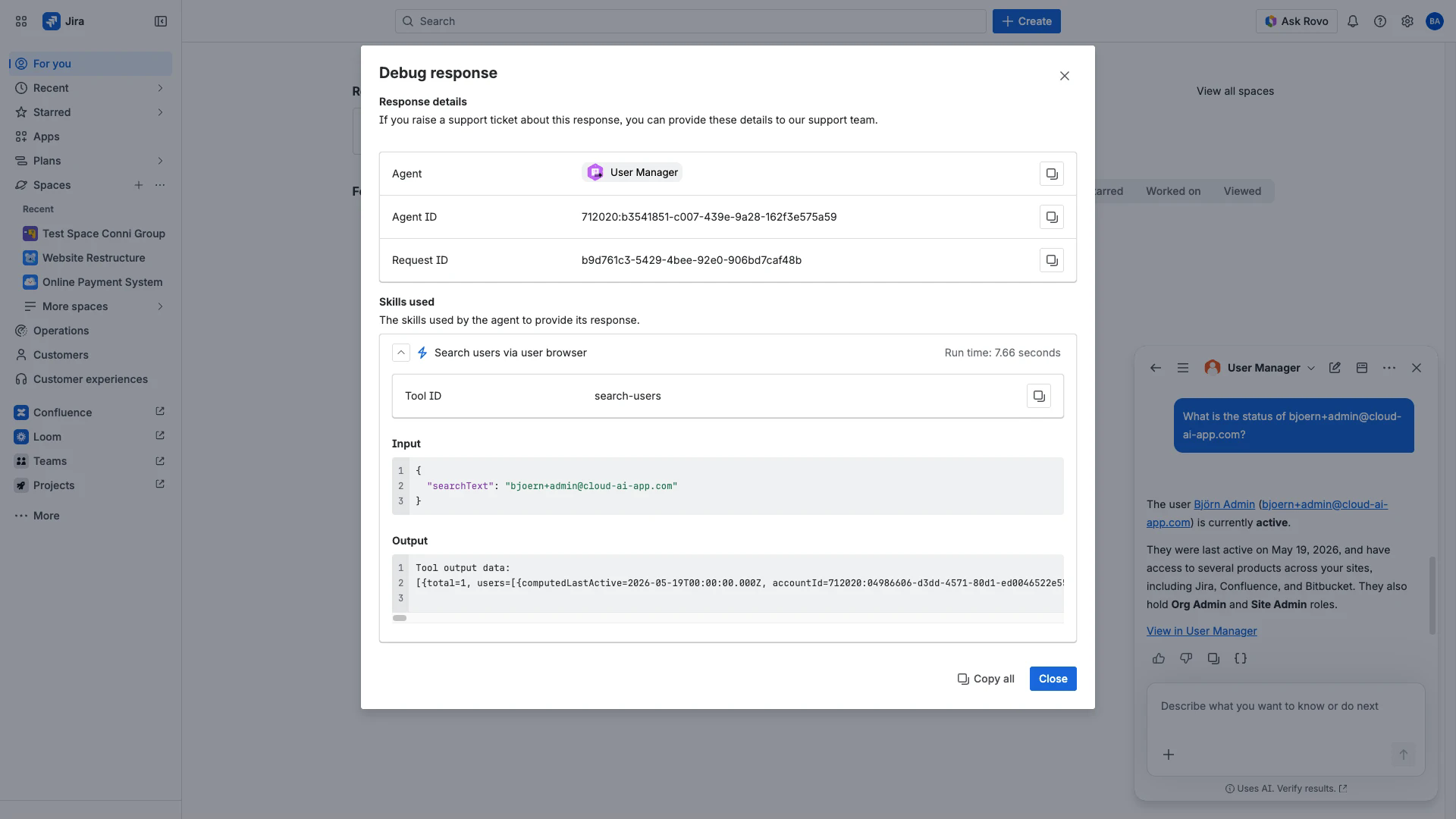
Example Debug panel - showing the resolved search-users Tool ID, input, and output:
Tip: Usernames in the response may link to the Atlassian people profile (/people/...). Use the View in User Manager link at the bottom of each response to land in the User Browser instead, or instruct the agent to "make the link to the user the link to the userbrowser" - that wording is used by the Recipe 1 flow on the combining webhooks and Rovo page.
license-health
Per-product, per-site seat counts:
licensedUserCount- users assigned a seatactiveUserCount- users who have signed in inside your data retention windowinactiveUserCount- licensed but not active
Optional site filter and inactivityInDays threshold. Products with zero users on a site are hidden automatically so the summary stays readable.
search-task-results
Two modes:
Overview (input
daysBack): the most recent automated task and bulk operation runs, with run timestamp, trigger, action type, andprocessId.Detail (input
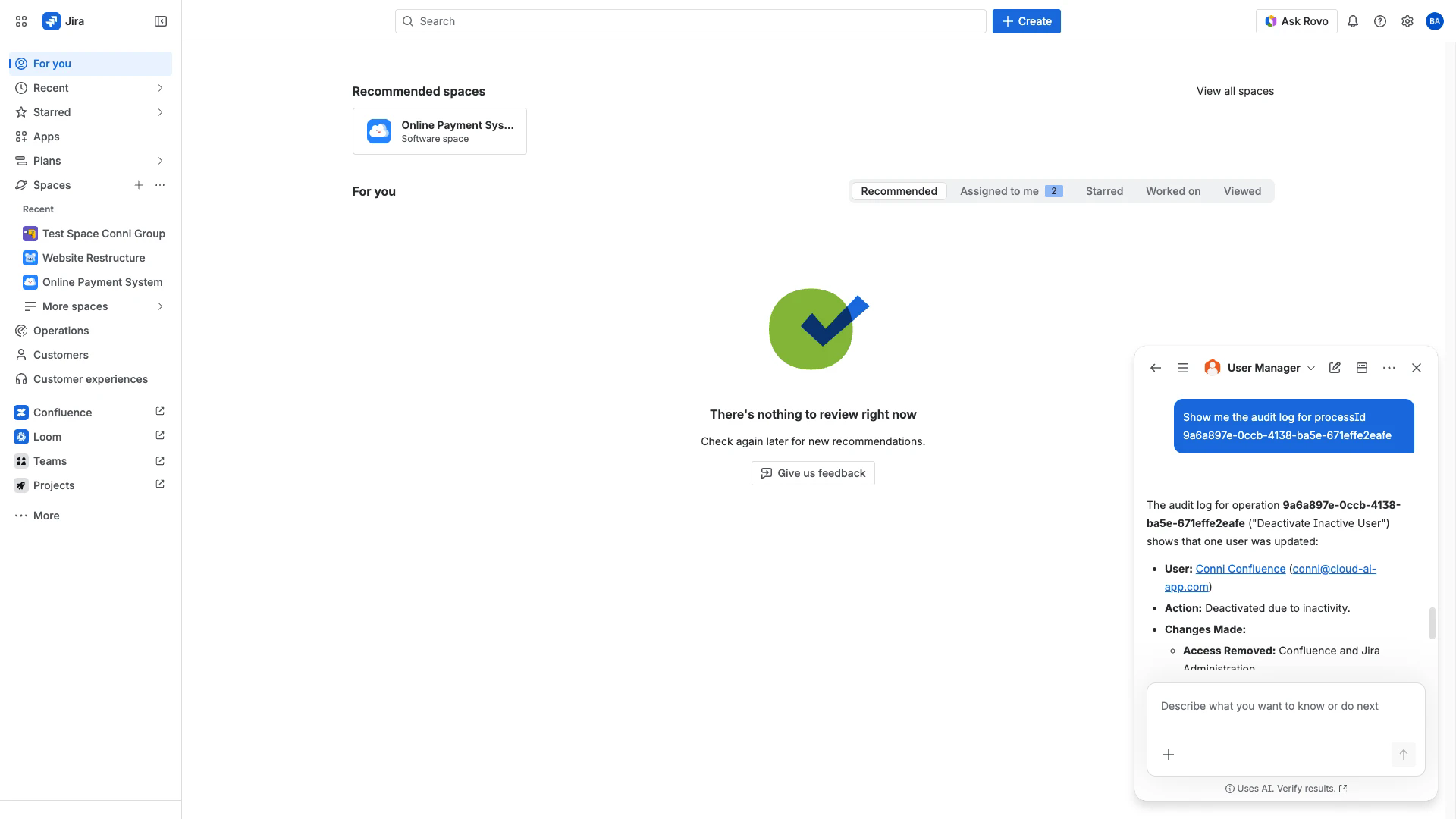
processId): per-user changes for that specific run. User IDs are resolved to names, group IDs to group names, and app types to display names.
Pair this with the processId from a webhook payload to investigate task results without opening the UI. When given a specific processId, the agent returns a resolved per-user breakdown:
Example prompts
Ask | What you get back |
|---|---|
"What can you help me with?" | Capability overview, five areas. |
"What is the status of jane@company.com?" | Profile: sites, products, roles, last active, deep link. |
"Show me Confluence users inactive for 60 days." | Filtered list + deep link to the matching User Browser view. |
"How many JSM seats do we have available?" | Per-site licensed / active / inactive split. |
"What user management actions happened this week?" | Audit log overview. |
"Show me the audit log for processId 007b5c6c-0078-4cf2-a9d9-3f8c02f74205." | Per-user detail for that task run. |
Tip: When the agent returns a list of users, ask a follow-up like "Why are they listed as inactive?" - it uses the same context and explains the inactivity threshold and which products counted.
Verifying the answer
Every Rovo response has a Debug response action under the message (the kebab menu / icons next to "Good response" / "Copy"). Open it, then click Expand/Collapse under Skills used to see:
the skill name (
Search users via user browser,Get license health summary, orSearch task results)the resolved Tool ID (
search-users,license-health,search-task-results)the Input JSON (after alias and "did you mean?" resolution)
the Output payload
Capability-only replies (for example "What can you help me with?") show Agent, Agent ID, and Request ID only - no skill is invoked.
Permissions and scope
The agent uses the same access model as the User Manager UI. Admins see what they would see in the UI; users without App Access do not see the agent.
The three read actions are exposed under the
read:chat:rovoscope, so customer-built Rovo agents and Atlassian Automation rules (Use agent action) can call them, not only the bundled User Manager chat agent.No data leaves your tenant. All queries run against the User Manager Forge SQL mirror.
What the agent will not do
The agent is read-only. To bulk-suspend, add to groups, remove app access, or create automated tasks, use the User Manager UI. Click the deep link in any agent response to land on the right view with filters already applied.
Calling the agent from Atlassian Automation
In a rule, add a Use agent action and select User Manager (Jira) (select User Manager (Jira) from the agent dropdown). Pass your prompt with smart values - the agent's response is available as {{agentResponse}} in later steps. See Combining Webhooks and Rovo for Audit-Aware Automation for an end-to-end working flow.
Combining with webhooks
Automated task webhooks include a processId in the payload. Hand that processId to the Rovo agent's search-task-results action to get a human-readable summary of which users were affected by that specific run - including any partial failures, which are not visible in the payload itself.
See Combining Webhooks and Rovo for Audit-Aware Automation for end-to-end recipes.
Related Pages
Combining Webhooks and Rovo for Audit-Aware Automation - End-to-end recipes
Webhook Payload Reference - Source of the
processIdUser Browser - Where every deep link lands