Okta Guide
Goal
After completing this guide, your Amazon load balancer will work with the AWS ALB & Amazon Cognito Authentication app.
Prerequisites
This guide assumes the following:
You have setup a Jira or Confluence instance on AWS with an ALB or ELB load balancer
You have setup either Amazon Cognito or OIDC with your load balancer
An Okta subscription
A (trial) subscription for the AWS ALB Auth app
Admin access to your Atlassian product and AWS
Guide
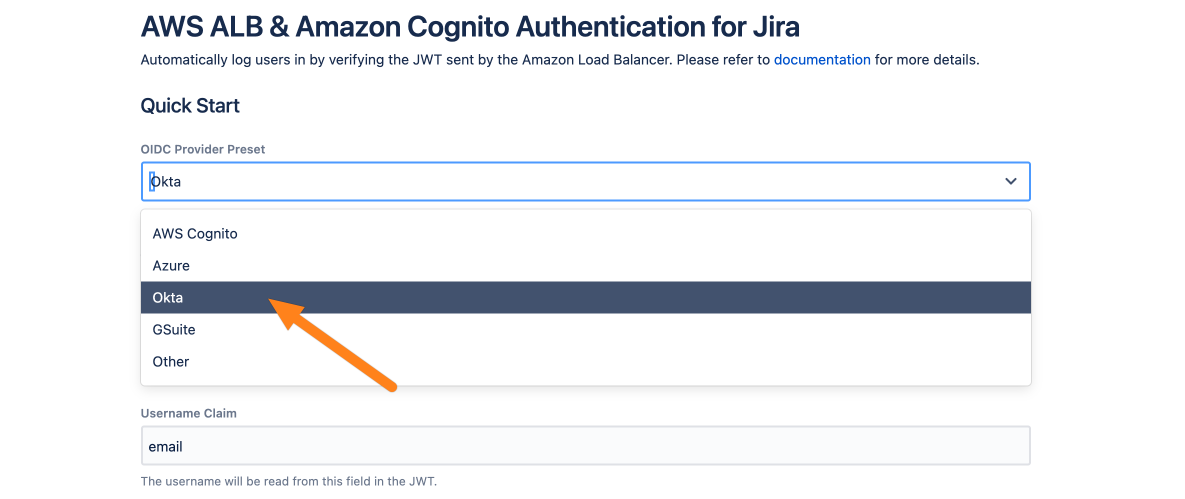
Go to the AWS ALB & Amazon Cognito Authentication configuration and choose the Okta preset.
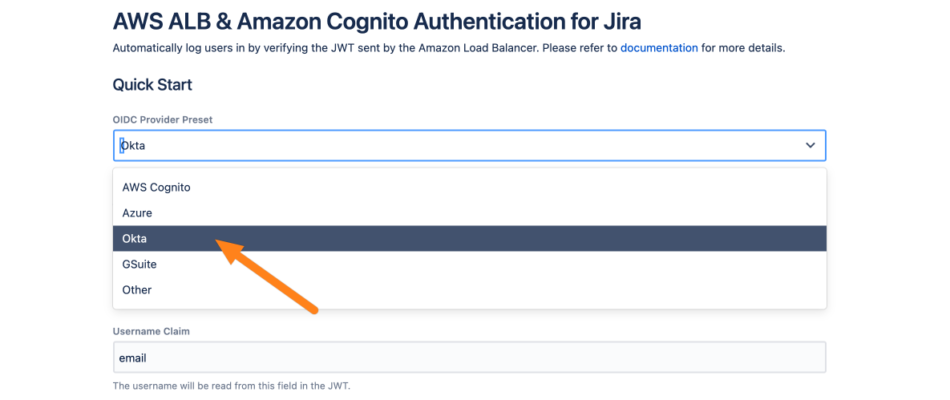
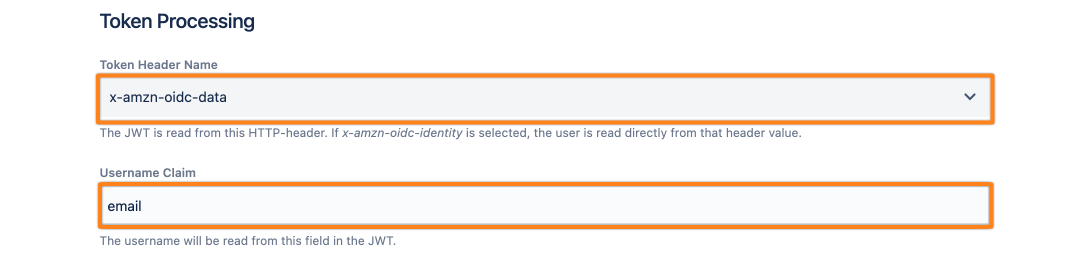
This tutorial assumes that the username is sent in the x-amzn-oidc-data header via an claim called email. If that does not matches your setup, you can change the used header token via the Token Header Name option and the Username Claim.
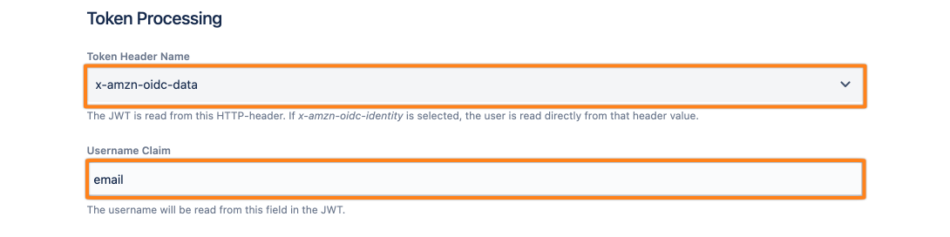
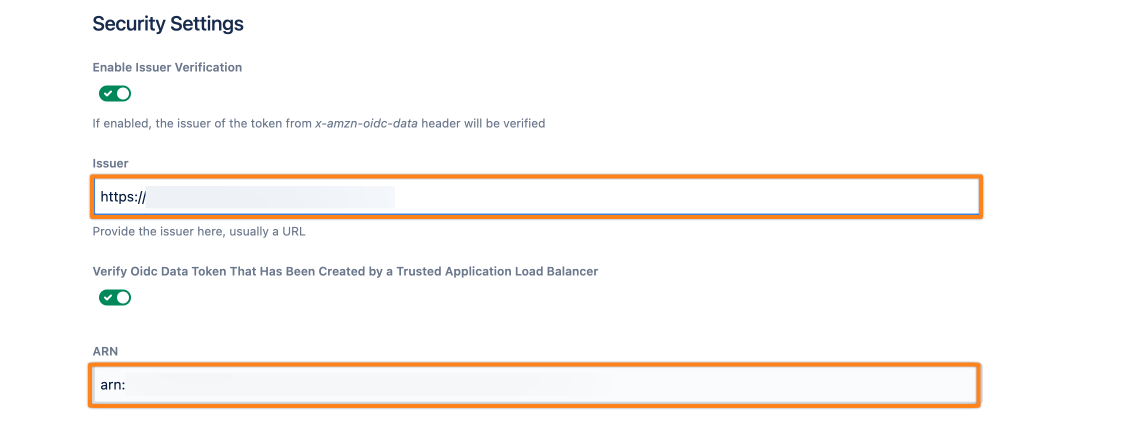
This app automatically checks the signature of the x-amzn-oidc-data token. Additionally, you can also check the issuer of this token, as well as Amazon Resource Name of the load balancer which sends the header.
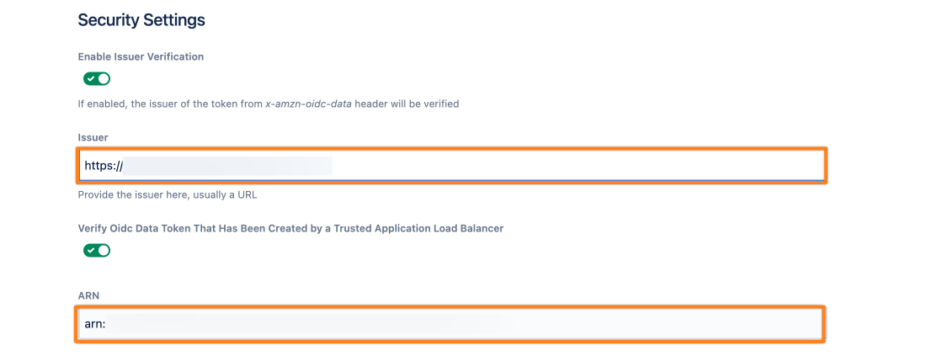
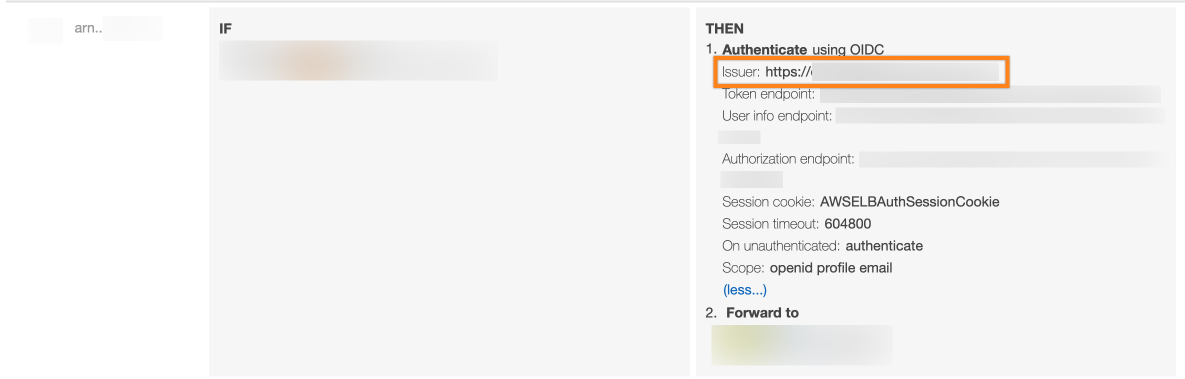
The Issuer is can be found in the OIDC settings in your load balancer authentication rule: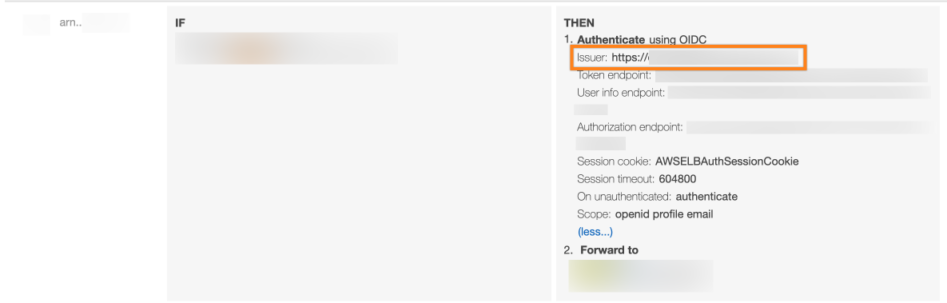
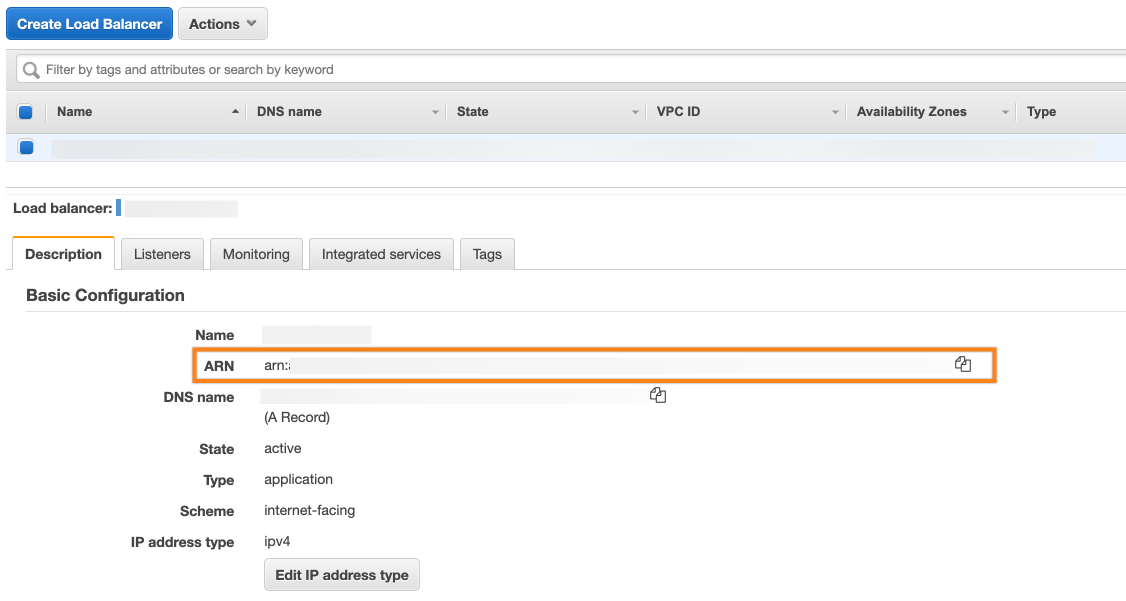
The ARN can be found in the Description tab of your Load Balancer in AWS.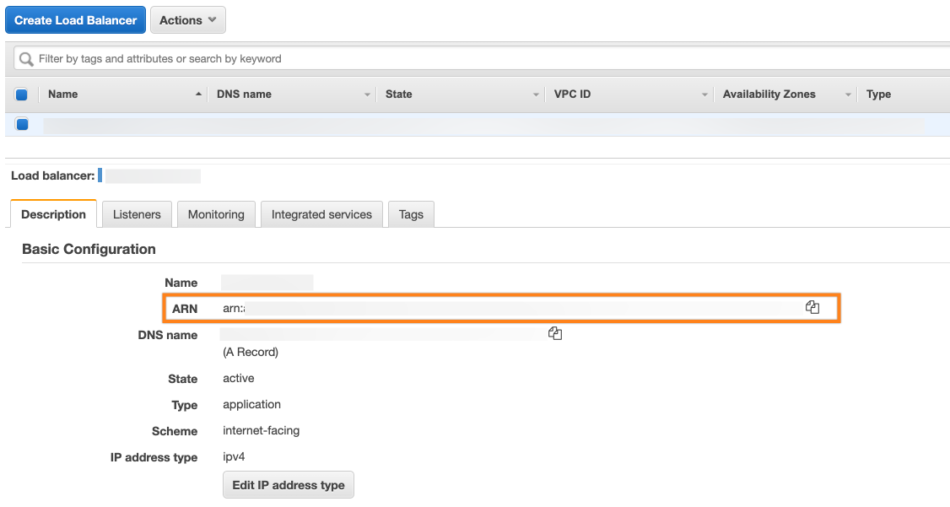
Finally, click Save to save the configuration.