

Automatically Linking Existing/Historic HubSpot Data with Jira Data
Teams usually install HubSpot for Jira with history already in both systems: HubSpot records that pre-date the integration, and Jira work items that were never linked to them. This page covers linking that back-catalogue in one controlled pass rather than by hand.
The scenario
A service desk holds 17,000 existing JSM tickets. The matching HubSpot tickets already exist too. Both sides carry a unique identifier, so the records can be paired up automatically – but only if something reaches the work items that already exist.
A creation trigger cannot do this. Work item created fires only for new work items, so it will never touch the 17,000 already in the project. The trigger has to go and find them instead.
Step 1: confirm the identifier on both sides
The approach rests on one value that exists on both sides and identifies the same thing. Each HubSpot object type has a default unique property – Email for Contact, and the object name for Company, Deal and Ticket – but historic data rarely matches cleanly on a name.
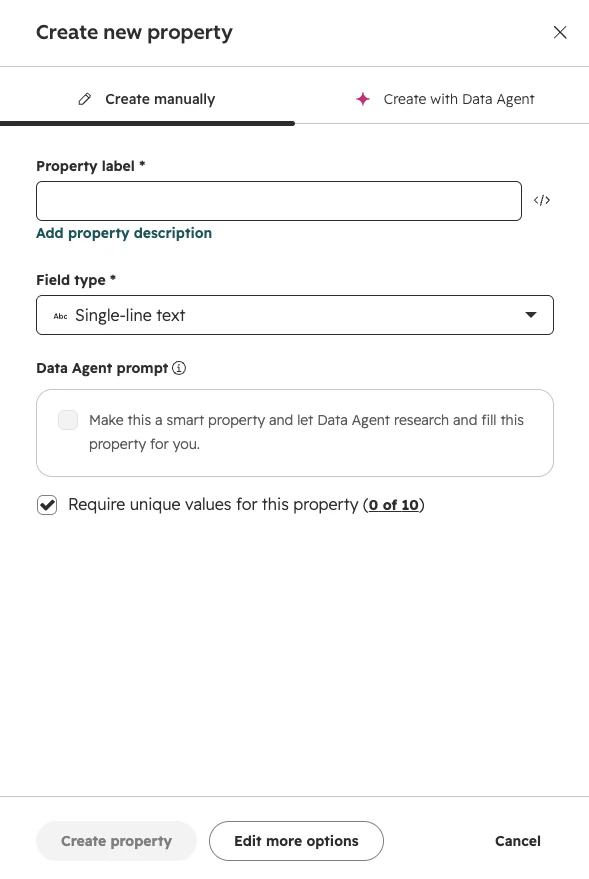
If your systems share a legacy identifier instead, such as a ticket reference or account number, use that. Mark the HubSpot property holding it as unique by ticking Require unique values for this property when you create or edit the property in HubSpot. Only then does it appear in the rule.
On the Jira side, the same value must sit in a field the rule can read – a custom field such as HubSpot Ticket ID, populated on the historic work items.
Step 2: build the action rule in the app
Open the HubSpot for Jira Configuration and go to the Automation tab.
Select Create Automation Rule, give it a name you will recognise later, and choose Automation from Jira to HubSpot.
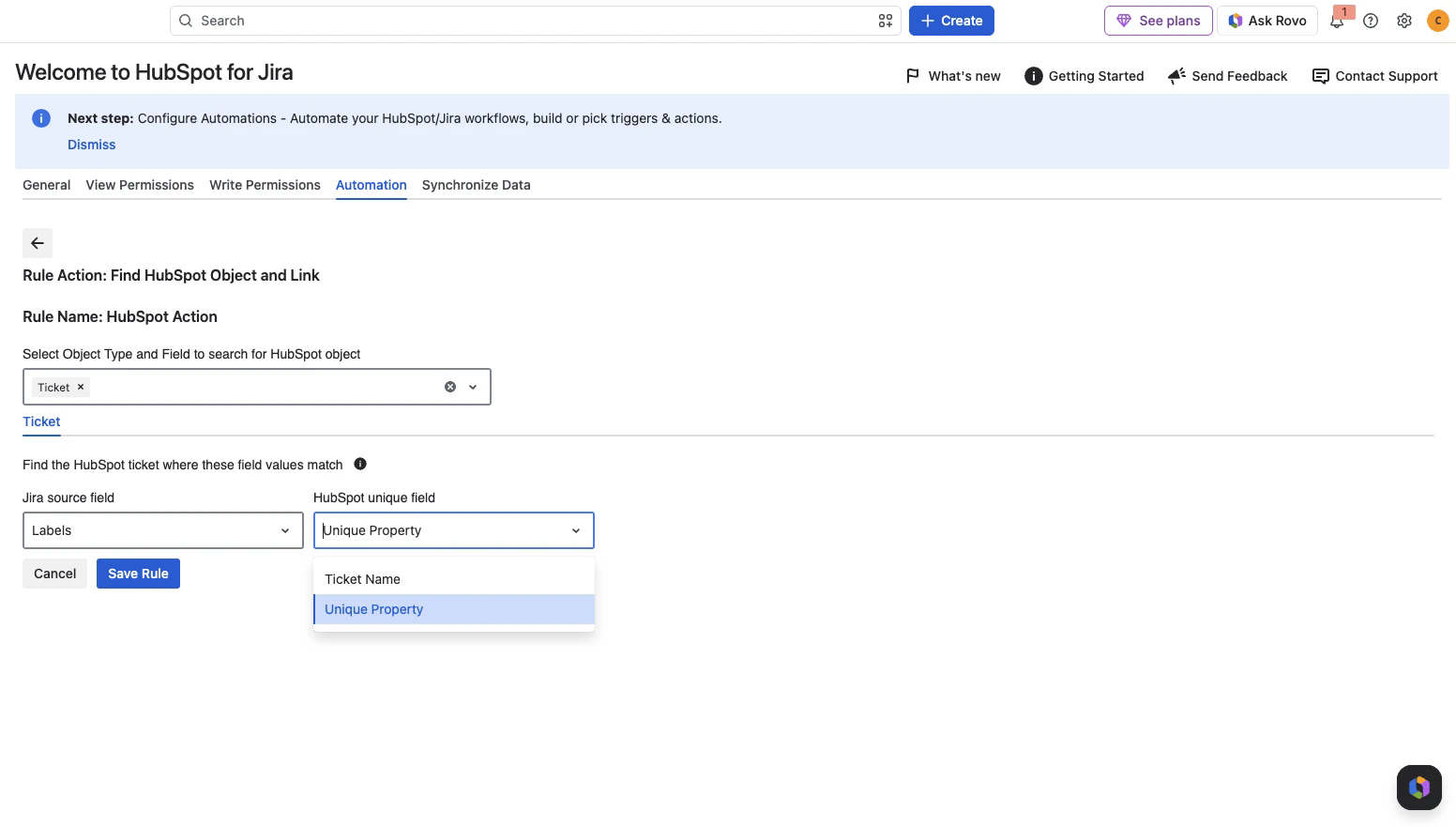
Choose the action Find HubSpot Object and Link, then Next.
Pick the object type, in this scenario Ticket.
Under Find the HubSpot ticket where these field values match, set the Jira source field to the Jira field holding the identifier, and the HubSpot unique field to the property it matches against.
Save Rule.
Find HubSpot Object and Link only links to a record that already exists; it never creates one. That is what you want for a backfill. Link or Create and Link HubSpot Object would create a HubSpot record every time a historic work item failed to match, which on 17,000 tickets produces a great deal of unwanted data.
Step 3: trigger it with Scheduled and JQL
In Jira Global Automation, use a Scheduled trigger containing a JQL query. When a scheduled trigger has JQL, Jira runs the rule once for each work item the query returns, so each historic work item reaches the action exactly as a newly created one would. This is Atlassian’s recommended way to apply automation to work items that already exist.
The rule then looks like this:
Component | Setting |
|---|---|
Trigger | Scheduled, with a JQL query |
JQL | Selects one batch of historic work items |
Action | HubSpot CRM for Jira → Find HubSpot Object and Link, then the rule you saved in step 2 |
Final action | Edit work item, to mark the work item as processed |
Turn off “Only include issues that have changed since the last time this rule executed”. For a historic backfill you want Jira to process everything the JQL returns, whether or not it was recently modified. Leaving this on is the most common reason a backfill silently processes nothing.
Step 4: batch it
Do not attempt all 17,000 in one run. A scheduled JQL trigger in Jira Cloud returns roughly 1,000 work items per search, so the migration has to be split into batches that each come in under that limit. Date ranges are the simplest way to slice it:
- project = CUSTOMER
- AND "HubSpot Ticket ID" IS NOT EMPTY
- AND created >= "2024-01-01"
- AND created < "2024-03-01"
Then move the range for each subsequent run:
Batch | Range | Approximate volume |
|---|---|---|
1 | Jan–Feb 2023 | 850 |
2 | Mar–Apr 2023 | 920 |
3 | May–Jun 2023 | 780 |
… | … | … |
Adjust the ranges so each query stays comfortably under the limit, then run the batches in turn.
Step 5: add a migration marker
At this volume it is worth tracking which work items have already been through the process. Add a temporary Jira field or label, for example HubSpot Migration Status with values Pending and Processed, and exclude the processed ones from the query:
- project = CUSTOMER
- AND "HubSpot Ticket ID" IS NOT EMPTY
- AND "HubSpot Migration Status" != Processed
- AND created >= "2024-01-01"
- AND created < "2024-03-01"
After the HubSpot action, add an Edit work item action setting HubSpot Migration Status to Processed. This gives you an audit trail of what has run, and stops the same work items being pushed through the linking process a second time if a batch is re-run.
Step 6: verify before scaling up
Run one narrow batch first – a few dozen work items – and confirm the links are correct before continuing.
Open the Audit Log on the Automation tab. It records each rule execution with its name, type, action, trigger and outcome, and filters by date and time range.
Spot-check work items and confirm the expected HubSpot records appear in the HubSpot CRM panel.
When the backfill is finished, disable the scheduled rule so it does not keep running.
A wrong source field links the wrong records at scale, and undoing that means unlinking each association individually. The narrow first batch is the cheapest insurance available here.
Common reasons a match fails
Symptom | Likely cause |
|---|---|
The rule runs but links nothing | “Only include issues that have changed…” is still enabled, or the Jira source field is empty on the historic work items |
Only about a thousand work items are processed | The batch exceeded the scheduled JQL search limit. Narrow the range |
The property is missing from the HubSpot unique field list | It has not been ticked as Require unique values for this property in HubSpot |
Some link, some do not | Expected with historic data. The rule skips anything with no match; the Audit Log shows which |
The wrong record is linked | The matched property is less unique in practice than it appears, for example a name shared by two records |