

Audit Log
The Audit Log records each execution of your automation rules, so you can confirm that a rule ran, see what it acted on, and check whether it succeeded.
Opening the Audit Log
Go to Jira settings → Apps → HubSpot CRM Configuration.
Open the Automation tab.
Select Audit Log.
Use Back to return to the list of automation rules.
What the log records
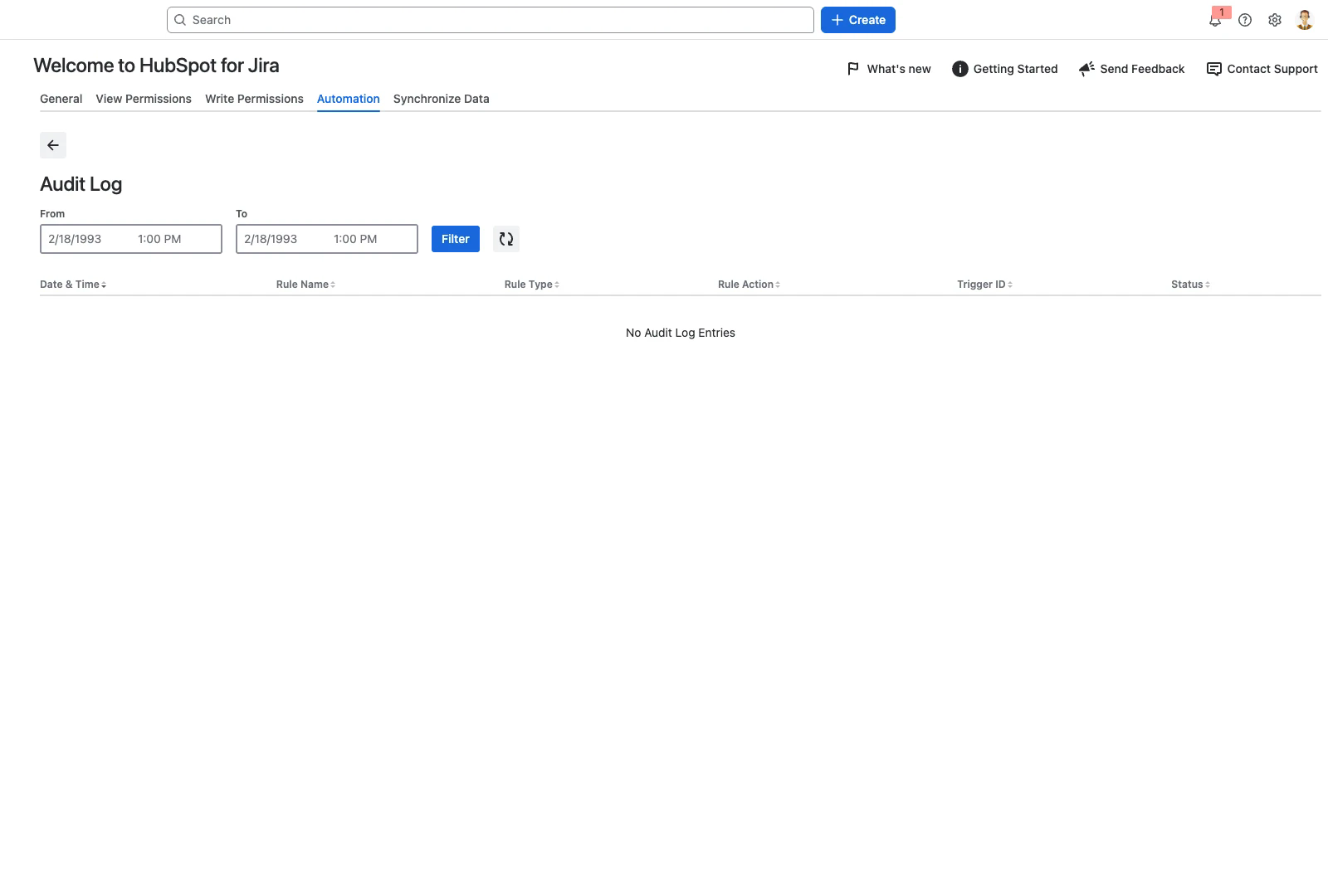
Each row is one rule execution. The table has the following columns, and you can sort on any of them by selecting the column heading:
Column | Description |
|---|---|
Date & Time | When the rule ran, shown in your Jira user timezone |
Rule Name | The name given to the rule when it was created |
Rule Type | Whether the rule runs from Jira to HubSpot or from HubSpot to Jira |
Rule Action | The action the rule performs, for example Create New HubSpot Object or Notify Linked HubSpot Objects |
Trigger ID | The identifier of the record that triggered the run, used to trace an entry back to its source |
Status | The outcome of the run |
Filtering by date and time
The From and To fields each take a date and a time, which lets you narrow the log to a specific window when you are investigating a particular run.
Set a date and time in From.
Set a date and time in To.
Select Filter.
Refreshing the log
Select Update Audit Log to pull in the most recent entries. The log does not refresh on its own while the page is open, so use this after triggering a rule you want to check.
When the log is empty
If no rules have run in the selected period, the log shows No Audit Log Entries. This is also what you see on a new installation, and after migrating to the Forge version.
Audit log entries recorded by the previous version of the app are not carried across during the migration to Forge. The Forge Audit Log starts from the point the migration completes. See Migrating from Connect to Forge.