

Find HubSpot Object and Unlink
Extended Use Case
Remove CRM visibility when issue becomes irrelevant
Sometimes a Jira work item:
No longer applicable
Is marked Duplicate
Turns out to be internal-only
Was logged incorrectly
Should not be customer-visible anymore
If it remains linked:
Sales may escalate unnecessarily
Customers may see irrelevant activity
CRM becomes noisy
This rule safely removes the association when a defined condition is met.
About this rule
The keyword here is Unlink, not delete. This rule removes the association between one HubSpot object and the work item. The HubSpot record itself stays exactly where it is.
Video walkthrough
A short walkthrough of the Find HubSpot Object and Unlink rule, covering both the setup in the app and the flow in Jira.
Part one: inside the HubSpot for Jira app
Open the HubSpot for Jira Configuration, go to the Automation screen, and create a new automation rule.
Give your rule a name. Make it descriptive. You will need to find it again by name when you build the Jira flow, so make it easy to recognise.
Select that this is a Jira to HubSpot Automation.
Select the action, in this case Find HubSpot Object and Unlink.
Select the Jira space the rule should apply to.
Choose the HubSpot object type to unlink: Contact, Company, Deal or Ticket.
Set up your identifier mapping. This is how the rule finds the right record, so it matters. Under Find the HubSpot <object> where these field values match, choose the Jira source field and the HubSpot unique field to match it against. The list offers the object’s default unique property – Email for Contact, and the object name for Company, Deal and Ticket – plus any HubSpot property marked as requiring unique values. See below.
Save the rule.
Choosing which HubSpot property the rule matches on
Every object type has a default unique property: Email for Contact, and the object name for Company, Deal and Ticket – Company Name, Deal Name and Ticket Name. The default is no longer the only choice.
Any HubSpot property can be offered to the rule by marking it as unique in HubSpot. When you create or edit a property, tick Require unique values for this property. HubSpot allows up to ten unique properties per object type.
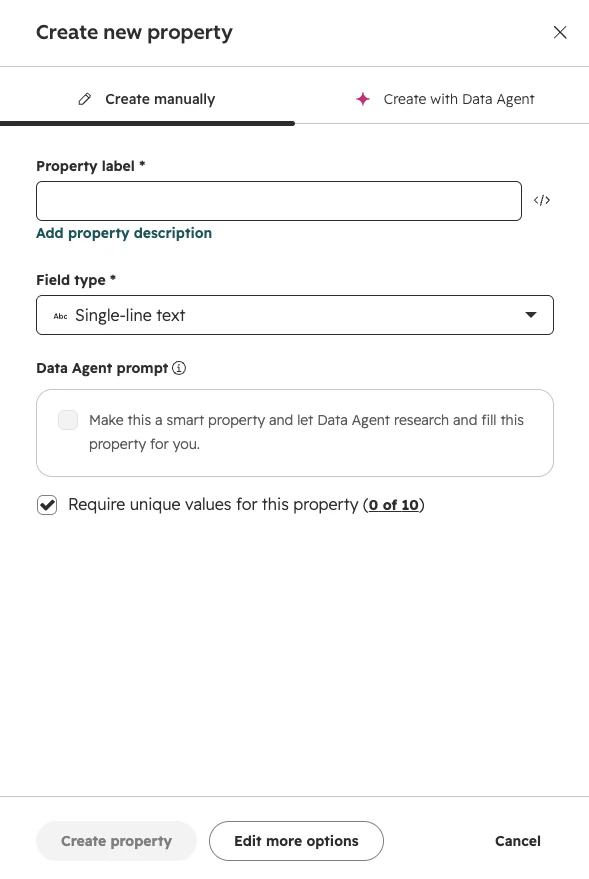
The property then appears in the rule’s HubSpot unique field list alongside the default. Under Find the HubSpot object where these field values match, choose the Jira source field to take the value from, and the HubSpot unique field to match it against.
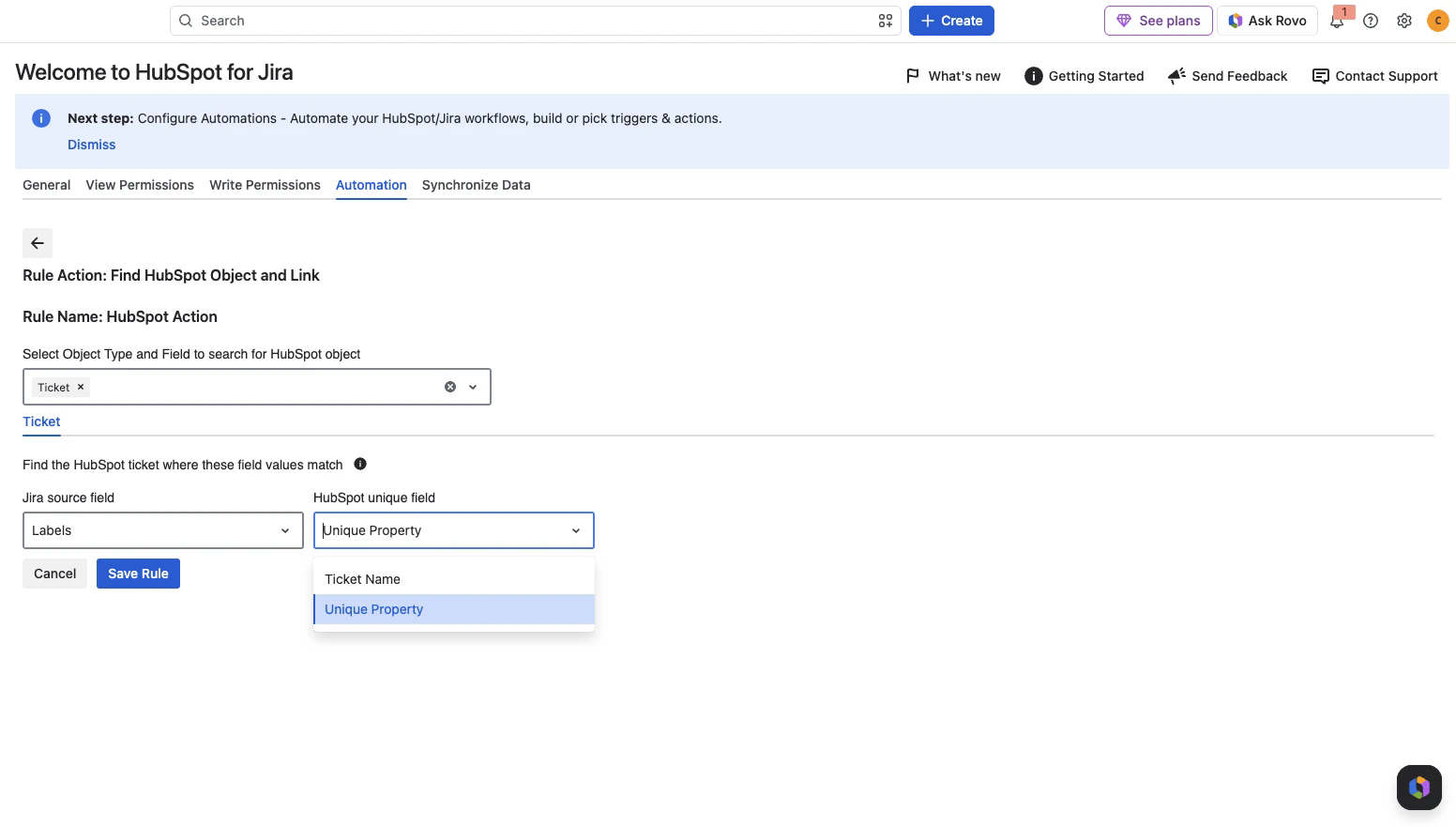
A property has to be marked unique in HubSpot before it appears here. If the property you expect is missing from the HubSpot unique field list, check that Require unique values for this property is ticked on the HubSpot side, then reopen the rule.
Part two: inside Jira Global Automation
Go to Jira Global Automation and create a new automation flow.
Pick your trigger, for example Status changed, for example to Done.
Add an action and, from the list, find HubSpot CRM for Jira.
From the HubSpot CRM for Jira actions, choose Find HubSpot Object and Unlink.
Select the specific rule you just built, by the name you gave it earlier.
Save and enable your automation.
The first time you add a HubSpot CRM for Jira action on a site, Jira asks you to connect Atlassian Automation to the app. Select Connect and complete the prompt. Later flows reuse the same connection.
Outcome
The Jira work item disappears from the HubSpot timeline.
CRM remains clean.
Revenue teams only see relevant engineering activity.