

Link or Create and Link HubSpot Object
Extended Use Case
Ensure a Deal always exists for revenue-impacting work
A Product team creates Jira work items tied to enterprise feature requests.
Sometimes:
The Deal already exists in HubSpot → it should be linked.
Sometimes the Deal hasn’t been created yet → it must be generated.
Without this hybrid logic:
Either duplicates are created
Or issues remain unlinked
Or someone manually creates CRM records later
This rule guarantees a HubSpot object always exists, but avoids duplication.
About this rule
This rule does two things in order. It looks for a matching HubSpot object first, and links it if one is found. Only if nothing matches does it create a new object and link that instead. Use it when you want a record linked every time without creating duplicates.
Video walkthrough
A short walkthrough of the Link or Create and Link HubSpot Object rule, covering both the setup in the app and the flow in Jira.
Part one: inside the HubSpot for Jira app
Open the HubSpot for Jira Configuration, go to the Automation screen, and create a new automation rule.
Give your rule a name. Make it descriptive. You will need to find it again by name when you build the Jira flow, so make it easy to recognise.
Select that this is a Jira to HubSpot Automation.
Select the action, in this case Link or Create and Link HubSpot Object.
Select the Jira space the rule should apply to.
Choose the HubSpot object type: Contact, Company, Deal or Ticket.
Set up your identifier mapping. This is how the rule finds the right record, so it matters. Under Find the HubSpot <object> where these field values match, choose the Jira source field and the HubSpot unique field to match it against. The list offers the object’s default unique property – Email for Contact, and the object name for Company, Deal and Ticket – plus any HubSpot property marked as requiring unique values. See below.
Set up the field mappings used when a new object has to be created, so the new record arrives populated rather than empty.
Save the rule.
Choosing which HubSpot property the rule matches on
Every object type has a default unique property: Email for Contact, and the object name for Company, Deal and Ticket – Company Name, Deal Name and Ticket Name. The default is no longer the only choice.
Any HubSpot property can be offered to the rule by marking it as unique in HubSpot. When you create or edit a property, tick Require unique values for this property. HubSpot allows up to ten unique properties per object type.
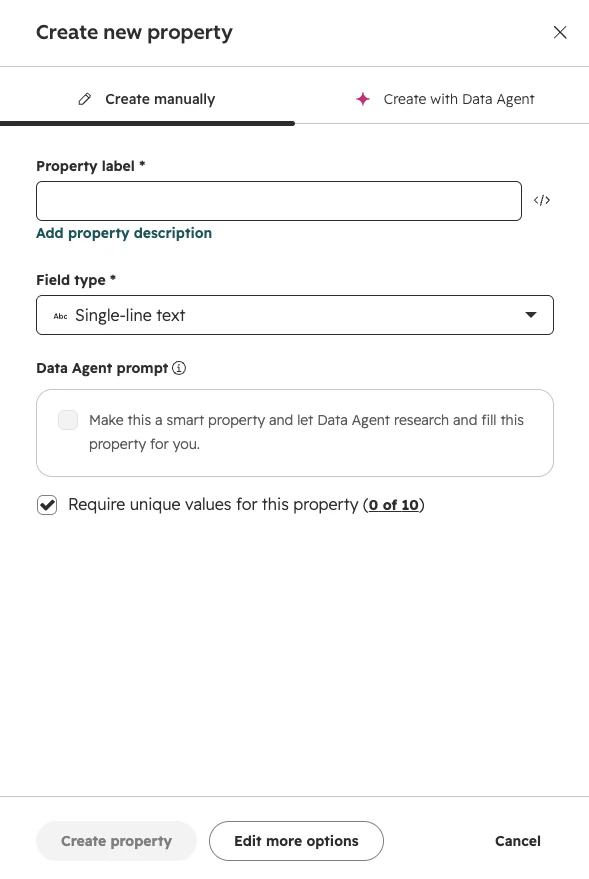
The property then appears in the rule’s HubSpot unique field list alongside the default. Under Find the HubSpot object where these field values match, choose the Jira source field to take the value from, and the HubSpot unique field to match it against.
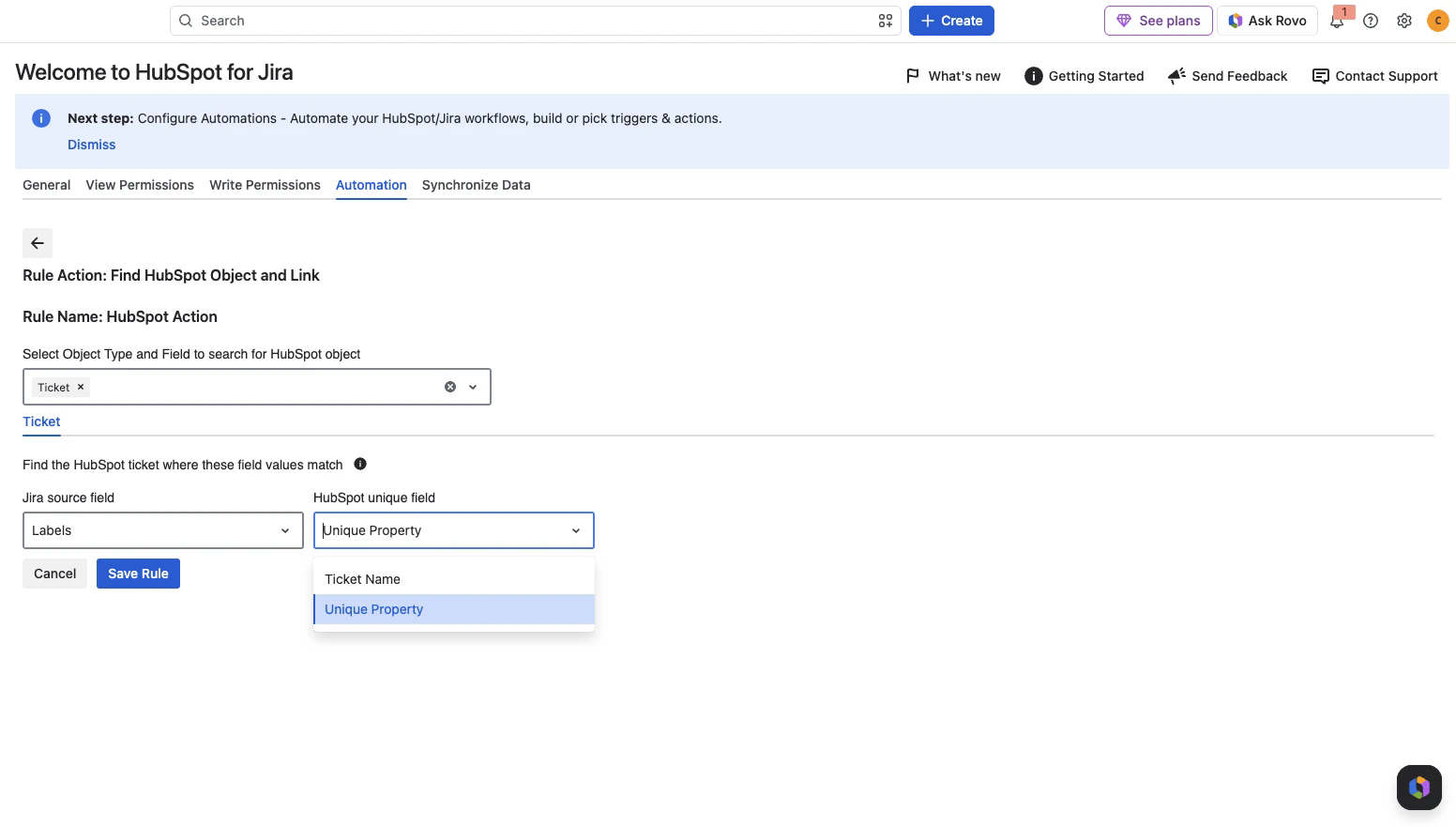
A property has to be marked unique in HubSpot before it appears here. If the property you expect is missing from the HubSpot unique field list, check that Require unique values for this property is ticked on the HubSpot side, then reopen the rule.
Part two: inside Jira Global Automation
Go to Jira Global Automation and create a new automation flow.
Pick your trigger, for example Work item created or Status changed.
Add an action and, from the list, find HubSpot CRM for Jira.
From the HubSpot CRM for Jira actions, choose Link or Create and Link HubSpot Object.
Select the specific rule you just built, by the name you gave it earlier.
Save and enable your automation.
The first time you add a HubSpot CRM for Jira action on a site, Jira asks you to connect Atlassian Automation to the app. Select Connect and complete the prompt. Later flows reuse the same connection.
Outcome
No duplicates
Guaranteed CRM connection
Revenue-linked prioritization becomes possible
Sales and Engineering stay aligned automatically
This is often the most strategic automation.