

Work Item Panel
The HubSpot CRM panel lets you link HubSpot records to a Jira work item, see the linked records and their properties without leaving Jira, and control who is notified when the work item changes.
Follow these step-by-step instructions to link HubSpot objects (Contacts, Companies, Deals, or Tickets) to Jira work items for better visibility and collaboration.
Open a Jira Work Item and Access HubSpot CRM
Open the Jira work item where you want to link HubSpot data.
In the button row under the work item title, select View app actions.
Choose HubSpot CRM. The panel is added to the work item body.
Click on the Link HubSpot Object button.
Note:
Jira work items can be linked to HubSpot objects from any Jira space.
When creating a Jira work item from HubSpot, only Jira spaces configured in the app settings will be available for selection.
Choose the HubSpot Object Type
Select the type of HubSpot object you want to link:
Contact
Company
Deal
Ticket
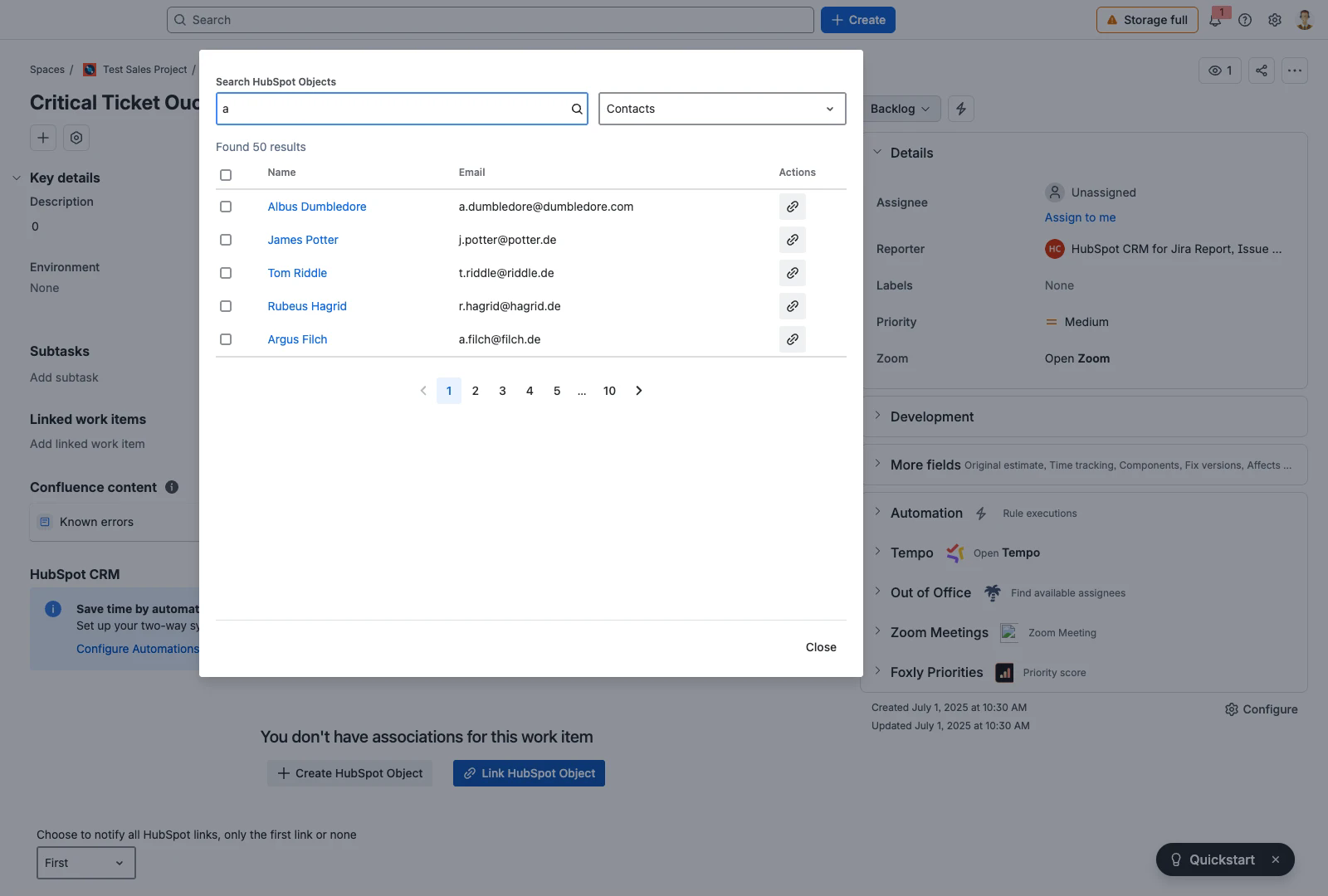
Use the search bar to find the specific object:
First Name
Last Name
Email
Phone Number
Associated Company Name
Once you find the correct object, you can:
Link multiple objects by selecting them and clicking "Link selection to work item".
Link a single object by clicking "Link to work item" under "Actions".
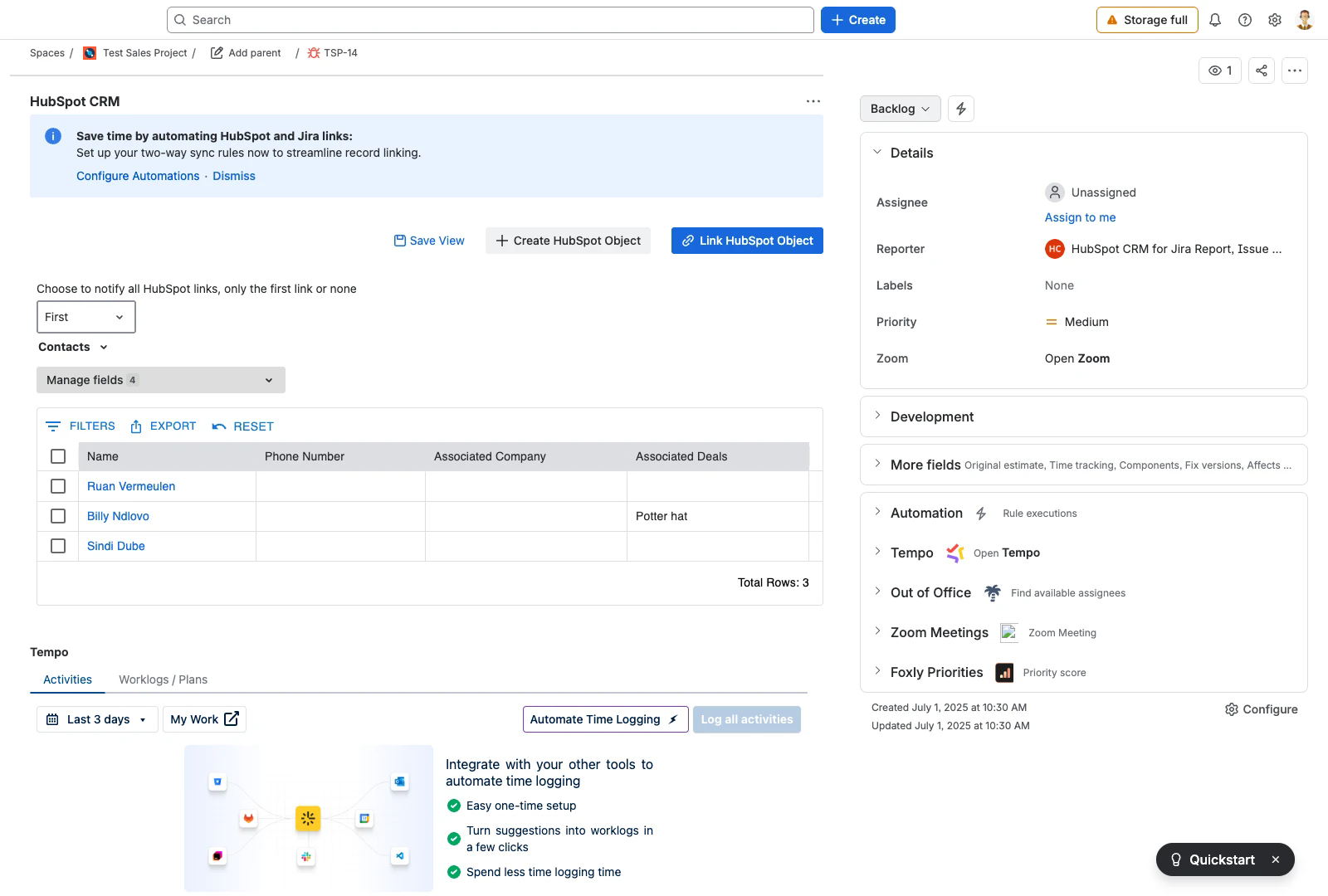
Viewing Linked HubSpot Objects in Jira
Once an object is linked, it will appear within the Jira work item.
The linked HubSpot object will display the HubSpot fields selected during the app configuration.
To customize the displayed fields:
Click "Manage Fields" to select or deselect fields.
Click "Save View" to save your preferred field selection.
Click on a linked object to open it in HubSpot in a new tab.
Adding or Removing Objects:
To link additional objects, click "Link HubSpot Object" again.
To remove a linked object, check the box next to it and click "Unlink selected from Work Item".
HubSpot Notifications for Linked Jira Work Items
When linking multiple HubSpot objects to a Jira work item, you can control who gets notified in HubSpot:
Notify the first object owner – Only the owner of the first selected object is notified.
Notify all object owners – Every object owner is notified.
Notify nobody – No notifications are sent.
Important:
HubSpot object owners receive notifications only after the object is successfully linked.
There is a two-minute delay before notifications appear in HubSpot.
Jira Notifications for HubSpot Actions
Certain actions performed in HubSpot will trigger notifications in Jira:
Creating a new Jira work item from HubSpot
Changing the assignee of a Jira work item from HubSpot
Commenting on a Jira work item from HubSpot
Important:
Jira work item owners only receive notifications if they are assigned to the issue.
There is a two-minute delay before Jira notifications appear.