

Adding the Jira Work Item Card to the HubSpot Records
No action needed when you update to version 4.2.0. From version 4.2.0, HubSpot for Jira fully supports the new HubSpot UI and shows linked work items in a new card named Jira Work Items. If your record layouts already show the legacy Jira Issues card, the update replaces it with the Jira Work Items card automatically. You do not need to change those layouts.
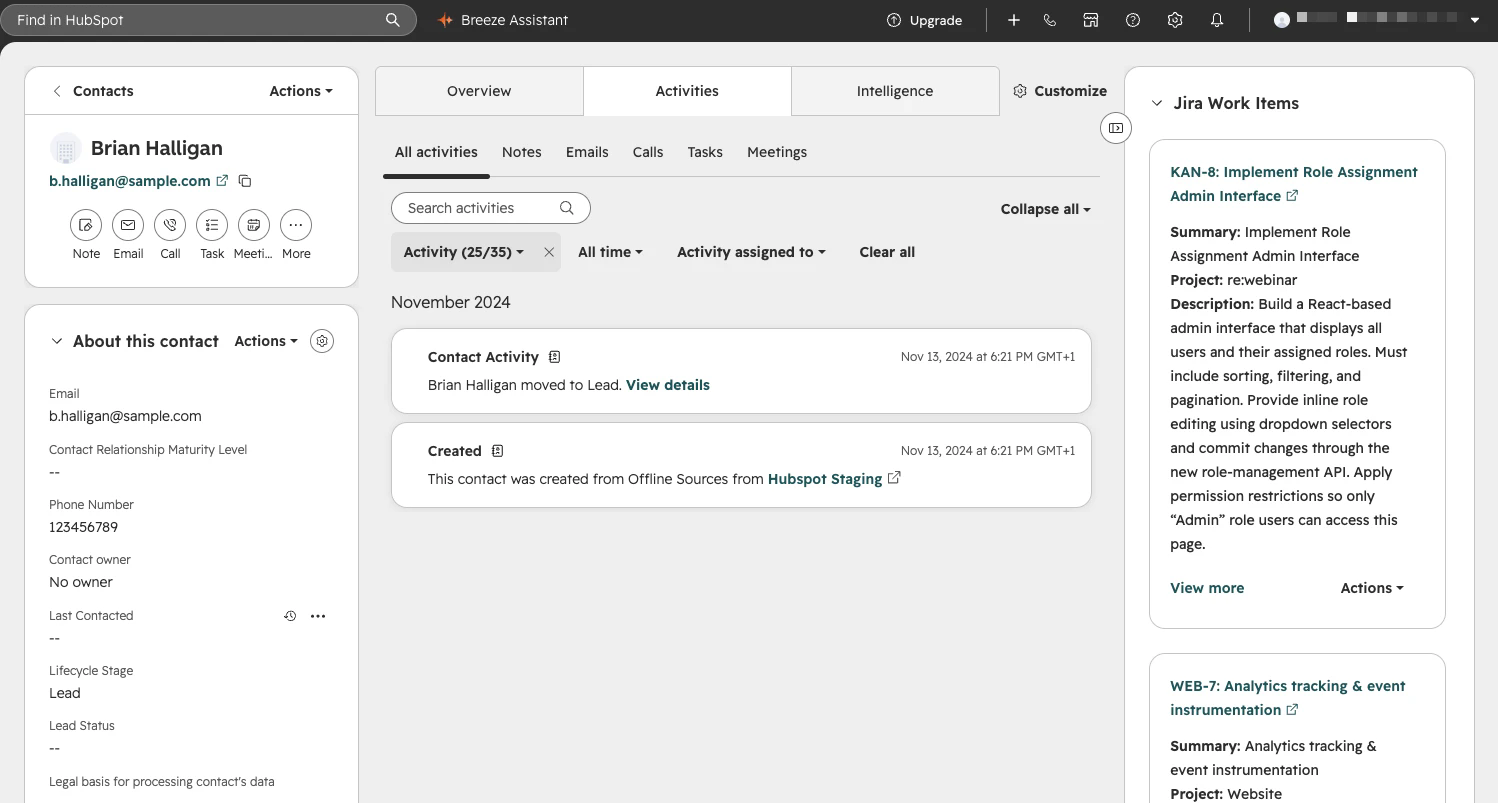
Jira Work Items – the new card, version 4.2.0 and later.
Jira Issues – the legacy card, shown only on versions earlier than 4.2.0.
Follow the steps on this page only for layouts that never had the Jira Issues card, for example on a new installation or when you add the card to another object type or view.
Linked Jira work items appear on a HubSpot record in a card named Jira Work Items. On a new installation the card is not on the record layout by default, so someone with HubSpot admin access has to add it once per object type. This is done in HubSpot, not in Jira.
Do this after the connection is made and permissions are set. Until the app is connected, the card has nothing to show. See First-Time Setup.
Open the record layout editor
Open any record of the object type you want to change – a contact, company, deal or ticket.
Select Customize at the top of the record. This opens Record Customization in HubSpot settings, with the object already selected.
Select the view you want to change. Most accounts have a single Default view.
The layout editor opens, titled for the object and view, for example Contact record page | Default view. It has three columns – the left sidebar, the middle tabs, and the right sidebar – and an Edit layout tab.
Add the Jira Work Items card
In the right sidebar, select Add card.
In the Add right sidebar cards panel, open the Card library tab. This lists cards that already exist, including those provided by installed apps.
Search for
Jiraand choose the card named Jira Work Items. If the library also lists Jira Issues, that is the legacy card from versions earlier than 4.2.0.Select Save, or Save and exit.
Move the card where you want it
Cards appear on the record in the order they sit in the editor. Each card has a drag handle on its left edge: drag the Jira Work Items card up or down the right sidebar to change where it appears, then save.
Records carry a lot of cards, so a card added at the bottom can sit well below the fold. If your agents are expected to work from the Jira Work Items card, move it near the top.
Repeat for each object type
The layout is configured per object type. Adding the card to contacts does not add it to companies, deals or tickets. Repeat for each type you want it on, choosing the object at the top of the Record Customization screen.
If your account uses more than one view for an object type, or team-specific views, add the card to each view your users actually see. A card added to the default view does not appear in a custom view on its own.