

Issue Context Assignment and Availability Display
The Out of Office section in a work item's Details column reports the assignee's availability, and when they are away it gives the period and offers the colleagues who are in.
Find the section on a work item
Open a work item and look in the right-hand Details column, below Automation. The section is headed Out of Office. Collapsed, it carries the label Assignee Availability and, unless the assignee is available, a status lozenge. Select the header to expand it.
The status is one of three - AVAILABLE, LEAVING SOON or OUT OF OFFICE - the same three the Team Availability tab lists for everyone, in Out of Office User View. The walkthrough below follows an assignee who is out of office.
What the expanded section shows
Expanded on a work item whose assignee is out, the section has two parts:
CURRENT ASSIGNEE - the assignee, an OUT OF OFFICE lozenge, and how long they are away in plain words, such as Out today.
AVAILABLE ASSIGNEES - avatars of everyone whose status is AVAILABLE, a count of any that do not fit on the strip, and a Change assignee link. These are not the coverers named on the assignee's rule; coverers are listed on Team Availability.
Where the assignee is standing in for a colleague who is out, the section names that colleague below the assignee, so you can see the handover you would be adding to.
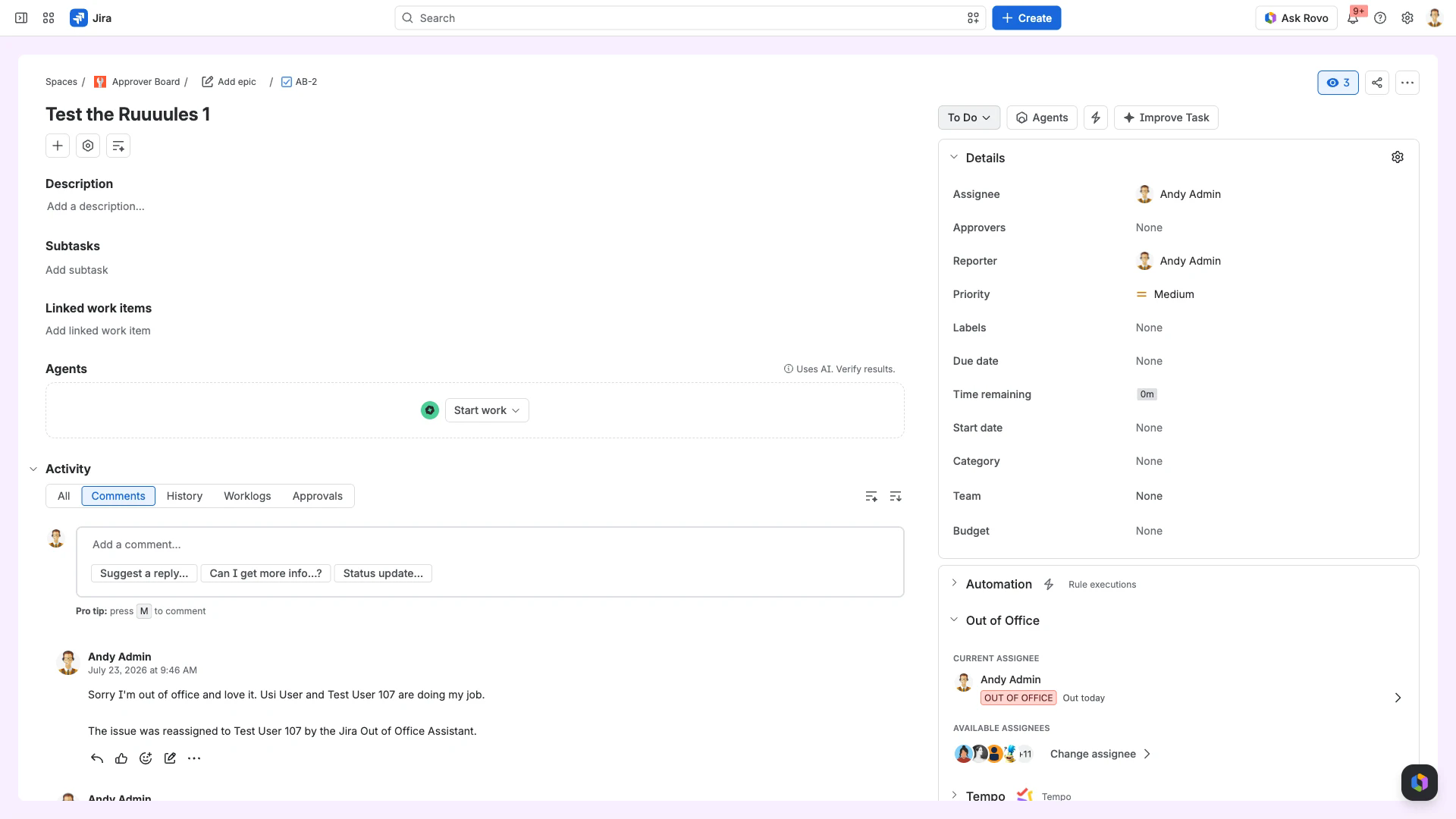
Hand the work item to someone who is in
Expand Out of Office and select Change assignee.
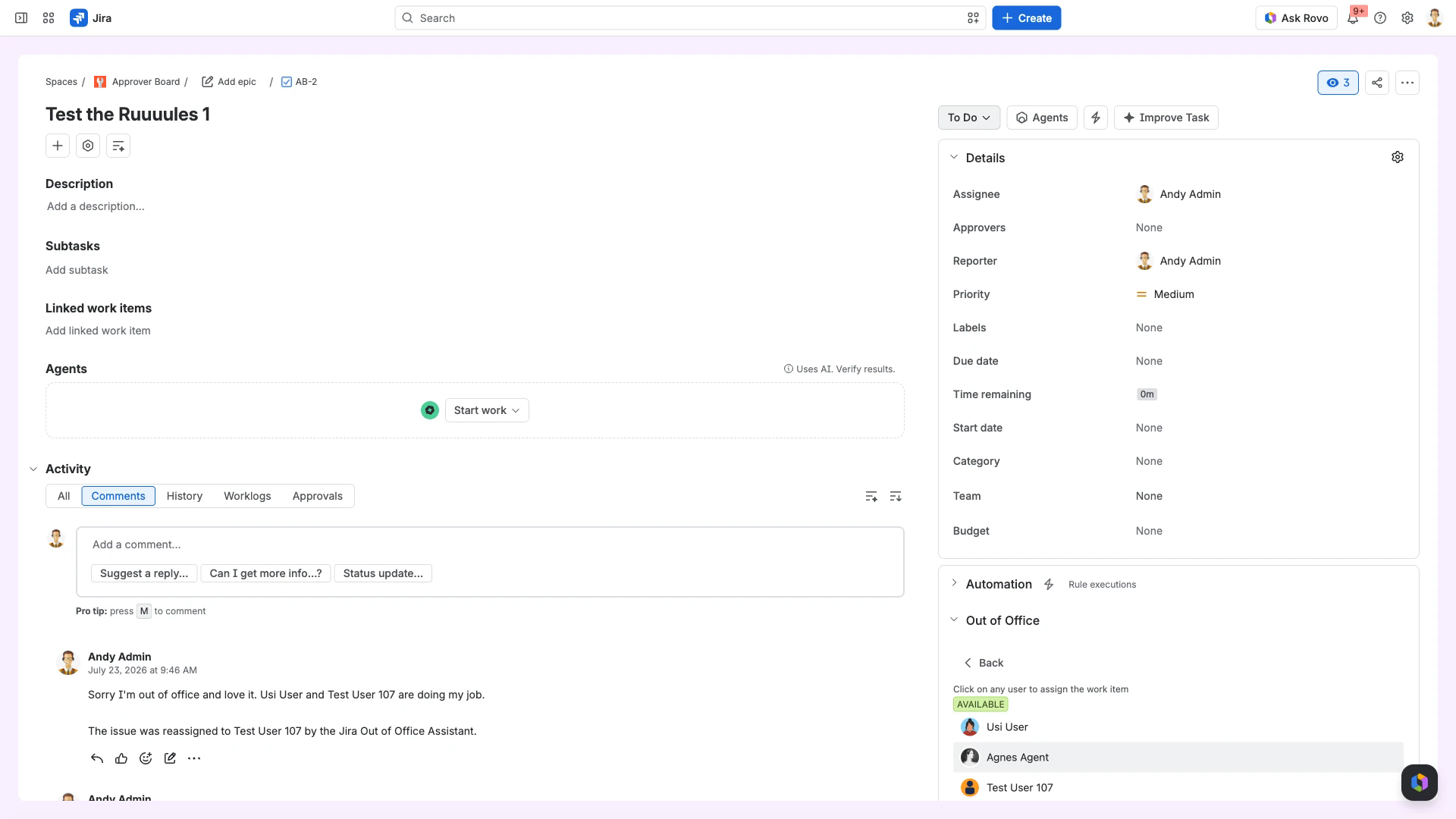
The section body is replaced by the instruction Click on any user to assign the work item, with the free colleagues listed under an AVAILABLE heading.
Select a person from the list to assign the work item to them.
Select Back to return to the availability view.
The section does not redraw itself when the assignee changes. Reload the work item to see the new assignee's availability.
Where the status comes from
The status belongs to the person, not to the work item: it follows the period covered by that person's own Out of Office rules. For how a rule is created and scoped, see Rule Configuration Guide; for naming the people who take over during an absence, see Coverer Setup and Management.
Assigning a work item to someone who is out does not leave it stranded. Their rule hands it on to a coverer, and can post a comment recording the handover - see Issue Assignment and Watcher Management.
The same information elsewhere
On a Jira Service Management portal request, the customer sees the assignee's status too - see Agent Availability Display in JSM Customer Portal. A person can also be flagged as inactive when they have not touched a work item for a set number of days, which is a separate signal from an out of office rule - see User Inactivity Indicators in Issue Context.