

JQL Filter Configuration Guide
Out of Office Assistant uses JQL in two unrelated places: a rule can take a JQL filter instead of a space list to decide which work items it acts on, and the app publishes six searchable fields so anyone can find work items whose assignee or reporter is away.
Scope a rule with a JQL filter
A rule picks its work items under Work Item Selection on the rule form. Spaces is the default. Choosing JQL Work Item Filter replaces the space picker with one field reading Search for a saved filter or create custom JQL.
In My Rules, select Add rule for myself and set your dates.
Under Work Item Selection, choose JQL Work Item Filter.
Open the filter field. It lists + Create a custom filter followed by the saved filters you can see. Pick a saved filter to reuse one you maintain, or create a custom filter to write the query here.
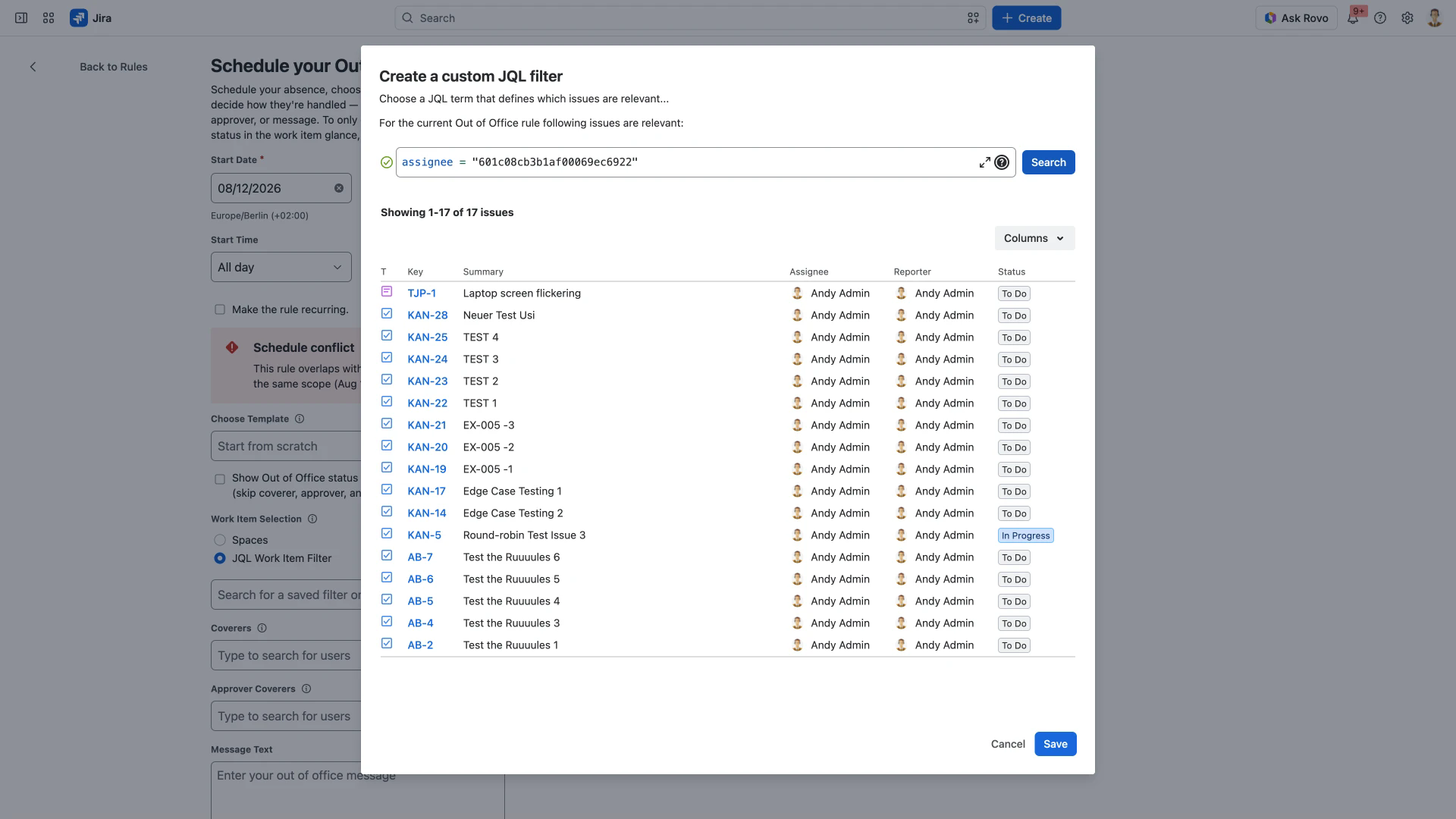
+ Create a custom filter opens the Create a custom JQL filter dialog, pre-filled with your own account id, as
assignee = "your account id", so the query starts from the work items assigned to you. The id is the long identifier Jira holds for your account, not your display name. Edit or extend the query as you need; a green tick beside the field marks it valid.Select Search. The dialog reports how many work items matched and lists them by key, summary, assignee, reporter and status. Columns changes which fields that list shows. Save is unavailable until a search has run.
Select Save, complete the rest of the rule, then select Create Rule.
The result list is the check on the query.
The finished rule shows JQL in the Space/JQL column of your rules table; a space-scoped rule names its space, an unscoped one reads All work items.
A filter limits which work items the rule reassigns or comments on. The person still counts as out of office everywhere in Jira, whether or not a given work item matches the query.
An instance can hold at most 10 JQL-based rules. Ticking Show Out of Office status in work item glance only removes Work Item Selection from the form, so a glance-only rule cannot carry a filter.
The rest of the form behaves the same whatever the scope: dates must be valid, the rule must do something before Create Rule is available, a period overlapping one of your existing rules is flagged as a schedule conflict, and template names must be unique. Rule Configuration Guide covers the rest of the form, and Rule Priority and Conflict Resolution covers which rule wins when two match the same work item.
Search Jira for people who are out of office
The app writes each person's current and upcoming absence onto their Jira user record, which makes it searchable. Six fields are published, each read through a user field on the work item: the user field, a dot, then the field name. assignee and reporter both resolve.
Field | Type | What it holds |
|---|---|---|
| Number | 1 if the person is out today, 0 if not |
| Number | 1 if the person is out tomorrow |
| Number | 1 if an absence starts shortly |
| Date | The day the absence starts |
| Date | The day it ends |
| Text | The days it covers. Being text, it takes |
Some queries these make possible:
- assignee.outofoffice-today = 1
- assignee.outofoffice-today = 1 OR reporter.outofoffice-today = 1
- assignee.outofoffice-tomorrow = 1
- assignee.outofoffice-on-the ~ "2026-08-12"
These behave as ordinary Jira fields, so they work anywhere Jira takes JQL: saved filters, board card colour rules, dashboard gadgets and automation rules.
Filters written before the Forge upgrade
These names used dots in the Connect version, as in assignee.outofoffice.today. Forge does not permit a dot inside a name, so each was renamed to the hyphenated form above.
A dotted name does not produce an error. Jira accepts the query and returns nothing, so a saved filter, board or dashboard gadget built on one goes on running and quietly stops finding anybody.
Migrating from Connect to Forge lists every old name against its replacement and gives the procedure for finding and correcting the queries that still use one.