

Out of Office User View
Use Team Availability to see who is away right now, who is covering their work and until when, and to open any of those people for the rules behind their status. Open Out of Office Assistant from the Apps section of the Jira navigation; Team Availability is the tab that opens first. Earlier releases called it the User view.
What a row tells you
Each row is one person, with seven columns: User (avatar and name; Customer in the customer list), Status, Active Rules, Out of Office Period, Integration, Coverers and Actions.
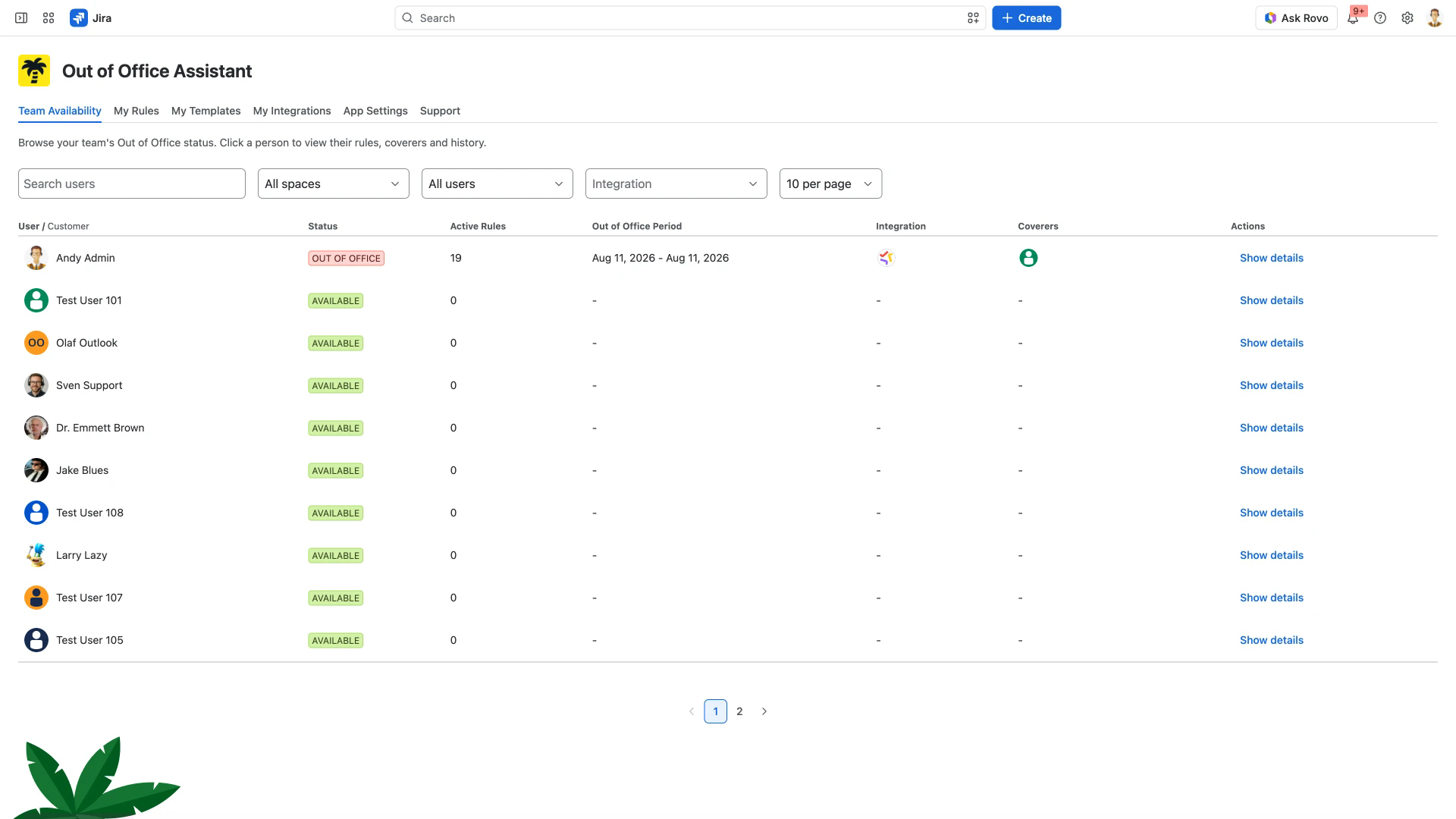
Team Availability with one person out of office and the rest available.
Status has three values:
AVAILABLE - no rule is running for that person right now.
LEAVING SOON - a rule starts within the next 4 days.
OUT OF OFFICE - a rule is running now.
Everyone in scope who has Jira access is listed, including people who have never written a rule. They appear as AVAILABLE with 0 active rules. Deactivated users and users without Jira access, such as Confluence-only users, are not listed. Out of Office Period gives the dates behind the status, Integration shows the logo of each service that created rules for that person, and Coverers shows who takes the work over, including the coverers of rules that have not started yet. Jira admins and Out of Office admins see Users and Customers buttons above the table once customers are chosen in the Service Management settings. Customers lists service desk customers with a search box and the page size only, without the space, availability and integration filters, and Users switches back.
Narrow the list
Four controls sit above the table and can be combined.
Search users ignores case and matches any part of the display name or of account details such as the email address, so a row can match on something the table never shows.
All spaces restricts the list to a single space.
All users filters by availability: All users, Currently out of office, Out of office soon (within 4 days), In office (has rules), With active rules, Without active rules.
Integration keeps only the people whose rules came from the services you tick: Google, Outlook, Slack and Tempo. The integrations anyone can connect for themselves are always listed; a global integration appears once an admin has configured it under App Settings > Global Integrations.
The page-size selector reads 10 per page and also offers 25, 50 and 100. Page numbers sit under the table and work with any combination of filters.
Open one person's details
Show details in the Actions column opens a full page for that person, not a panel over the list. Back to users returns you to the table.
The header repeats the status lozenge, the out of office period, the number of active rules, the coverers and an icon for each connected integration. Under it are three tabs, Rules, Templates and Integrations - that person's equivalent of your own My Rules, My Templates and My Integrations. If you cannot manage that person's rules, only the Rules tab is shown. A customer's page has no Integrations tab.
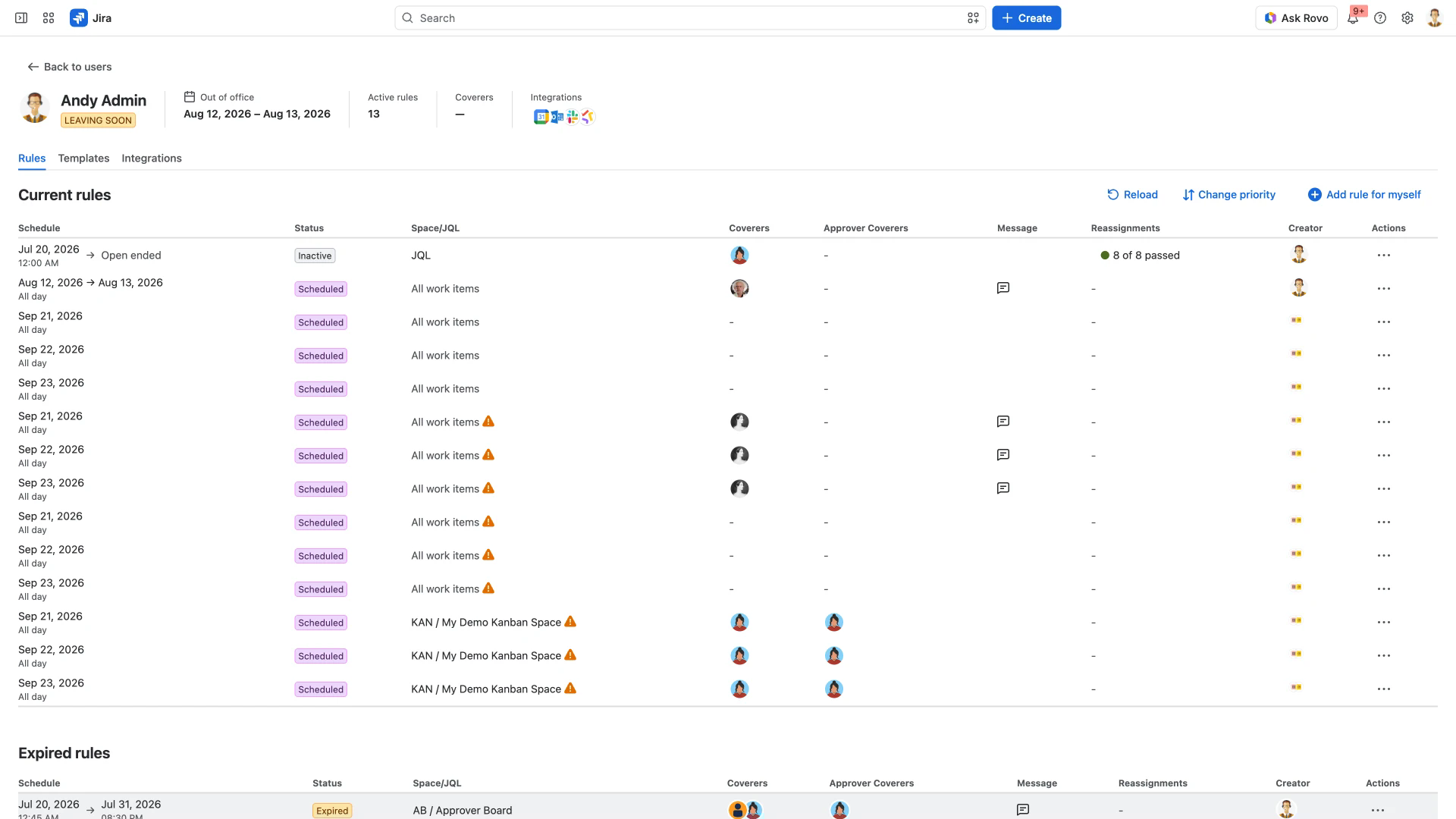
One person's detail page, reached from Show details and left through Back to users.
The Rules tab lists Current rules and Expired rules with the same columns as My Rules, including separate Coverers and Approver Coverers columns. A rule with no end date reads Open ended in both places. Reload re-reads the rules, including those created by an integration.
Who appears in the list
Jira admins and Out of Office admins see every user. A space admin sees the users of the spaces they administer. Everyone else sees the people who share at least one space with them, and the space filter offers only their own spaces.