

Rule Priority and Conflict Resolution
Only one Out of Office rule can act on a work item at a time. Source priority settles rules from different sources; the overlap warnings in the rules list settle the rest.
Set the order your rule sources take precedence
Open the My Rules tab.
Select Change priority in the header. The Change Source Priority dialog opens.
Drag a row by the handle on its left to move it up or down. The top row is the highest priority.
Select Save. The dialog shows the saved order next time you open it; Cancel leaves it unchanged.
Each row is a rule source: Manual Rules covers everything you create by hand, and each integration that has created rules for you gets its own row, such as Tempo Planner. When several sources have an active rule over the same period, the app applies the rule from the highest one.
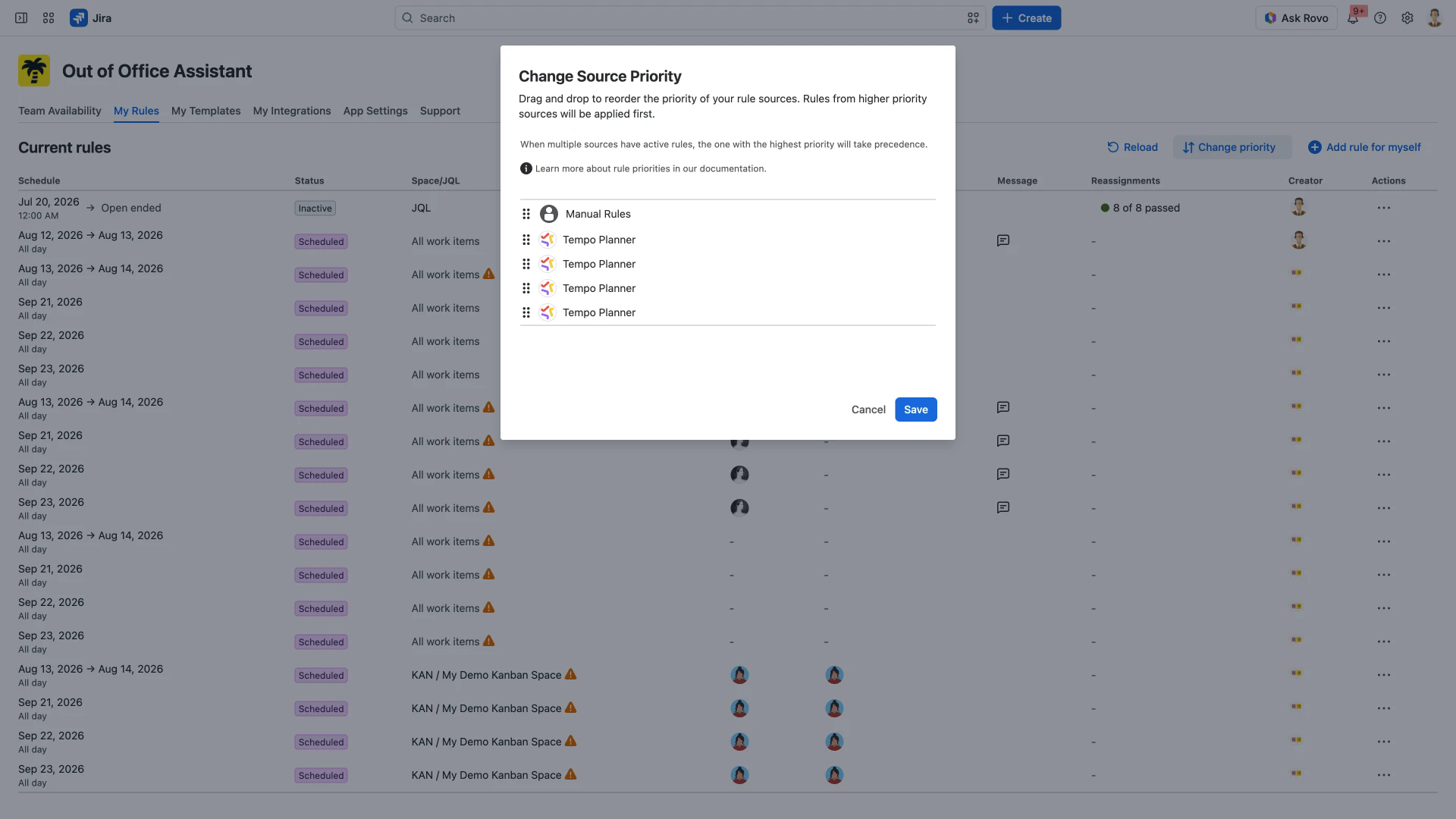
An integration that has generated several rules can appear as several identical rows. Their order against each other means nothing; what you set is where that integration sits against Manual Rules.
Administrators reach the same dialog for another person from Team Availability > Show details > Change priority on their Rules tab. See Out of Office User View.
Read the overlap warnings in the rules list
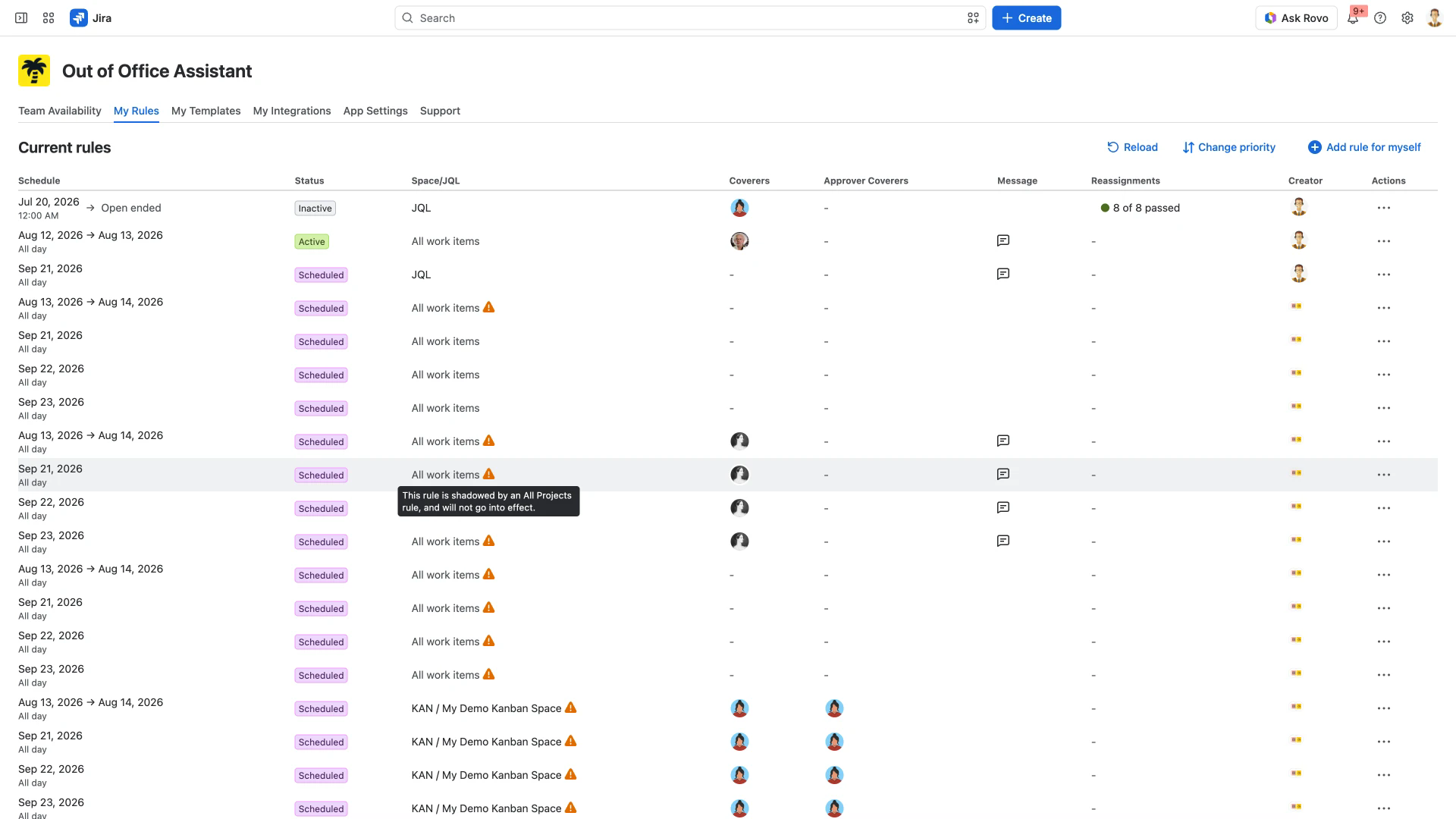
Source priority does not settle two rules from the same source. The rules list does. A warning triangle beside the value in the Space/JQL column marks a rule that will not run; hovering it gives the reason: This rule is shadowed by an All Projects rule, and will not go into effect. All Projects is the older name for the scope the column now calls All work items.
Two overlaps raise it. A rule limited to a space is shadowed by an all work items rule over the same days: it stays in the list, keeps its status and does nothing. Rules sharing one scope and one period also shadow each other.
The row left without a triangle is the one that runs; the tooltip is the same sentence on every shadowed row and never names the rule shadowing it. Change priority cannot settle it, because it orders sources, not the rules inside one: two rules you created yourself are both Manual Rules. To promote a different rule, reschedule, rescope or delete the others.
A JQL-scoped rule is not marked at all: created over the same days as an all work items rule, neither row says which applies. Keep JQL rules off days your other rules already cover.
The Sep 21 rules below all overlap: the space rule and two of the three all work items rules carry the triangle, the JQL rule does not.
The conflict check in the rule form
The form checks as you type. Once the dates meet an existing rule with the same scope, a red Schedule conflict block appears under Make the rule recurring. On a plain rule it names the period already covered: This rule overlaps with an existing rule covering the same scope (Aug 12, 2026 - Aug 13, 2026). On a recurring rule it names no dates: This schedule overlaps with an existing rule covering the same scope. Adjust the dates or the scope.
Related pages
The List of Out of Office Rules - its columns, statuses and row actions.
Rule Configuration Guide - creating a rule and choosing its scope.
Tempo Timesheet Integration - how many rules a plan creates, and their scope.