

User Inactivity Indicators in Issue Context
Inactivity tracking marks a person as inactive when they have not engaged with a work item for a number of days that you choose. It runs alongside the availability that comes from Out of Office rules, and it stays off until an administrator turns it on.
What the app measures
A person is marked inactive once the gap since their last recorded activity is larger than the threshold you set. That record is the last activity Atlassian reports for the account rather than one the app keeps, so a person who has been invited to the site but has never signed in is not marked inactive - they stay AVAILABLE in Team Availability.
Turn on inactivity tracking
Open Out of Office Assistant from the Jira sidebar under Apps.
Select the App Settings tab, then General Settings in the left navigation.
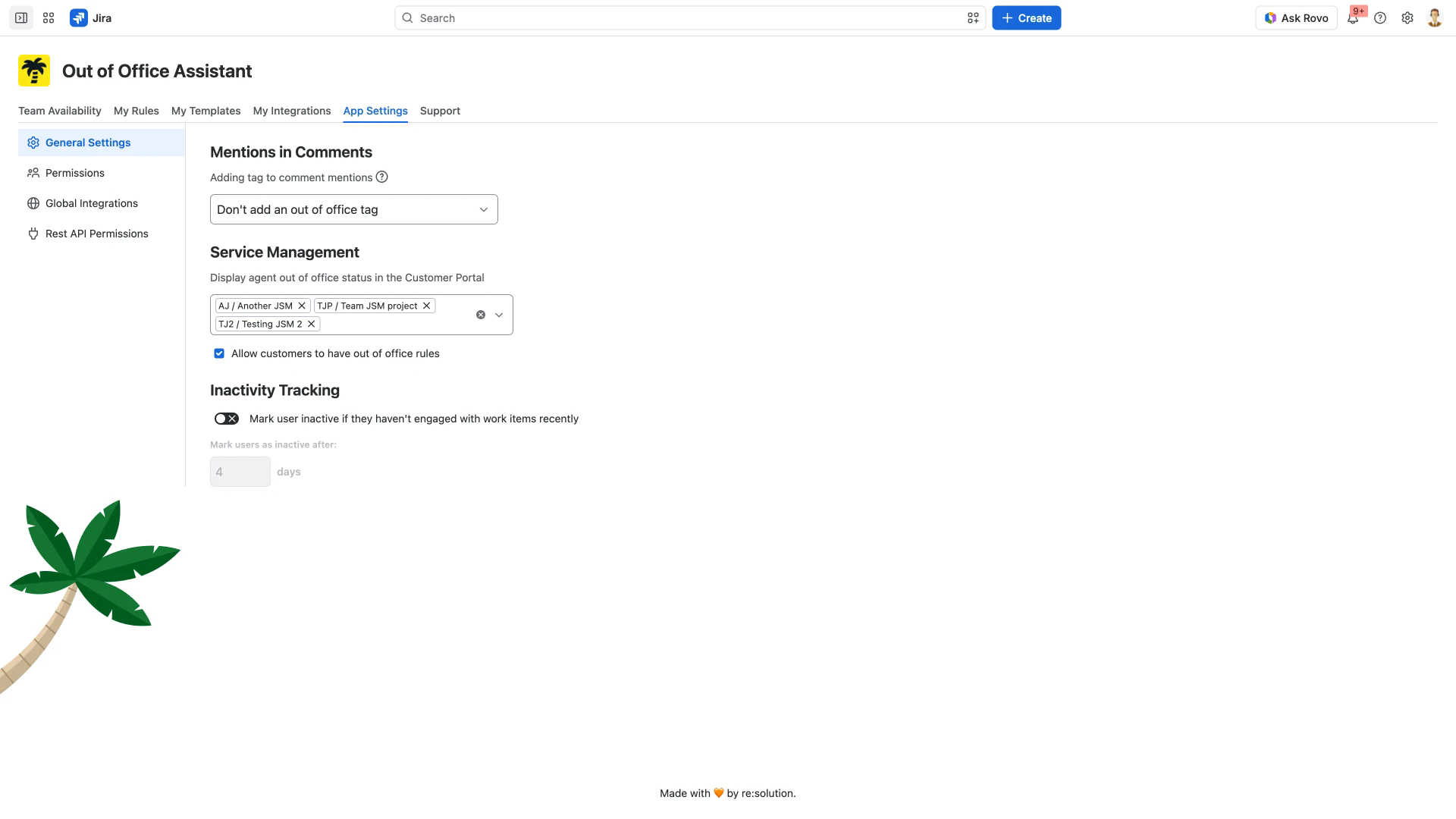
Under Inactivity Tracking, turn on Mark user inactive if they haven't engaged with work items recently.
In Mark users as inactive after, enter the number of days.
The day count is greyed out until the toggle above it is on, so turn the toggle on before you try to change the number. It starts at 4, and General Settings has no Save button.
The group sits at the bottom of General Settings, shown here before the toggle is on.
What you see once it is on
The indicator renders in one place: the Change assignee list inside a work item's Out of Office section. That section appears only when the work item's assignee is out of office, so open a work item assigned to someone who is currently out.
Expand the Out of Office section in the work item's right-hand column, below Automation.
Under AVAILABLE ASSIGNEES, select Change assignee.
Anyone past the threshold carries a second line under their name reading Inactive for and the number of days. It does not change their status - they are still listed under AVAILABLE - and it does not appear against the current assignee or in Team Availability.
Who can change the setting
App Settings is visible only to administrators. If you cannot see the tab, ask an administrator to make the change for you.
Related pages
Issue Context Assignment and Availability Display - what the Out of Office section shows on a work item, and how to reassign from it.
Out of Office User View - the Team Availability table, its filters and the status each person carries.
Permissions and Access Requirements - who counts as an administrator and what each role can reach.