

Permissions and Access Requirements
Out of Office Assistant works inside Jira Cloud's own permission model and adds two app-level roles on top of it. This page explains who can do what, where each role is granted, and what each integration needs.
How the permission model works
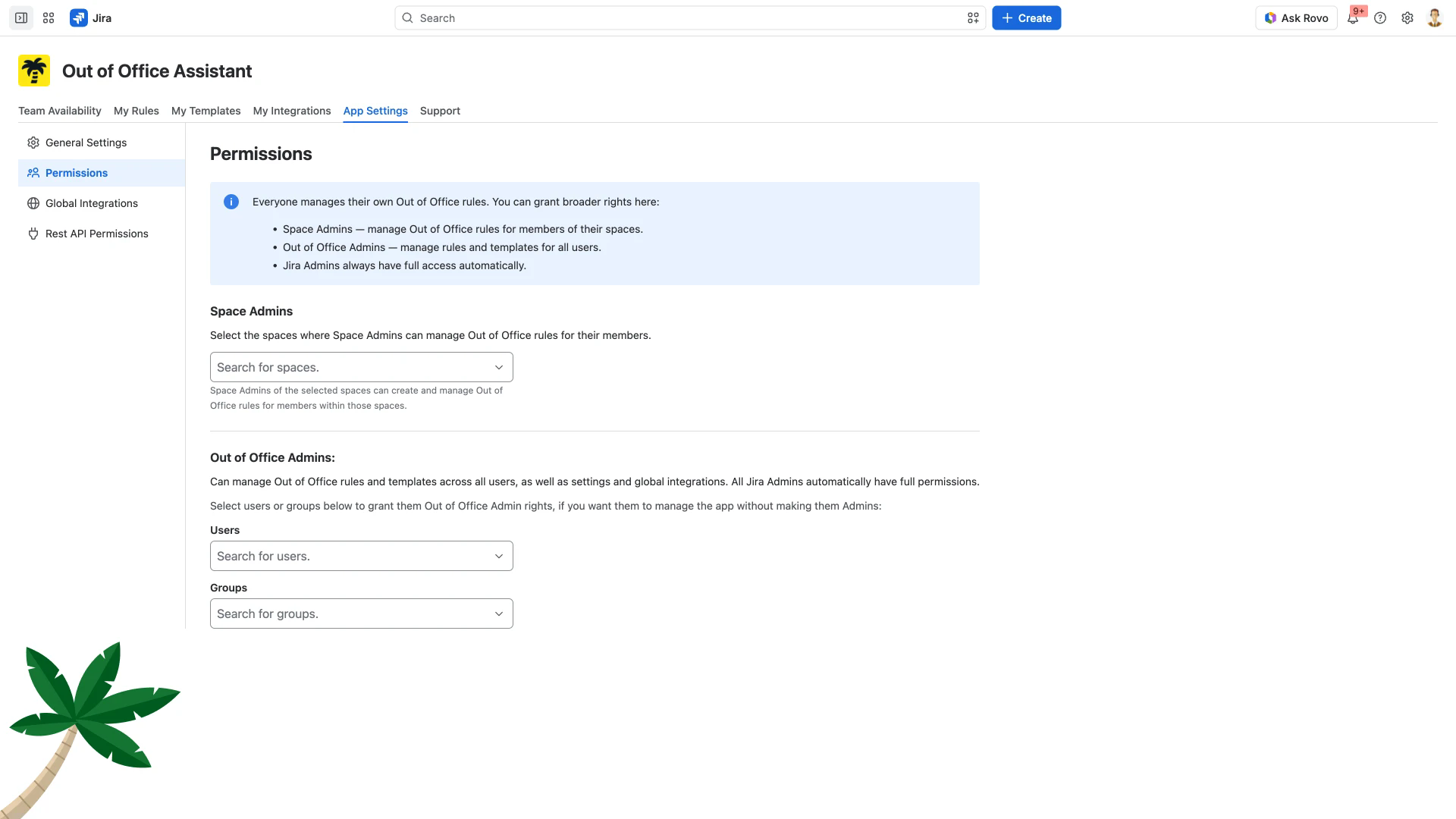
Everyone can manage their own Out of Office rules without being granted anything. Broader rights are granted inside the app, under Administration > Permissions.
Out of Office Admin is granted in the app alone. A Space Admin needs two grants, and neither works on its own: the app selection under Administration > Permissions, and Jira space administration rights for that space under Space settings > Access. Being the Space Owner does not grant them.
The Permissions screen states the model directly and is where both roles are assigned.
Roles at a glance
Role | Granted where | Can do |
|---|---|---|
Everyone | No grant needed | Create and manage their own rules and templates, and connect their own integrations |
Space Admin | Administration > Permissions > Space Admins | Manage rules, templates and integration settings for members of their spaces |
Out of Office Admin | Administration > Permissions > Out of Office Admins | Manage rules, templates and integration settings for all users |
Jira Admin | Automatic | Full access to everything, without being added to either list |
Everyone
Any licensed Jira user can, for their own account:
Create, edit, pause and delete their own Out of Office rules
Create and manage their own templates
Connect their own integrations from My Integrations
See their team's availability on the Team Availability tab
They cannot create or edit rules for anyone else, and they cannot open Administration.
Space Admin
A Space Admin manages rules, templates and integration settings for members of specific spaces. This suits team leads who cover for their own team but should not administer the whole app.
To grant it, open Administration > Permissions, then under Space Admins select the spaces. The screen states the effect: Space Admins of the selected spaces can create and manage rules, templates and integration settings for members within those spaces.
The grant is per space. A Space Admin of a space that is not selected here gets no additional Out of Office rights.
Out of Office Admin
An Out of Office Admin can manage rules, templates and integration settings for every user, and can create ADMIN-scope REST API tokens. It suits an HR team or team leads who maintain absences for others, or an HR system that syncs absences through the REST API, without giving them Jira administrator rights. Setting up the app itself (Administration, including permissions and global integrations) stays with Jira admins.
Grant it under Administration > Permissions > Out of Office Admins. There are two pickers:
Users - grant to named people
Groups - grant to a Jira group, so membership changes flow through automatically
Jira Admin
Jira administrators always have full permissions automatically. They do not need to be added to the Space Admins or Out of Office Admins lists, and adding them changes nothing.
Jira admins are also the people who install the app and who control REST API access under Administration > Rest API Permissions.
Service desk agents
Agents in Jira Service Management get the same self-service rights as everyone else, plus approval delegation: they can nominate approver coverers so approvals keep moving while they are away.
Two related settings live under Administration > General Settings > Service Management:
Display agent out of office status in the Customer Portal: choose the spaces whose customer portal shows the assigned agent's out of office status. The same list decides where Share this message with service desk customers. is offered on the rule form.
Allow customers to have out of office rules: lets portal customers have out of office rules of their own. Once it is ticked, Jira admins and Out of Office Admins get Users and Customers buttons on Team Availability; select Customers to manage those rules. The option is greyed out when the site has no Jira Service Management spaces. See Creating Out of Office Rules for JSM Customers.
REST API access
Only Jira admins can change who may create REST API tokens. They do this under Administration > Rest API Permissions, setting Who can create REST API Tokens to either:
Option | Details |
|---|---|
All users (the default) | All users can create REST API tokens. |
Only specific users | Pick named users, groups, or both. |
Jira admins and Out of Office Admins can always create tokens, whatever this setting says. Only they can create tokens with ADMIN scope; everyone else gets PERSONAL tokens, which act on their own rules only.
Scope and existing tokens
The setting controls only who can create new tokens. Tokens people already hold keep working when you switch to Only specific users, so revoke any that should stop.
Where people create and where admins manage
Who | Where / What they see |
|---|---|
Individual users | People create their own tokens under My Integrations > REST API. |
Jira admins | On the Rest API Permissions screen, Jira admins see every token on the site under Created tokens, with its user, description, scope, creation date, last access and expiry, and can delete any of them. |
Tokens from Connect app | Tokens imported from the Connect app are listed separately under Legacy tokens. These can be revoked but not regenerated. |
What each integration requires
Personal integrations are connected by each user from the My Integrations tab.
A Jira admin decides which of them are offered at all under Administration > Personal Integrations, where Outlook, Google Workspace and Slack can each be switched off.
Turning one off removes its card for everyone who hasn't set it up yet; people who already connected it keep it, and it keeps working.
Global integrations are configured once by a Jira admin under Administration > Global Integrations.
Integration | Scope | Requirements |
|---|---|---|
Office 365 (Outlook) | Personal | A Microsoft 365 account with an Exchange mailbox. You are asked to pick the Microsoft account to authorize. An account without a mailbox can still be connected, but the card then shows Integration paused and no rules are created; use Connect to authorize a different account. |
Google Calendar | Personal | A Google Workspace account. Personal Gmail accounts are not supported |
Slack | Personal | Access to the Slack workspace. Installing the app into the workspace needs a Slack workspace administrator |
Tempo | Global | A Tempo administrator generates the API token; a Jira admin adds it under Global Integrations |
Microsoft 365 | Global | Added with + Add Microsoft 365 under Global Integrations by a Jira admin |