

Tempo Timesheets - User Configuration Process
An administrator connects Tempo once for the whole Jira instance. Each person then sets two things for themselves: whether the integration acts on their own account, and which rule templates each kind of Tempo absence should use.
Open your Tempo integration settings
Open Out of Office Assistant and select the My Integrations tab.
On the Tempo Planner card, select the gear in the top right corner. The gear is the Configure control - one click, no menu behind it.
The card carries the note This integration is managed by your administrator and a count of the rule templates you have configured. The page the gear opens is titled Tempo Planner Integration.
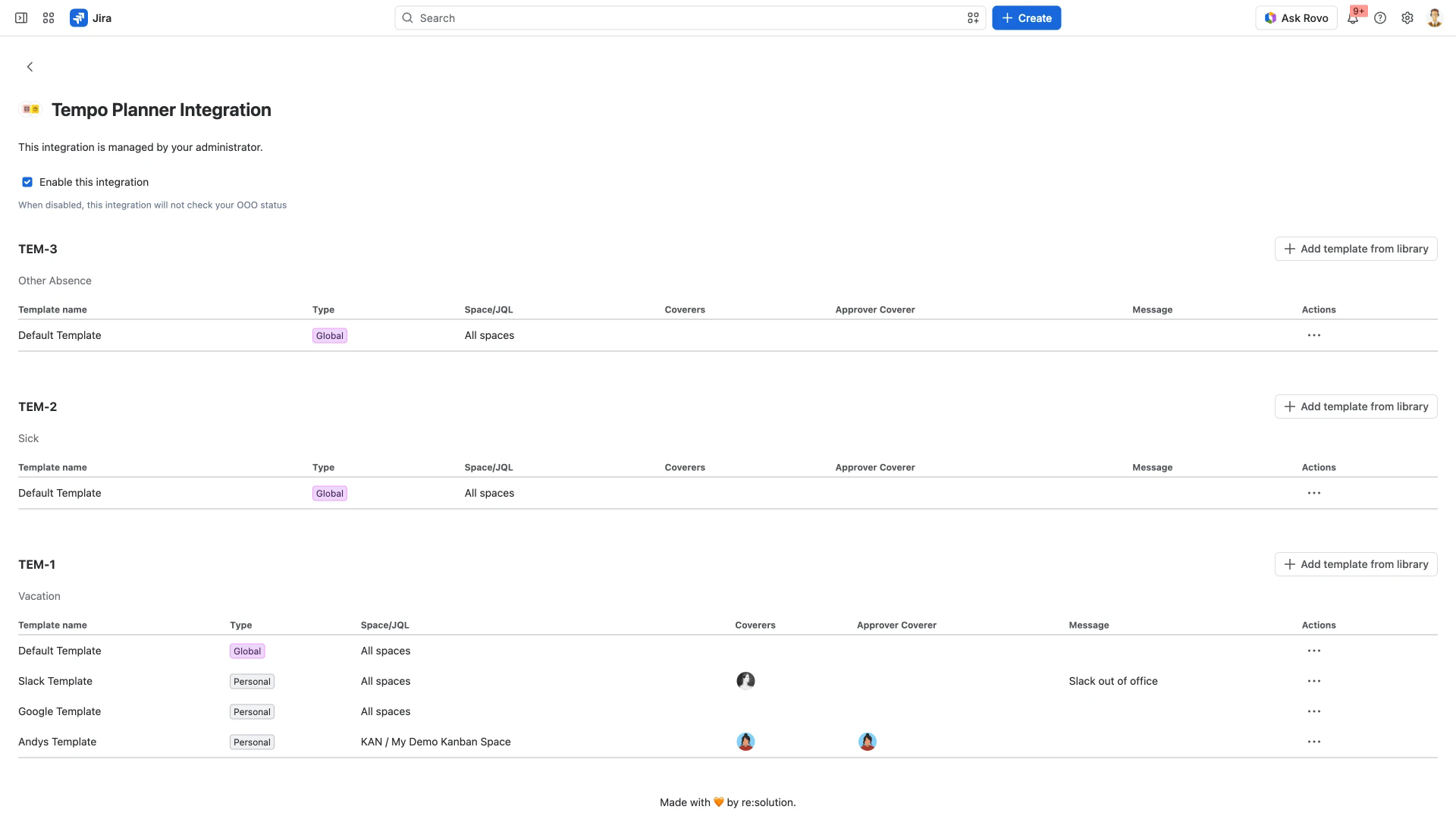
Switch the integration off for your own account
Enable this integration, directly under that note, applies to you alone: when disabled, this integration will not check your OOO status. Clearing it leaves the integration running for everyone else.
Choose the templates for each absence type
Below the checkbox the page lists one block per Tempo plan item. Each block is headed by the plan item's work item key and summary, and holds a table of the templates attached to it: Template name, Type, Space/JQL, Coverers, Approver Coverer, Message and Actions, whose cell is a three dots button.
To attach a template to one absence type:
In that absence type's block, select Add template from library, at its top right.
The dialog Add Out of Office templates to Tempo Planner opens, listing the templates that are not already attached to this plan item.
Tick the checkbox beside each template you want, then select Confirm. Cancel closes the dialog without attaching anything.
You do not have to build the template first: the dialog carries a Create template link below the list, under the line Create a new template or add one from the list. For what the template form asks for, see Templates for Out of Office Rules. There is no separate Templates Library tab; this dialog is the library.
Type separates a Personal template, which is your own, from a Global one. Only an administrator can change what a Global template contains: the app's permissions grant Out of Office admins management of rules and templates for all users. See Permissions and Access Requirements.
Which plan items appear here is chosen by an administrator in Tempo's own settings, not in Out of Office Assistant. If an absence type you use is missing, that is where it is added - see Integration with Tempo - Admin Setup.
How many rules one plan creates
A Tempo plan does not create one rule. It creates one rule per template attached to the plan item you booked the time against, so a plan item carrying four templates turns one two-day vacation into four rules, each taking its scope, coverers and message from its own template. All of them appear on My Rules with the Tempo icon in the Creator column.
Attaching a second template to a plan item does not refine the rule you already get - it adds a second rule alongside it.
Booking the absence itself happens in Tempo. For the plan form and the rule times it produces, see Out of Office Rules with Plan in Timesheets.
Which timezone your Tempo absences run in
An absence window imported from Tempo is evaluated in the absent person's own Jira profile timezone, or in the timezone stored on the rule, falling back to UTC only when neither is available. It is not read in the timezone of whoever is looking at the rule.