

Agent Availability Display in JSM Customer Portal
Out of Office Assistant can tell customers in the Jira Service Management portal that the agent handling their request is away, and until when. The panel is off until an administrator selects the spaces it applies to, so you can show agent absences on one service desk and leave another unchanged.
Show the panel in a portal
Jira admins always have full access to App Settings. Which of the app's own admin roles can open it is set out on Permissions and Access Requirements.
Open Out of Office Assistant from Apps in the Jira sidebar, then select the App Settings tab.
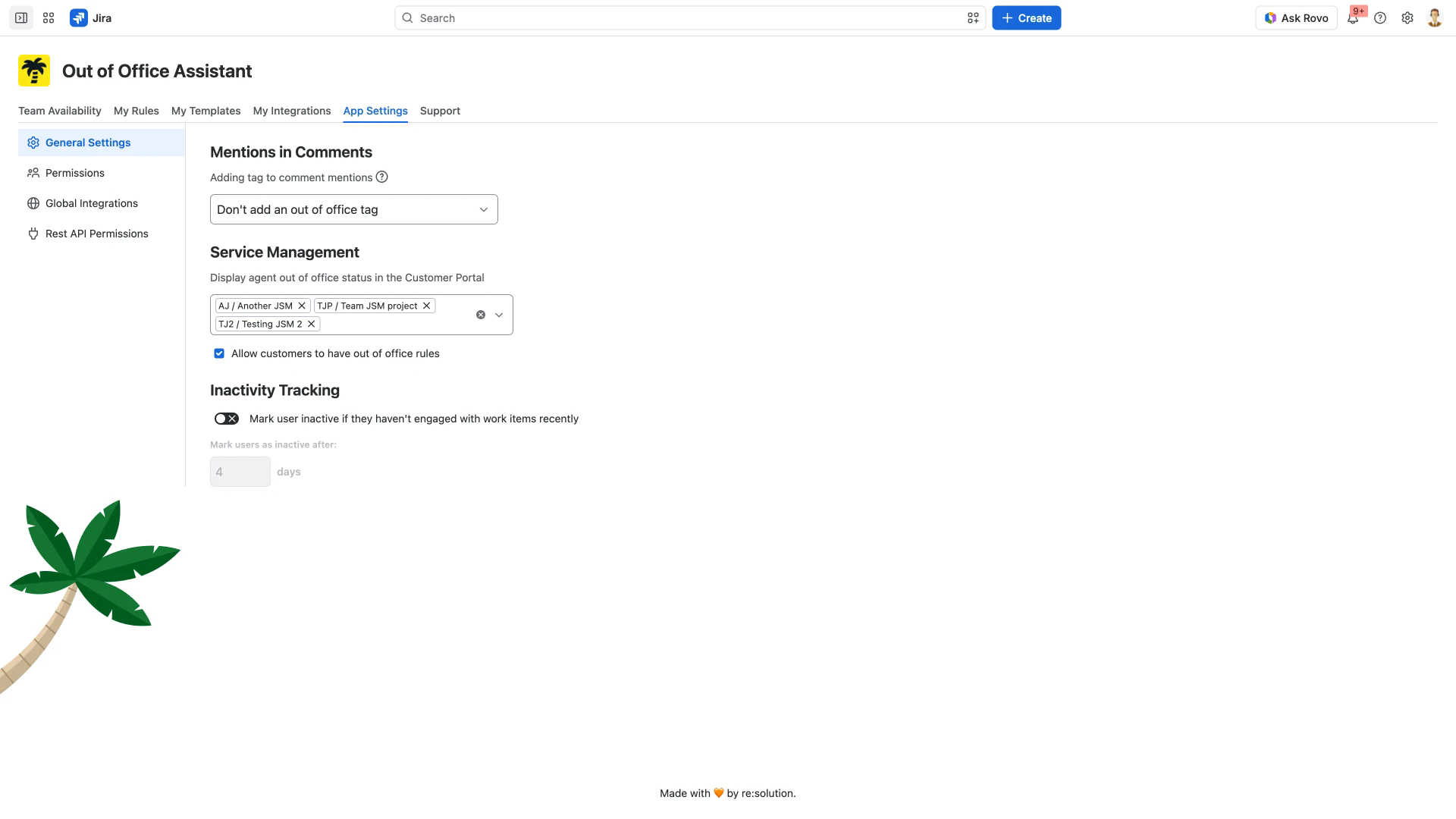
Select General Settings in the sidebar on the left and find the Service Management group.
Open the picker under Display agent out of office status in the Customer Portal and select every space whose portal should show the panel.
Each space you pick stays in the field as a chip carrying its key and name, such as SUP / Customer Support. Remove one with the cross on its chip, or empty the field with the cross at its right-hand end. Nothing needs saving.
Only Jira Service Management spaces are offered here; spaces of any other type do not appear in the picker.
What a customer sees
On a request in one of those spaces, the right-hand column of the portal carries an Apps section headed Out of Office. Under ASSIGNEE STATUS it shows the assigned agent's avatar and display name, a status lozenge, and how long the absence lasts.
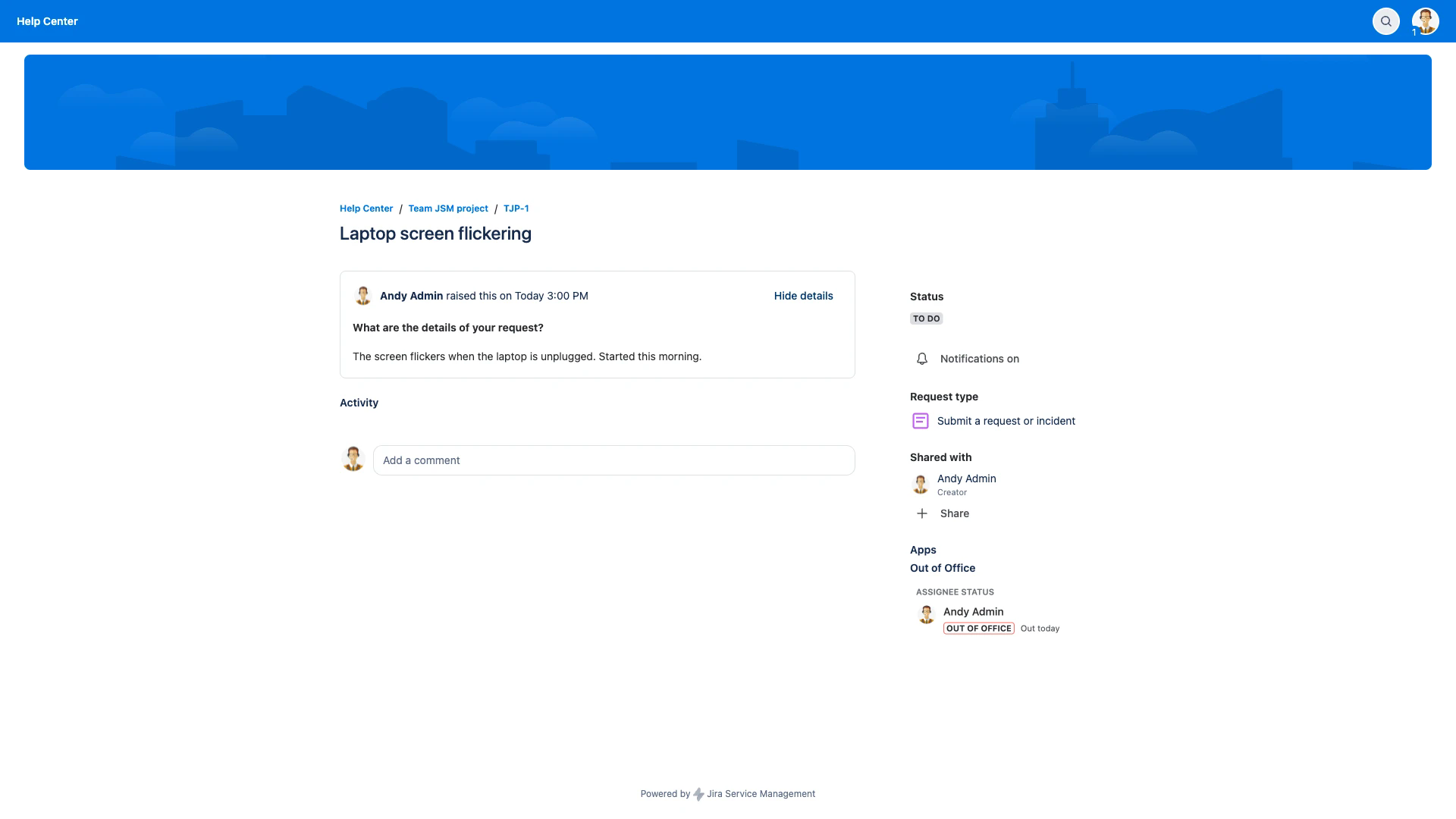
Customers see the panel without a Jira license or an Out of Office license of their own.
The panel carries the status and the absence period, and nothing else: the coverer's name, the rule's message and the rule itself never appear in this panel. The message can still reach the customer, but as a comment rather than in the panel - see below. Agents working the same request see a different panel in the work item itself.
Four cases look different in the portal:
The request has no assignee: the section shows an UNASSIGNED lozenge on its own, with no avatar, name or dates.
The assigned agent is available: the section shows their avatar and an IN THE OFFICE lozenge, with no period.
The assigned agent's absence starts within the next 4 days: the section shows a LEAVING SOON lozenge.
The request is in a space you did not select: no Out of Office section appears, whatever the agent's status.
Reassignment comments stay internal unless the rule shares them
When a rule reassigns a request to a coverer, the app posts the rule's message on the request as a comment. That comment is internal to agents unless the rule ticks Share this message with service desk customers. beneath its Message Text, which turns it into a reply the customer reads in the portal.
The two decisions are independent. Selecting a space here shows the availability panel; it does not make any comment public. Sharing a message is set per rule.
Letting customers have their own rules
Directly under the space picker, Allow customers to have out of office rules decides whether service desk customers may hold rules of their own. It is a separate decision from the availability panel.
Related pages
Service Desk Customer Notifications - writing the reassignment message and choosing who reads it.
Creating Out of Office Rules for JSM Customers - what customers can set up once you allow it.
Issue Context Assignment and Availability Display - the panel agents see inside the work item.
Approval Delegation for Jira Service Management - passing approvals to a coverer while an agent is away.