

Service Desk Customer Notifications
When an out of office rule hands a work item to a coverer, Out of Office Assistant posts the rule's message as a comment on that work item. On a Jira Service Management request, that comment can be internal to agents or a public reply the customer who raised the request can read. Each rule decides which, through one checkbox.
What the app posts
Each work item that moves gets one comment. It carries the Message Text from the rule that matched, word for word as you wrote it, followed by a line the app appends naming the coverer it went to. That appended line is always English, whatever language the site runs in; your own message is left as you typed it.
Choose who sees the comment
In the Jira sidebar, open Apps > Out of Office Assistant, then open the My Rules tab.
Select Add rule for myself. To change a rule that already exists, open Actions on its row and select Edit.
Set the dates, spaces and coverers the rule needs, then write what you want posted in Message Text.
Directly below the message, tick Share this message with service desk customers. to post the comment as a public reply. Leave it clear to keep the comment internal to agents.
Select Create Rule.
The checkbox sits between Message Text and Mention Tag.
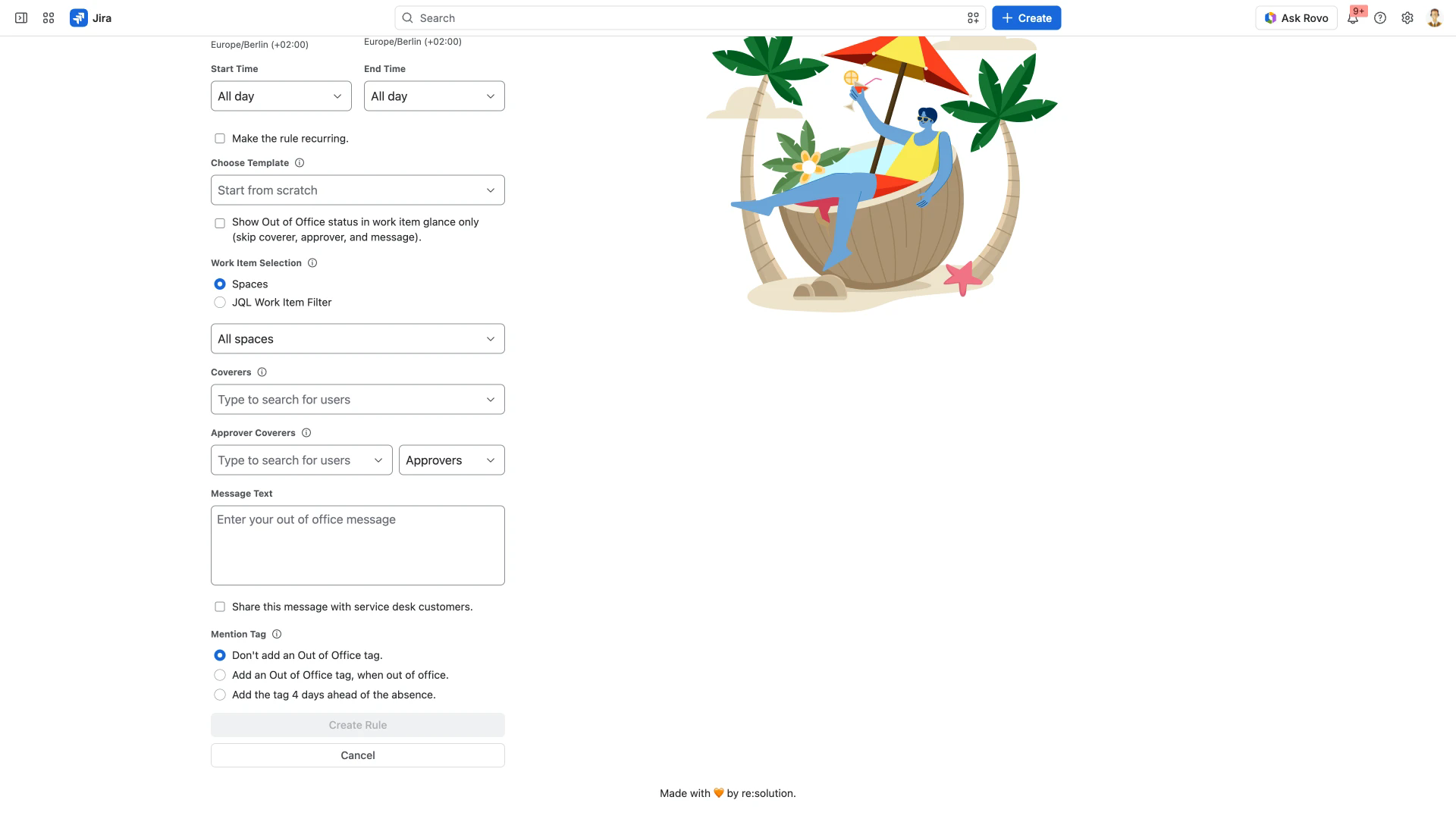
The checkbox is clear on a new rule, so a reassignment comment stays internal unless that rule opts in. The choice is made on each rule; there is no site-wide setting that turns customer sharing on for everyone.
A rule has one message field, and it serves both audiences. If you tick the box, write for the customer: your absence dates, who is taking over, and what happens next. Keep internal detail out of it.
What the checkbox does not change
The out of office panel a customer sees on a request in the portal is separate from this comment. It reports the assignee's availability, or an UNASSIGNED lozenge where the request has no assignee, and never carries your message - ticking the checkbox does not put it there. Agent Availability Display in JSM Customer Portal covers the panel and the setting that decides which spaces show it.
The checkbox is on every rule that has a message, whatever spaces the rule covers. Outside a service management space there is no portal customer to share a comment with.
A rule created with Show Out of Office status in work item glance only ticked has neither a Message Text field nor the sharing checkbox, so it has no message to share.
Related pages
Agent Availability Display in JSM Customer Portal - the status panel customers see in the portal.
Creating Out of Office Rules for JSM Customers - letting portal customers set their own absences.
Approval Delegation for Jira Service Management - passing approvals on a request to a coverer.
Rule Configuration Guide - every field on the rule form.