

Customer Guide - Understanding Agent Out of Office
Service teams that use Out of Office Assistant can show you, in the customer portal, whether the agent working on your request is away. This page explains what that display means and what happens to your request while an agent is out. You do not need an account in the app or a Jira licence to see it.
Where the status appears
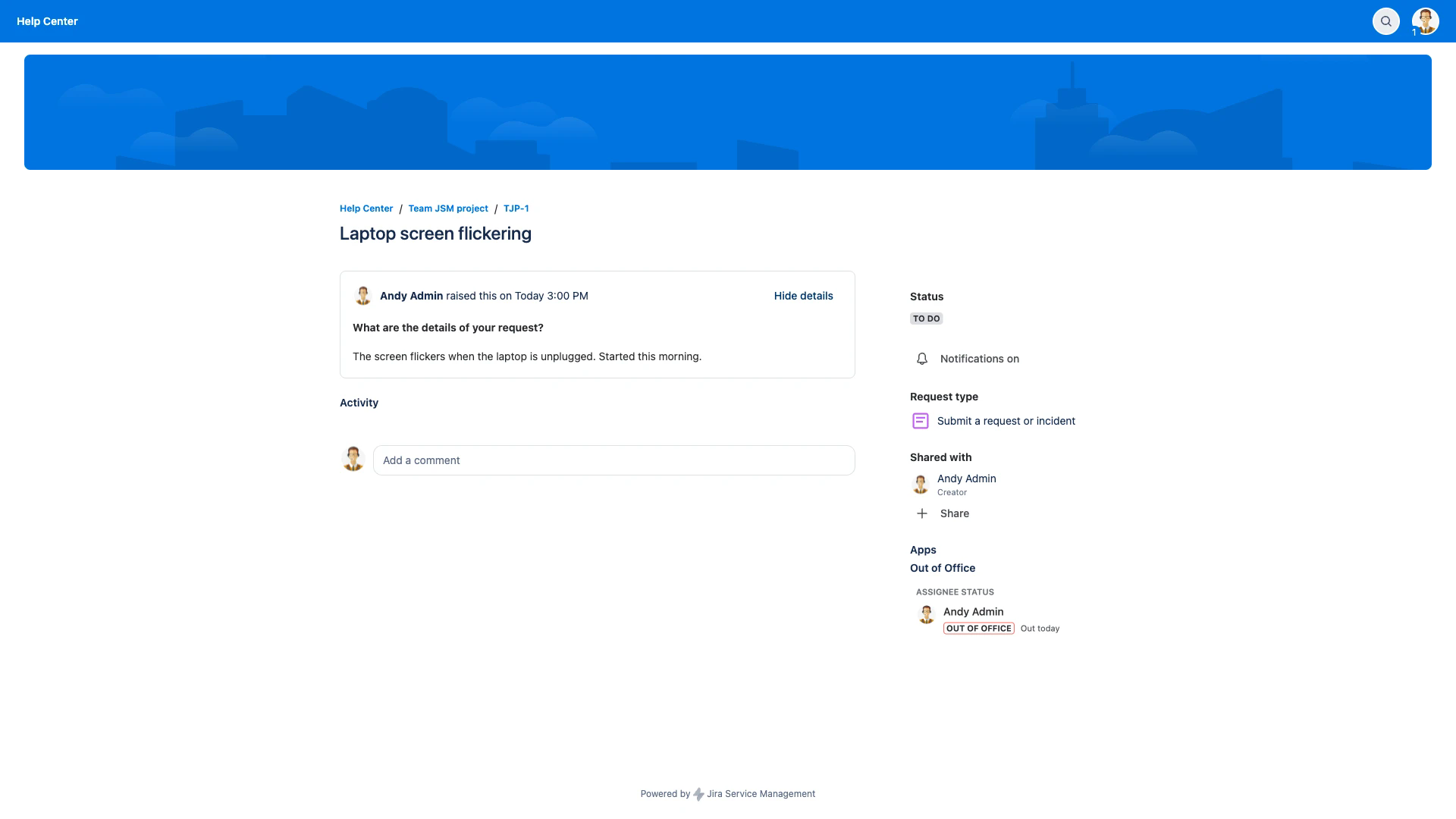
Open your request from the portal and look at the column on the right, below the request details. Where the service team has turned the display on, an Out of Office section appears there under Apps, headed ASSIGNEE STATUS. It names the agent your request is assigned to and shows their current status. The section is there whether or not that agent is away.
Reading the status
OUT OF OFFICE - the agent named above the lozenge is away now. The text beside it, such as Out today, tells you for how long.
LEAVING SOON - the agent's absence starts within the next 4 days. They are still at work for now.
IN THE OFFICE - that agent is at work. Nothing further is shown.
UNASSIGNED - nobody has picked up your request yet. The section shows this lozenge on its own, with no name and no dates.
The section does not name who else is on the team, and it shows nothing about your own availability.
Each service team decides whether agent availability is shown in its portal at all, so you may see this section on requests to one team and never on requests to another.
What happens to your request
An absence does not put your request on hold. Before going away, an agent can name colleagues to cover for them. Requests assigned to the agent while they are away, or raised with the agent as assignee, are then passed to a coverer automatically, and the Out of Office section names whoever holds your request from that point on. Requests the agent already held when the absence started stay with them unless they hand them over before leaving.
You may also see a comment on the request explaining the handover and naming the covering agent. The app adds that comment for you to read only when the absent agent chose to share their out of office message with customers. Otherwise the handover note is kept between agents, and the change of hands happens without a comment you can see.
What you should do
Keep working in the same request. Your comments, attachments and history stay with it whoever picks it up.
Add anything new as a comment on that request rather than raising a second one, so the covering agent has the whole thread in front of them.
If the request is urgent, say so in a comment. The covering agent sees it; the absent agent will not.
Related pages
These pages are written for the people who run the service desk rather than for you, and explain how the display above is set up.