

Service Desk Agent Quick Reference Guide
When a service desk agent goes out of office, three settings on the absence rule decide what happens in Jira Service Management: who takes over the approvals waiting on you, whether your out of office message reaches the customer, and what that customer sees on their request. The rest of the rule form works the same for you as for any other user.
Set the fields that affect service desk work
Open Apps in the Jira left navigation and select Out of Office Assistant, then the My Rules tab, then Add rule for myself. Set Start Date and, if you know when you are back, End Date (Optional). Then work down the form:
Work Item Selection - keep Spaces selected and choose your service management spaces, or leave All spaces so the rule covers every work item assigned to you, or created with you as assignee, while you are away. Requests you already hold when the absence starts stay with you; hand them over with Bulk assign from the rule's Actions menu.
Coverers - the agent your requests are assigned to while you are away.
Approver Coverers - the agent who takes over approvals waiting on you. The combobox beside the user picker sets which Jira approval field the handover applies to: Approvers, preselected, or Manager. Change it if your space's approvals run on Manager.
Message Text - the message the app posts as a comment on each work item the rule reassigns. The coverer's name is added to it automatically.
Share this message with service desk customers. - tick this box and the comment is visible to the customer who raised the request. Leave it unticked, and the comment stays internal to agents.
Select Create Rule.
Coverers, approver coverers and a message are independent. Set only an approver coverer and your approvals move while your requests stay with you.
Ticking Show Out of Office status in work item glance only (skip coverer, approver, and message). removes Work Item Selection, Coverers, Approver Coverers, Message Text and the service desk checkbox from the form. A rule of that kind announces your status and does nothing else - no approval handover, no reassignment, no customer message.
What the customer portal shows
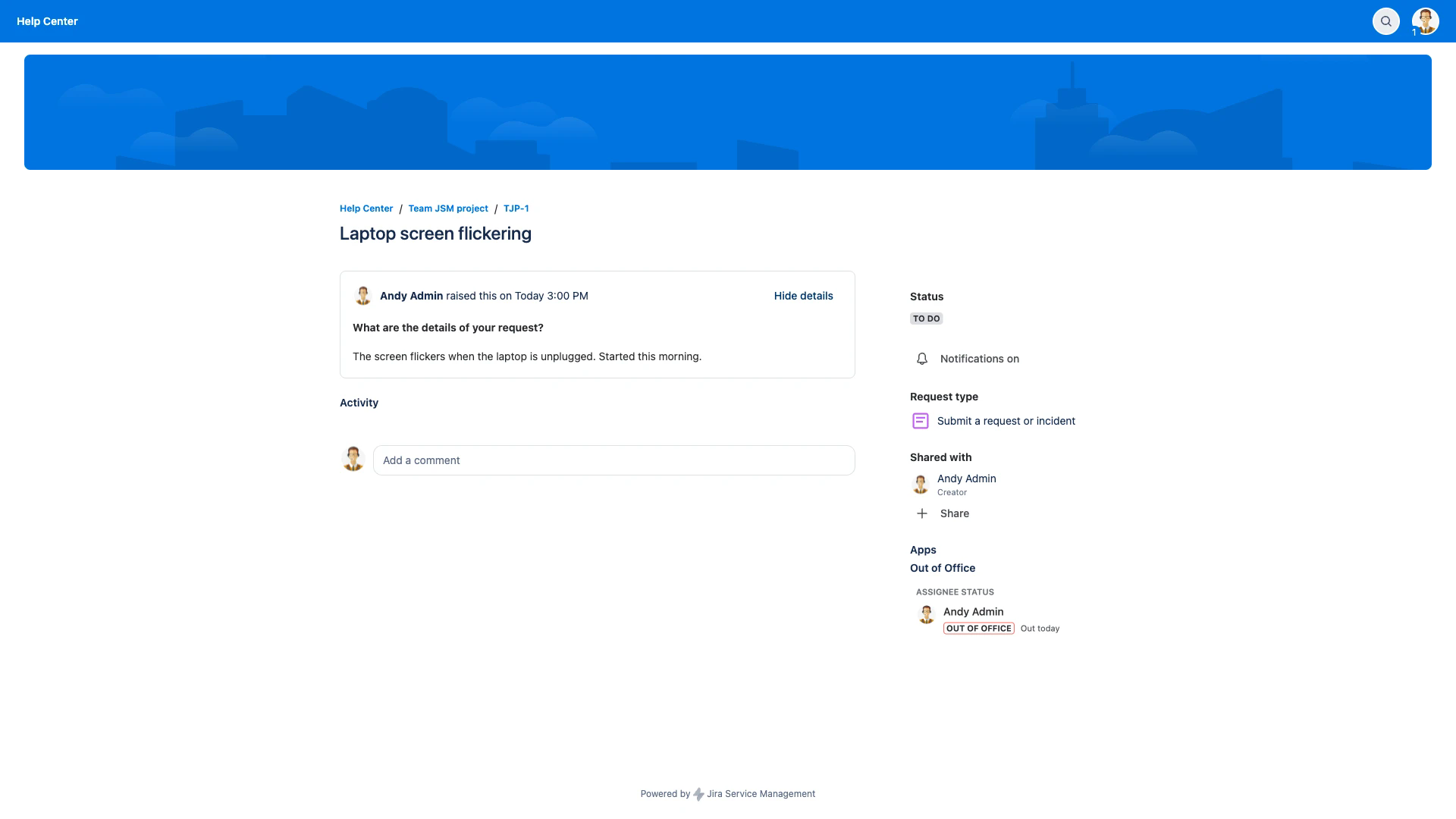
Customers never see your rule. On a request in the customer portal, the app adds an Out of Office section to the right-hand column under Apps, headed ASSIGNEE STATUS. It carries the assigned agent's name, an OUT OF OFFICE lozenge and a plain-language period such as Out today. It does not name your coverer and it does not repeat your message.
The section appears in every request in the service management spaces an administrator has selected, whatever the agent's status: OUT OF OFFICE with a period while they are away, LEAVING SOON when the absence starts within the next 4 days, IN THE OFFICE when they are not away, and UNASSIGNED where nobody is assigned. It appears only in the spaces selected under App Settings > General Settings > Service Management. If your space is not selected there, your customers see nothing, and your reassignment comment is their only signal.
Check the handover before you leave
The rule appears on My Rules, which lists Coverers and Approver Coverers in separate columns, so you can confirm both handovers are set. Its Reassignments button reports how many of the rule's reassignments succeeded once it is running. See The List of Out of Office Rules for the rest of that table.
Related pages
Approval Delegation for Jira Service Management - what happens to approvals while your rule runs, and what is reclaimed when it ends.
Service Desk Customer Notifications - the comment the app posts when a request is reassigned, internally or to the customer.
Agent Availability Display in JSM Customer Portal - the administrator settings behind the portal panel.
Creating Out of Office Rules for JSM Customers - rules for approvers who are customers rather than agents.
Rule Configuration Guide - every field on the rule form, including recurring absences and templates.