_SvIncludePlusContent-Okta Configuration for User Sync
Log in to your Okta organization as a user with administrator privileges.
Any type of administrator role is fine. If you limit this administrator role to manage only specific groups,
only users in those groups are synced. API tokens have the same permissions as the user who creates them,
and if the user permissions change, the API token permissions will also change.
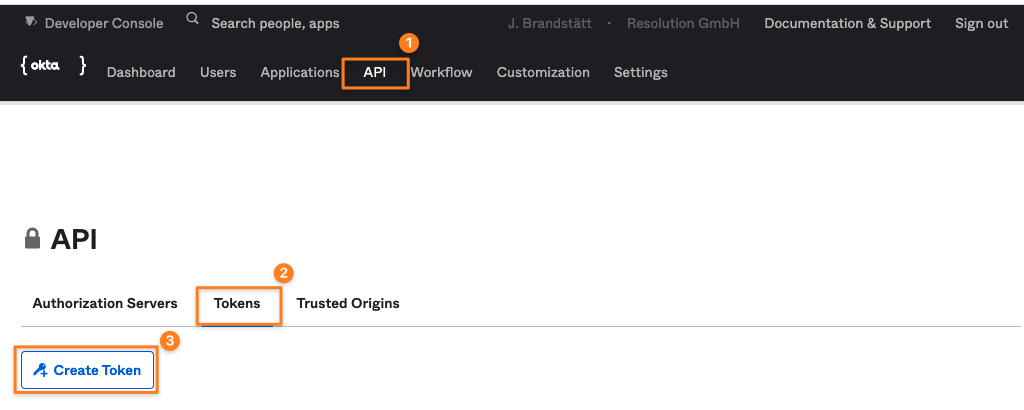
Okta Regular UI
Click on API (2)
Click on Tokens (3)
Click on Create Token (4)
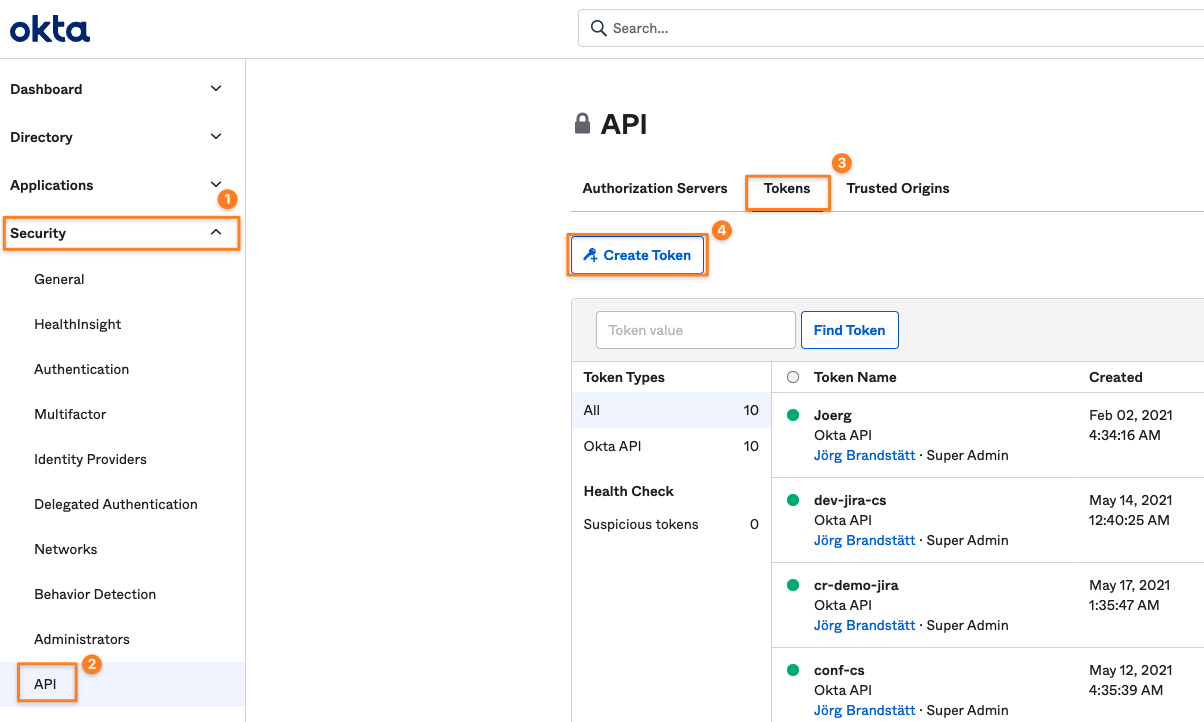
Okta Developer Console/ Classic UI
Expand the Security node (1)
Click on API (2)
Click on Tokens (3)
Click on Create Token (4)
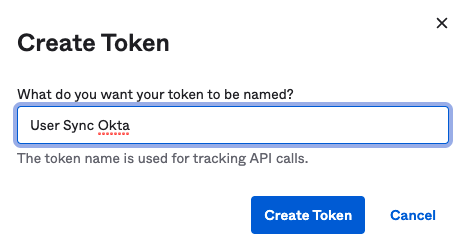
Name and Create Token
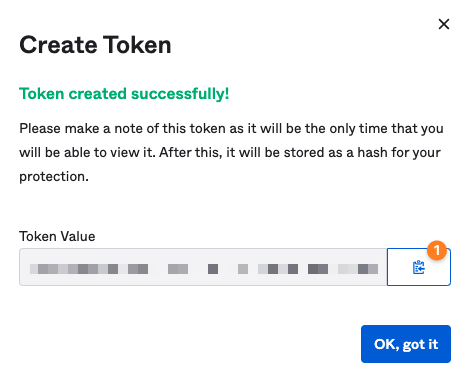
Name the token and create it
copy its value (1), it will be only displayed once. Of course, you can create a new token if you lost the old one
Create User Sync Connector For Okta
Navigate to the administration console for Jira, Confluence, Bitbucket, or Bamboo and search for User Sync here:
Confluence: Confluence Administration/ General Configuration, search for USERS & SECURITY
Jira: User management tab
Bitbucket: Administration/ Accounts
Bamboo: Administration/ Security
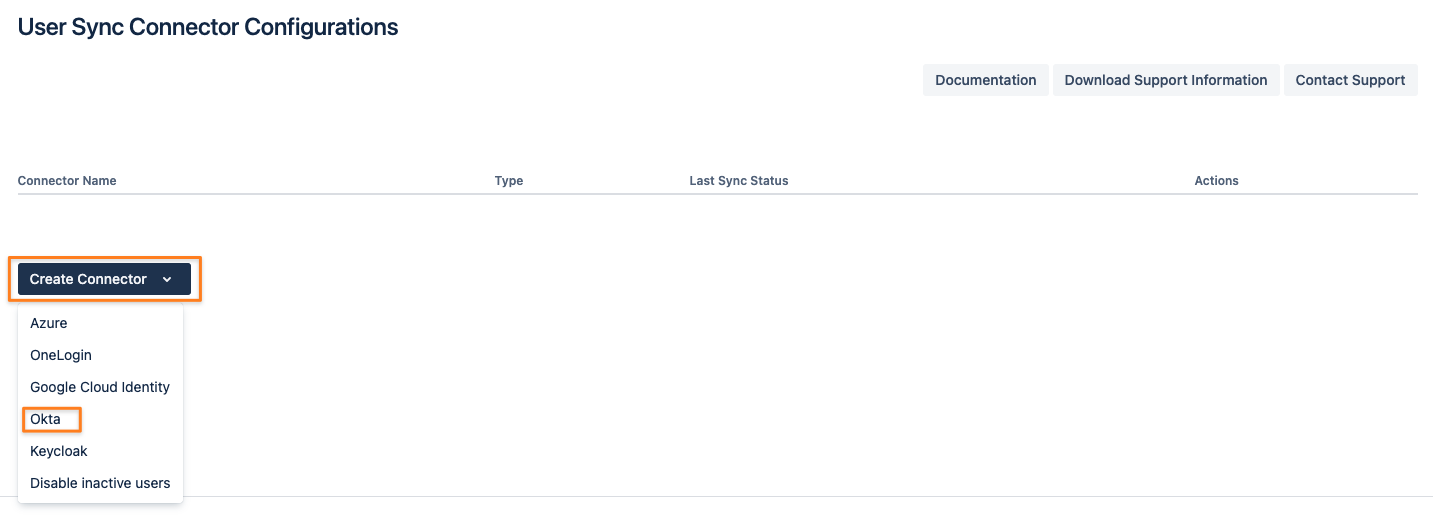
Now it is time to configure User Sync in your Atlassian product. Click on Create Connector and select Okta:
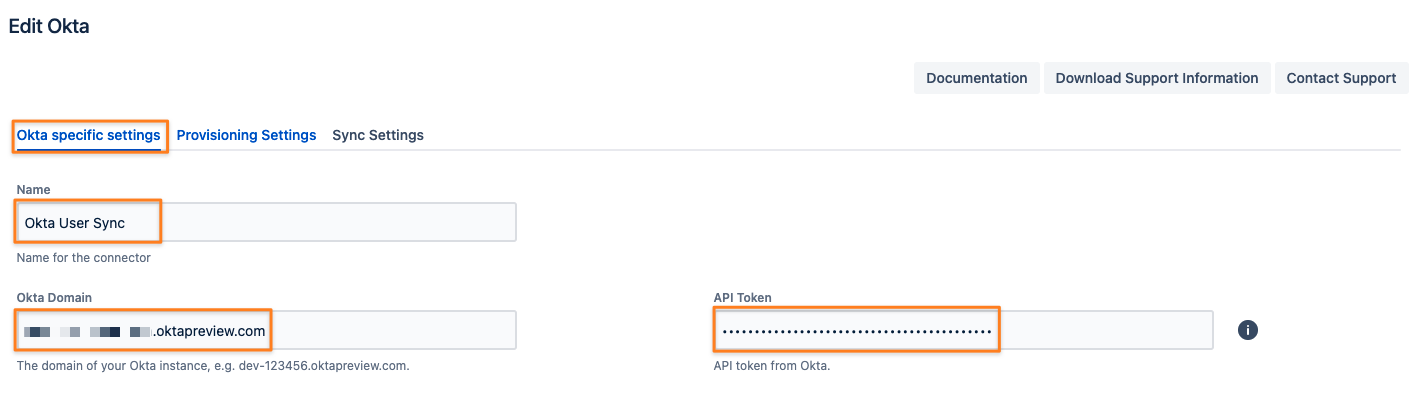
Set a Name, insert your Okta Domain without protocol (HTTPS://), and paste the token value to the API Token field
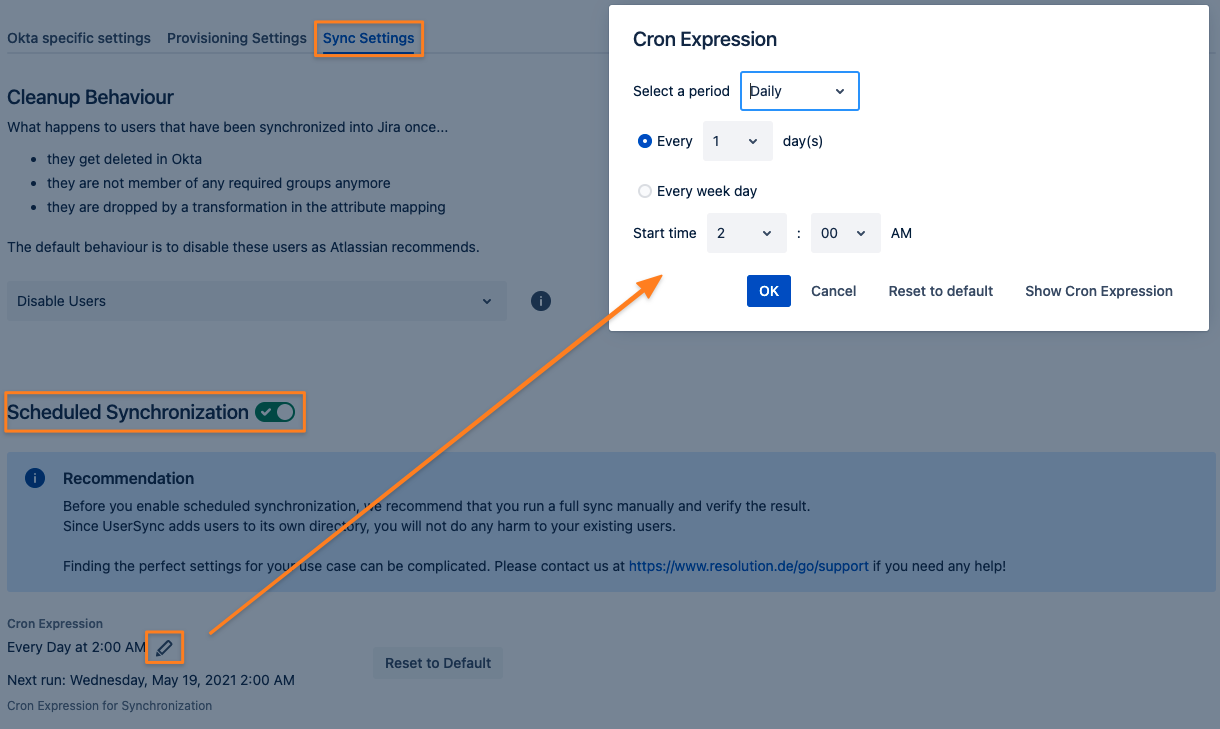
To take full advantage of User Sync, click on the Sync Settings tab and Enable Scheduled Synchronization.
You can control the sync interval with the modal but also by editing the Cron expression.
Do not forget to save your configuration. Scroll down to the bottom of the page and press Save or Save and Return.