

Setup SAML SingleSignOn with ADFS
Before you start
TODO
This guide will help you through the first steps of configuring SAML SingleSignOn for your Atlassian product.
What you need:
An Identity Provider speaking SAML, for example Microsoft AD FS, Azure AD, PingIdentity or G Suite.
Access as system administrator to your Atlassian application.
Confluence must be accessible via HTTPS. See https://confluence.atlassian.com/display/DOC/Running+Confluence+Over+SSL+or+HTTPS for instructions.
This is necessary because ADFS accepts only HTTPS-URLs for SAML endpoints.
Installation
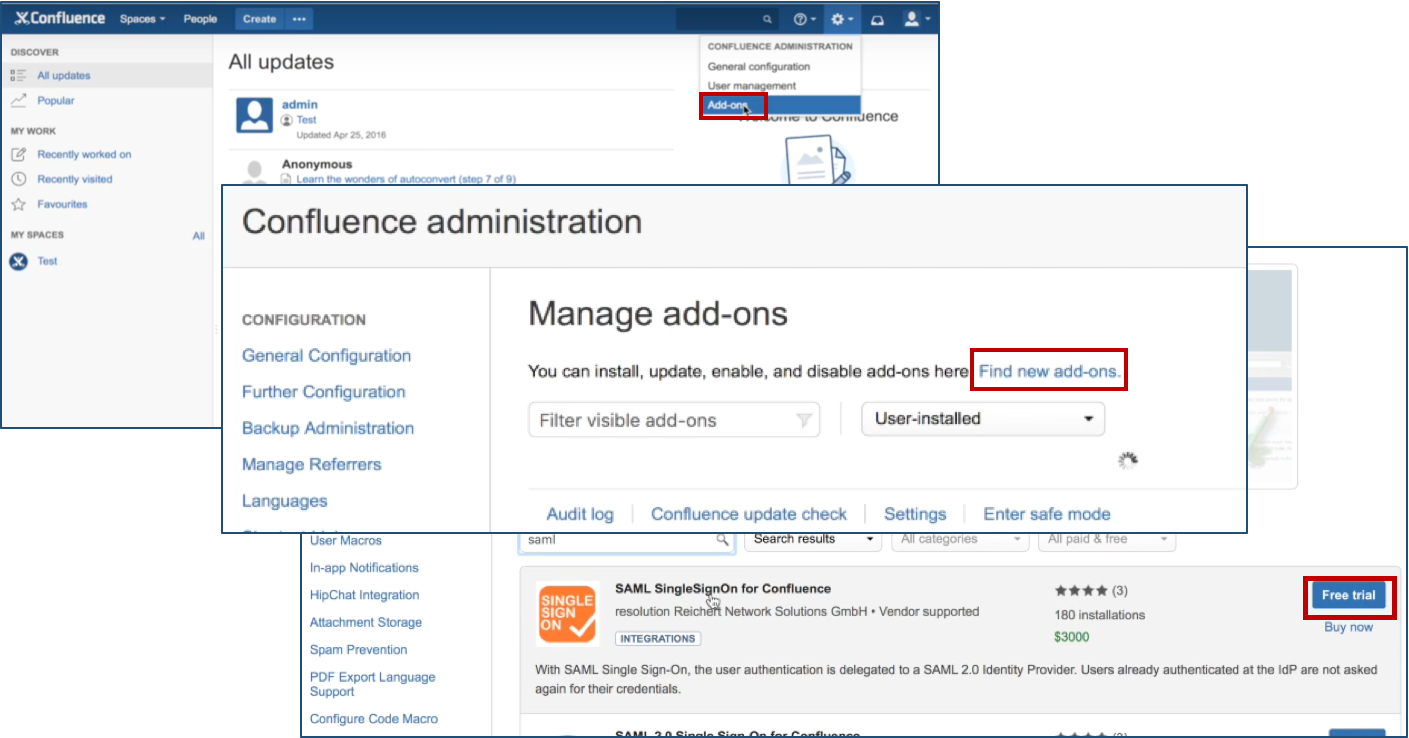
Click Add-ons under Confluence Administration on the top right corner of your Confluence interface. Then, choose Find new add-ons and you will be taken to Atlassian Marketplace. Search for SAML SSO and click on Free Trial to install.
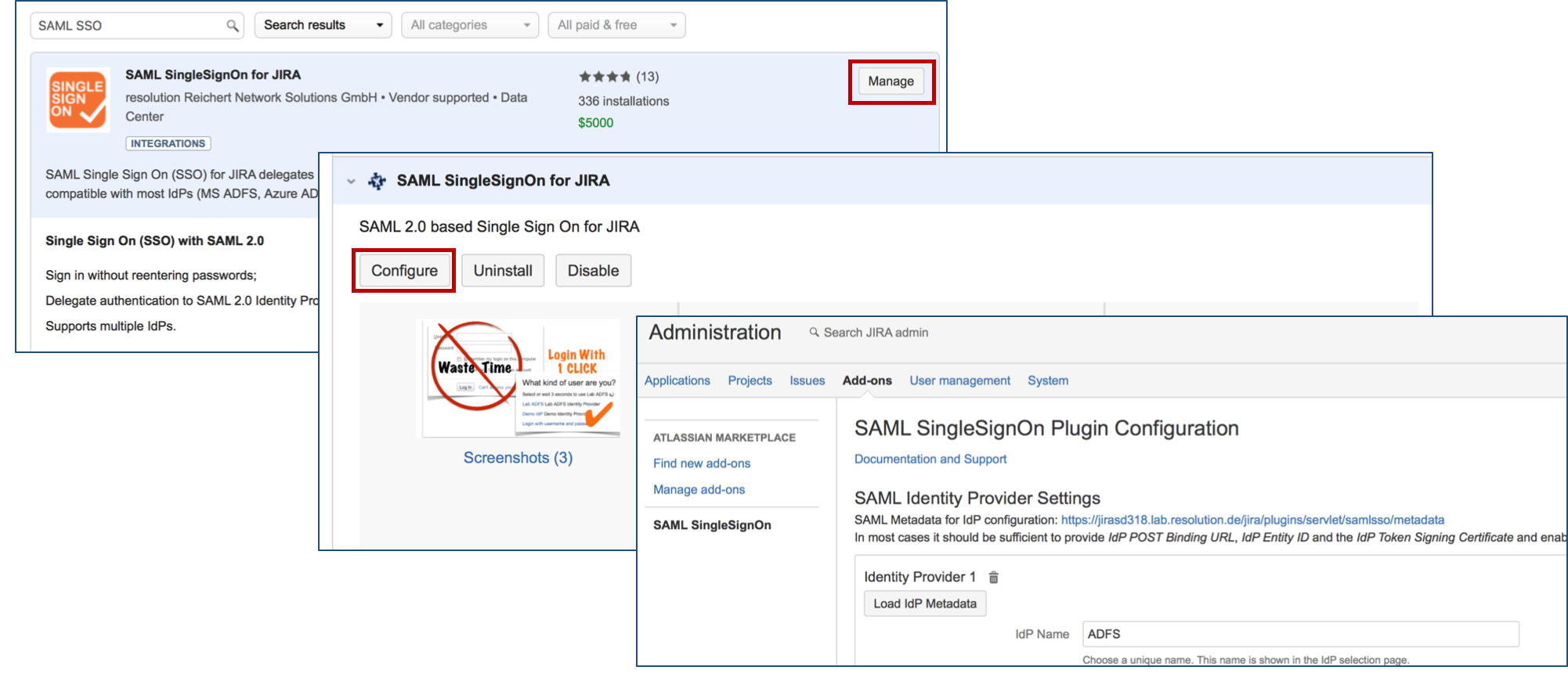
After installation succeeded, click on Manage, then choose Configure. Now, you are on the plugin configuration page and the first step of the setup wizard will appear.
Configure the Add-on
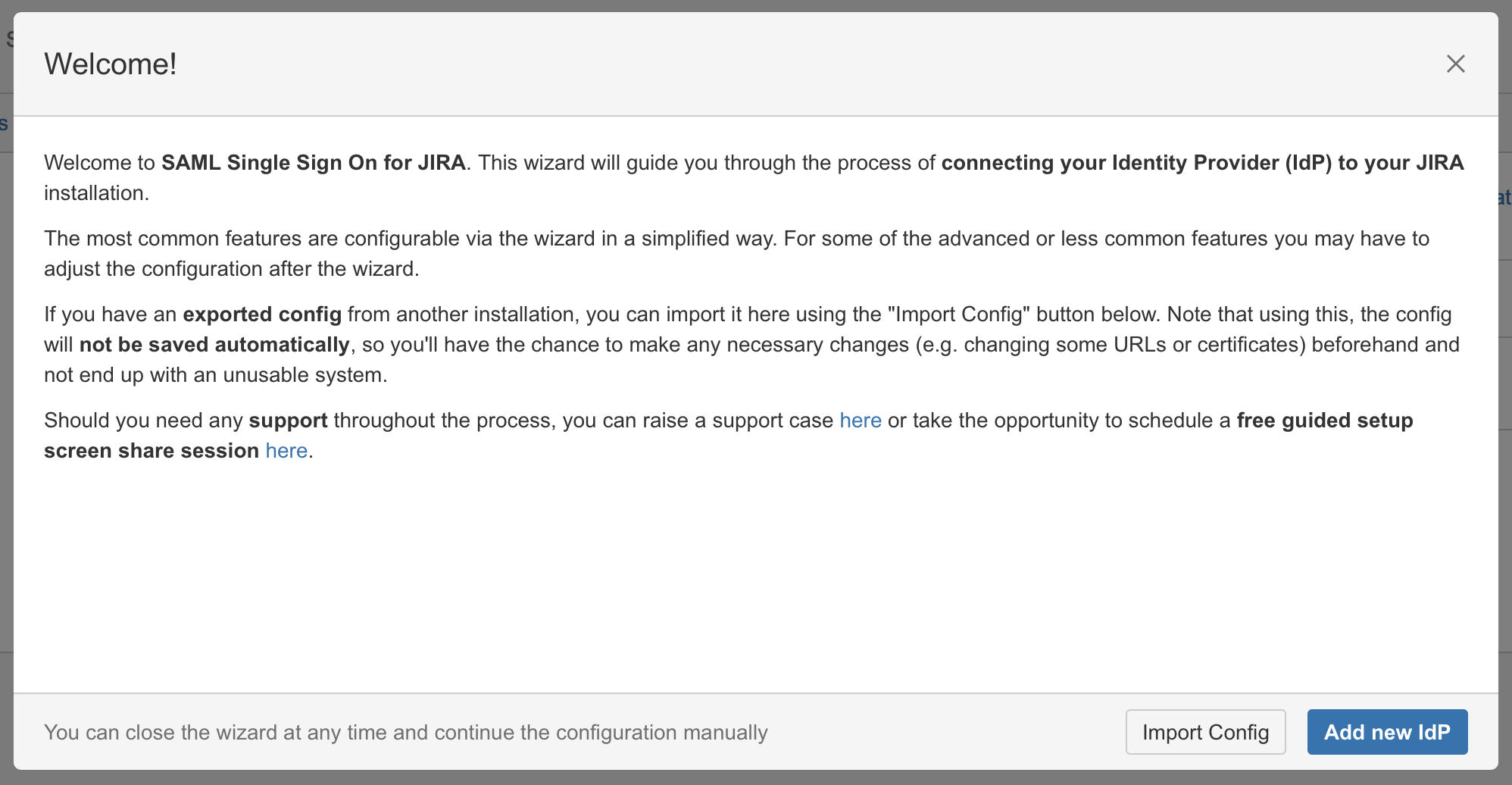
Since Version 2.0, our Add-on offers an intuitive wizard for configuring new Identity Providers.
Add new IdP or import config
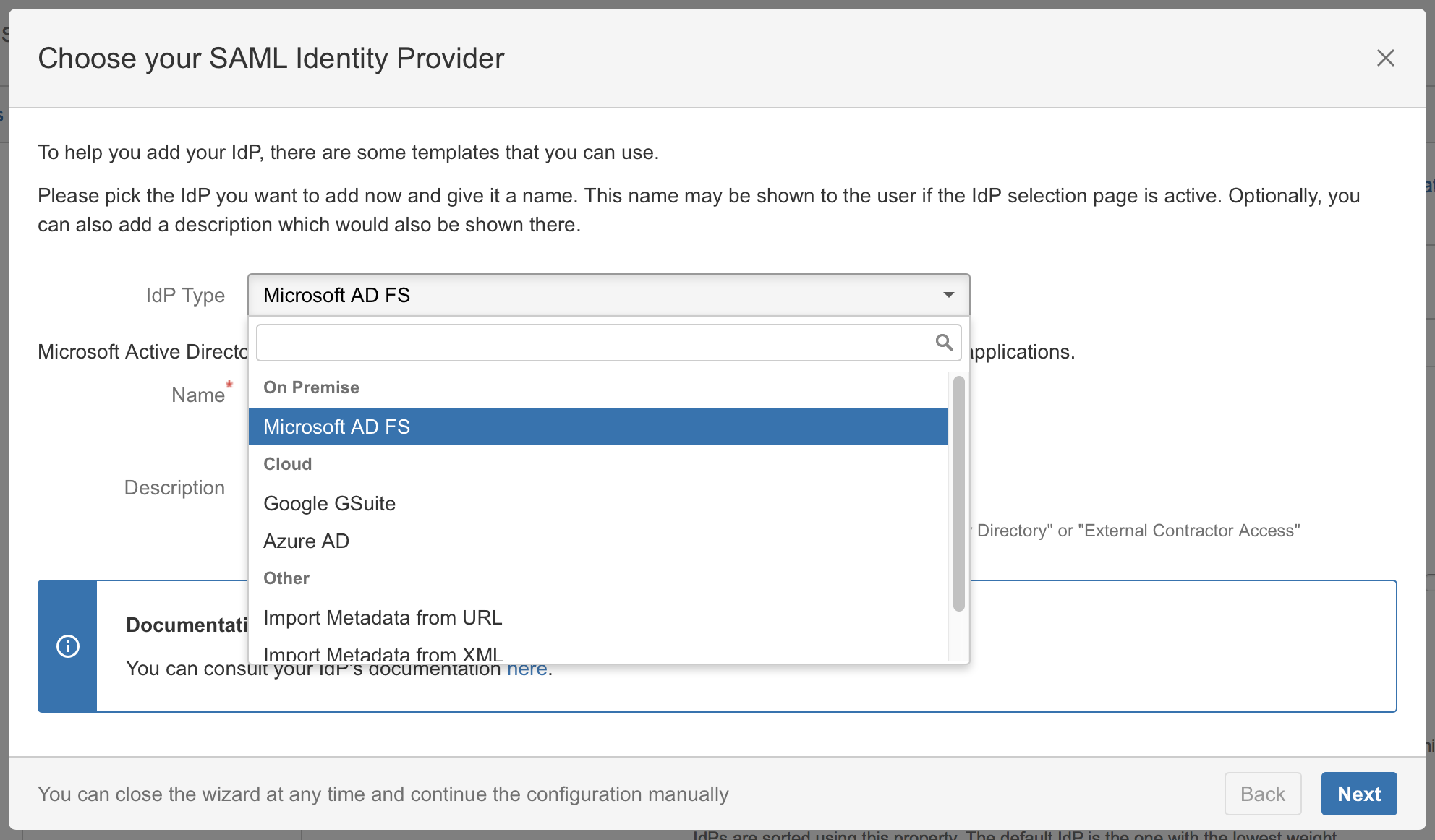
Choose your SAML Identity Provider
Import SAML IdP Metadata
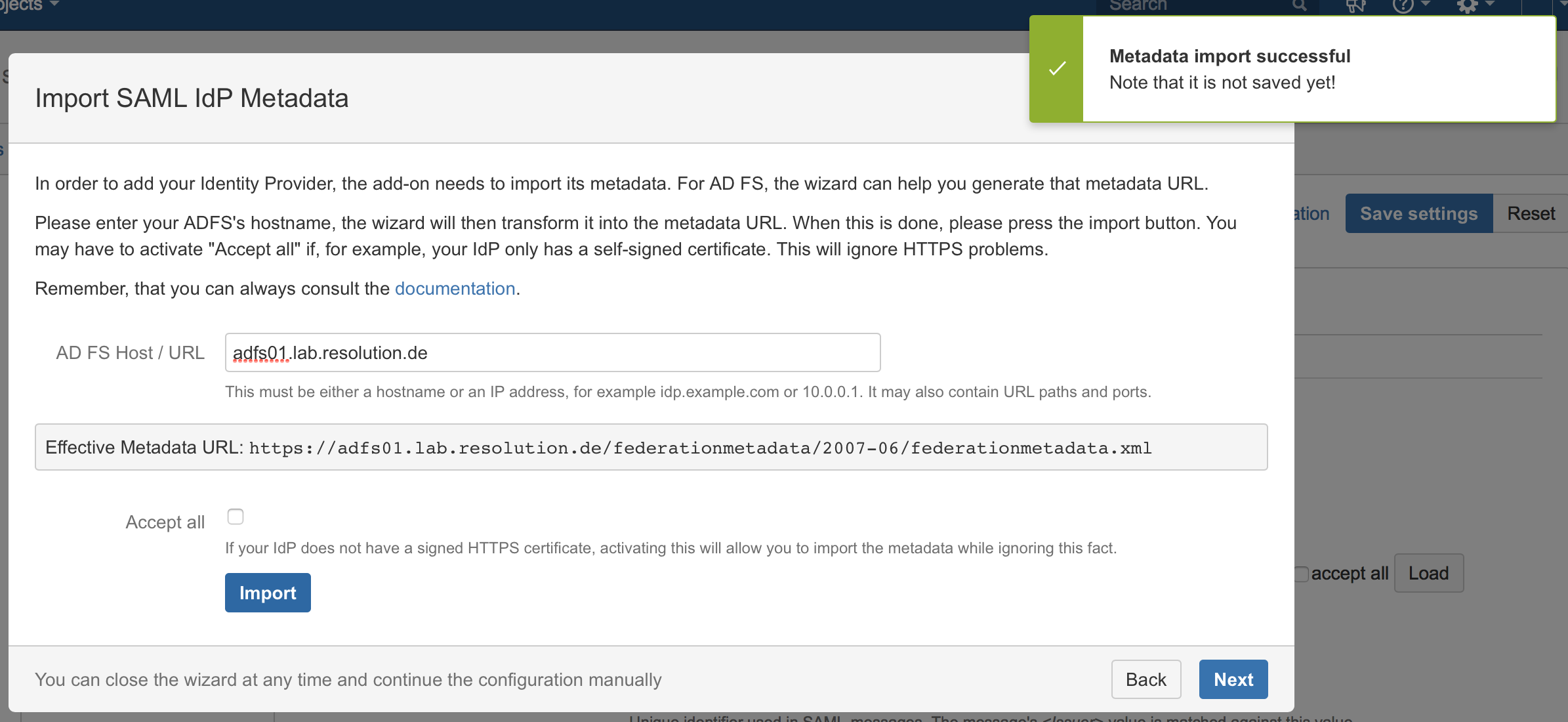
The recommended way to setup the ADFS is to import ADFS Metadata. The Metadata URL from ADFS is automatically detected from the hostname of the AD FS that has been entered.
Check Accept all if your IdP's https-certificate is not in your JIRA instance's trust store.
Click on Import.
If for some reason the AD FS Metadata is not accessible via this URL, you can always go back to substep 2B to import the metadata from an XML file or configure the IdP manually.
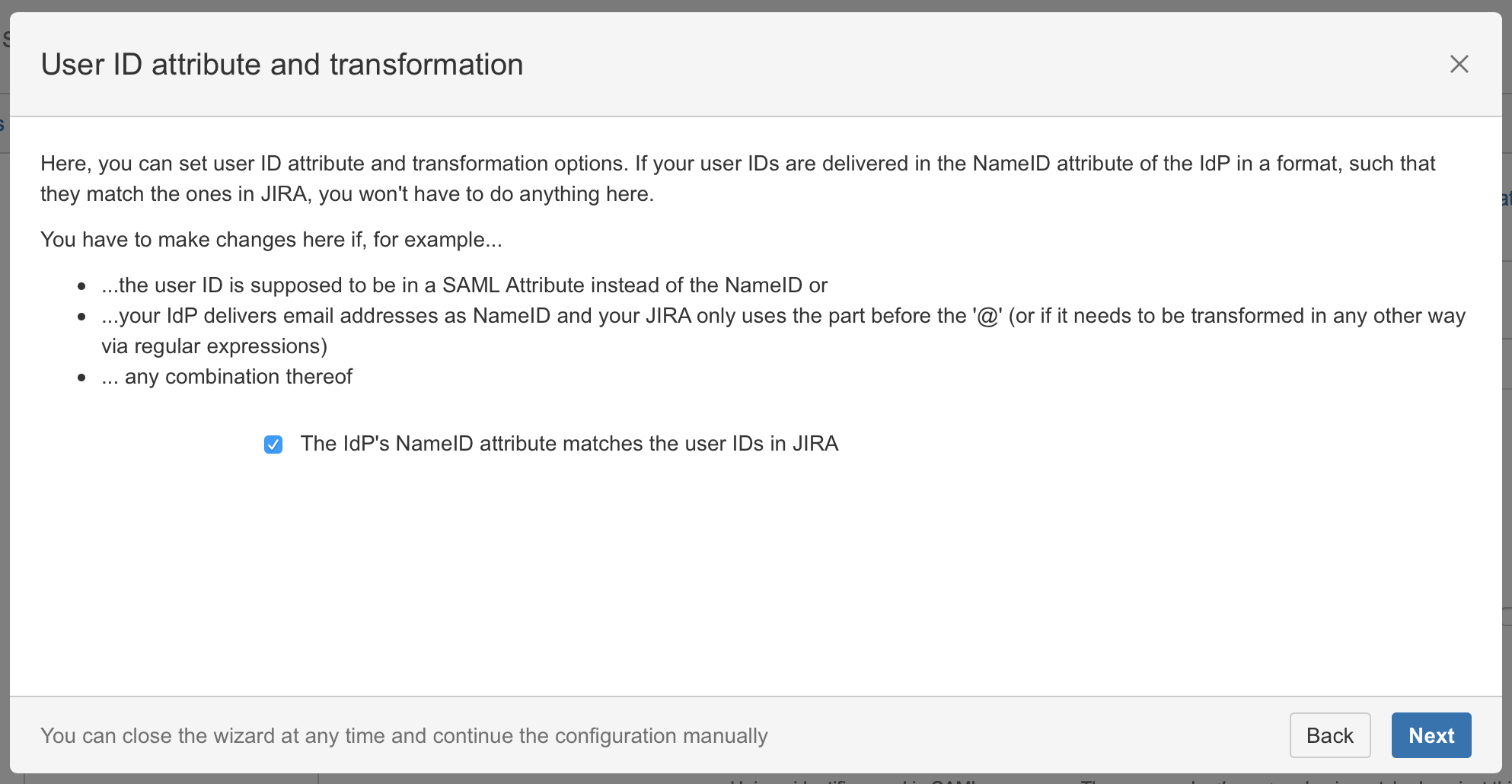
User ID attribute and transformation
User creation and update
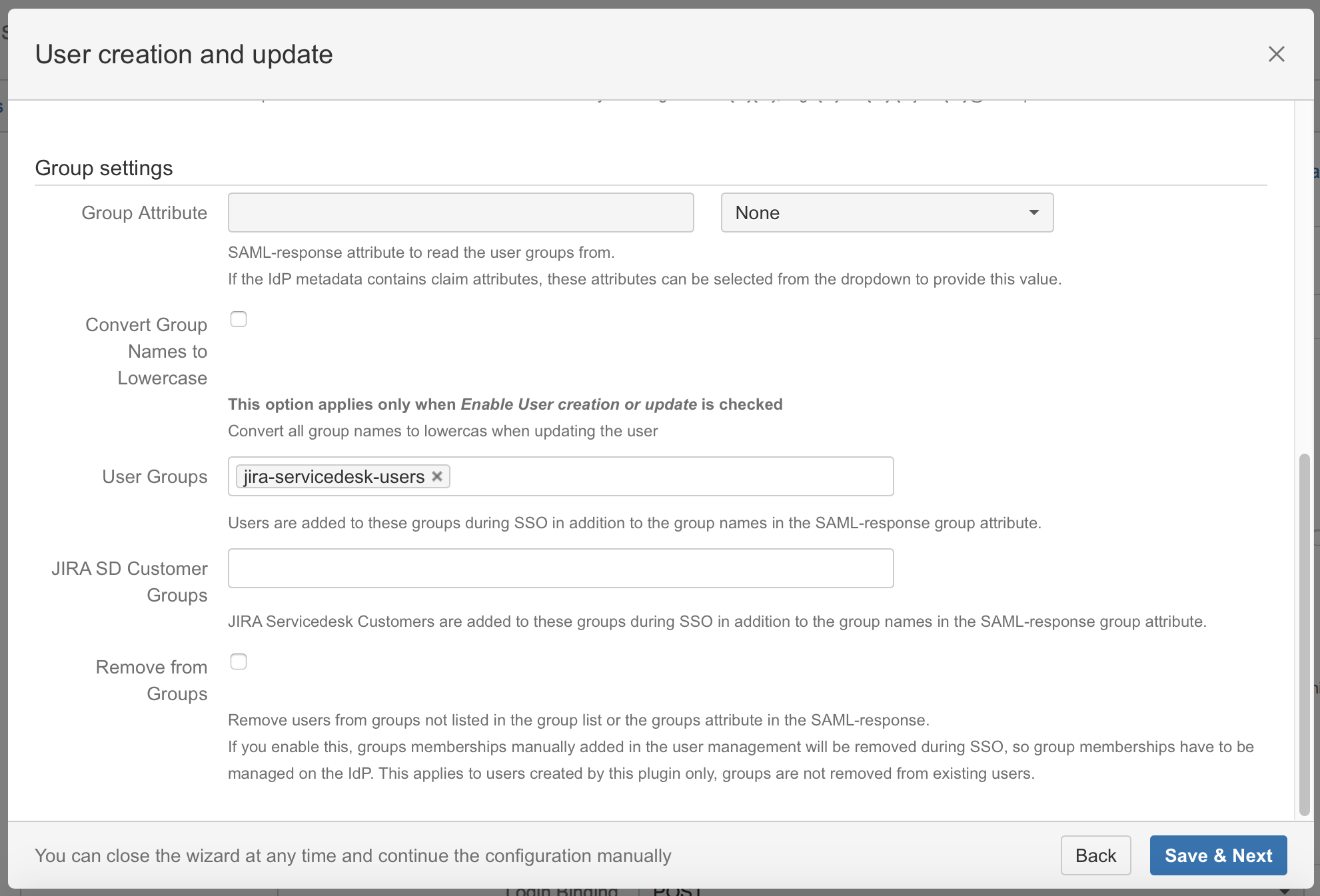
If a user logs in using SAML, he will be added to the groups specified in the User Groups section. This applies to all users. The user is assigned to these groups in addition to the groups in the SAML-response's attribute. The standard group in Confluence is called "confluence-users".
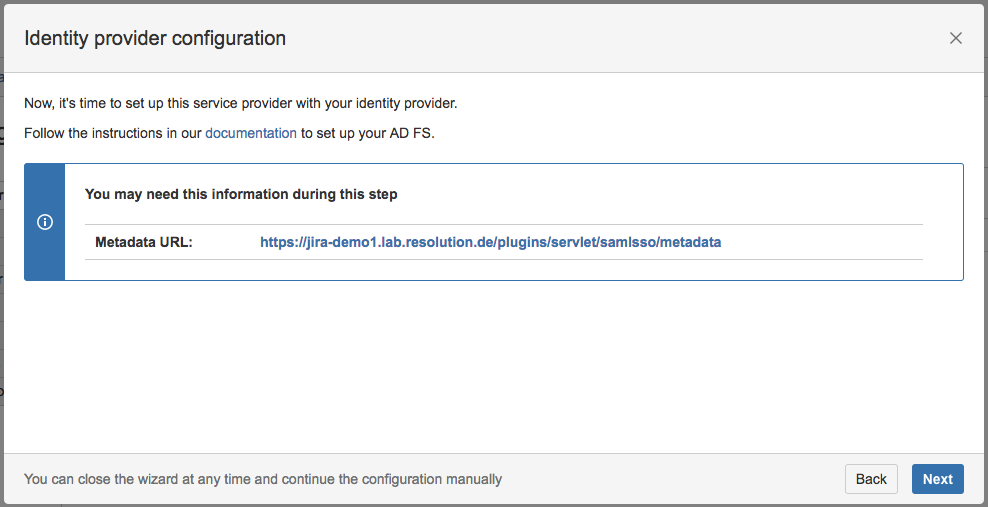
Copy/Download the SAML Metadata URL
Copy the SAML Metadata-URL from your SAML Single Sign On config page - or, if your AD FS has no connection to this instance - save the linked metadata.xml of the SAML Metadata URL and move the saved metadata.xml to your ADFS to a location of your choice.
Configure the Identity Provider
Start the Add Relying Party Trust Wizard
The rest of Step 2 will be completed in AD FS.
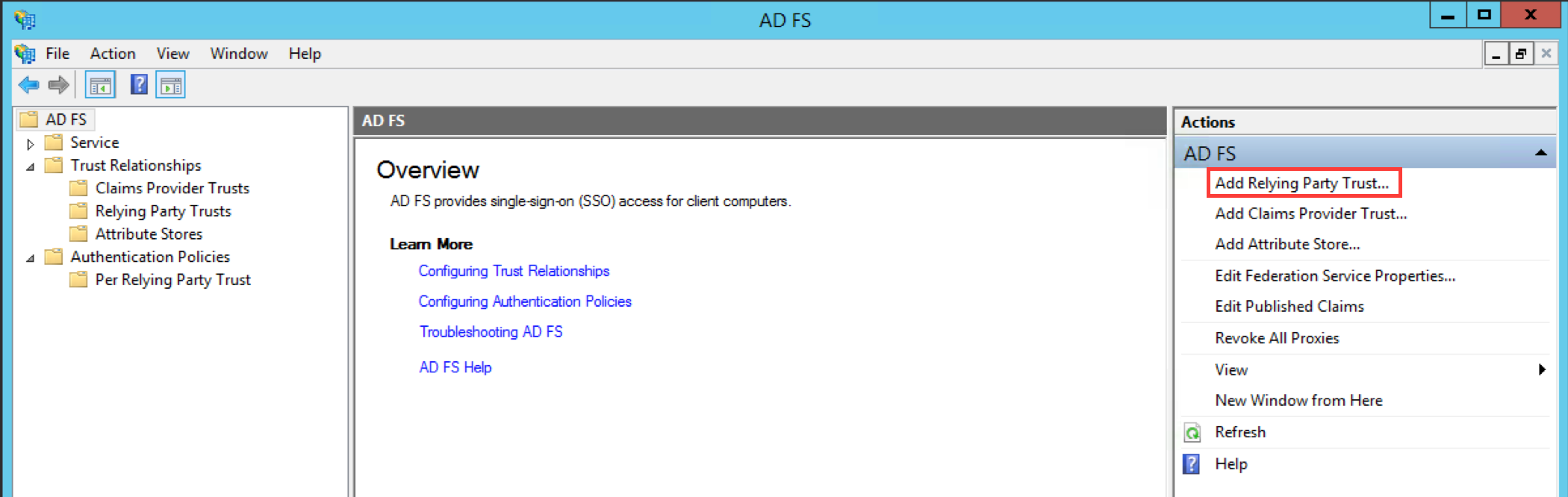
Open the AD FS 2.0 Management Console and select Add Relying Party Trust to start the Add Relying Party Trust Wizard.
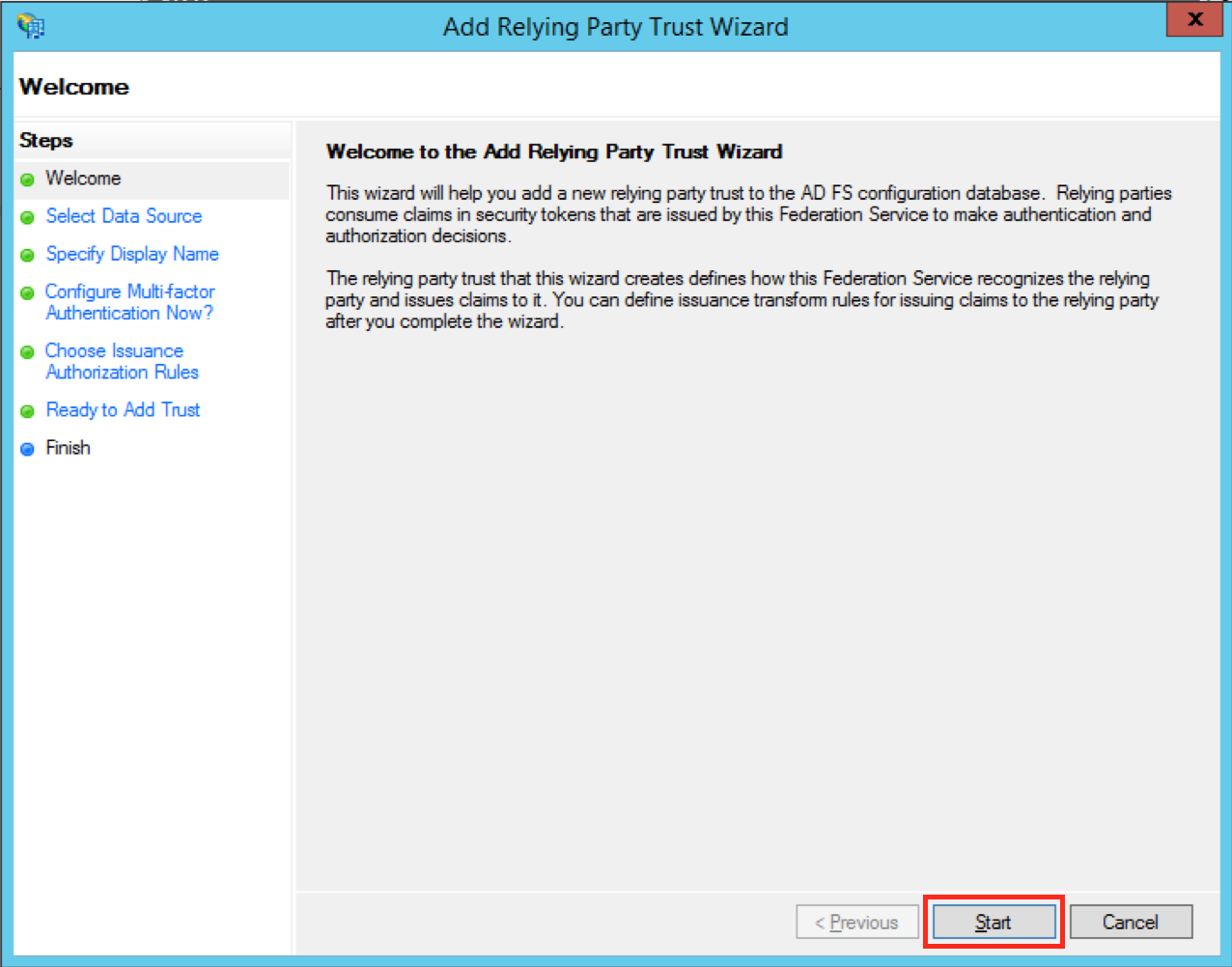
Click the Start Button to start the wizard.
Insert your SAML Metadata
Substep C1:
Select Import data about the relying party published online or on a local network and paste in the SAML Meta-URL from JIRA in the Federation metadata address (host name or URL) field.
Click Next.
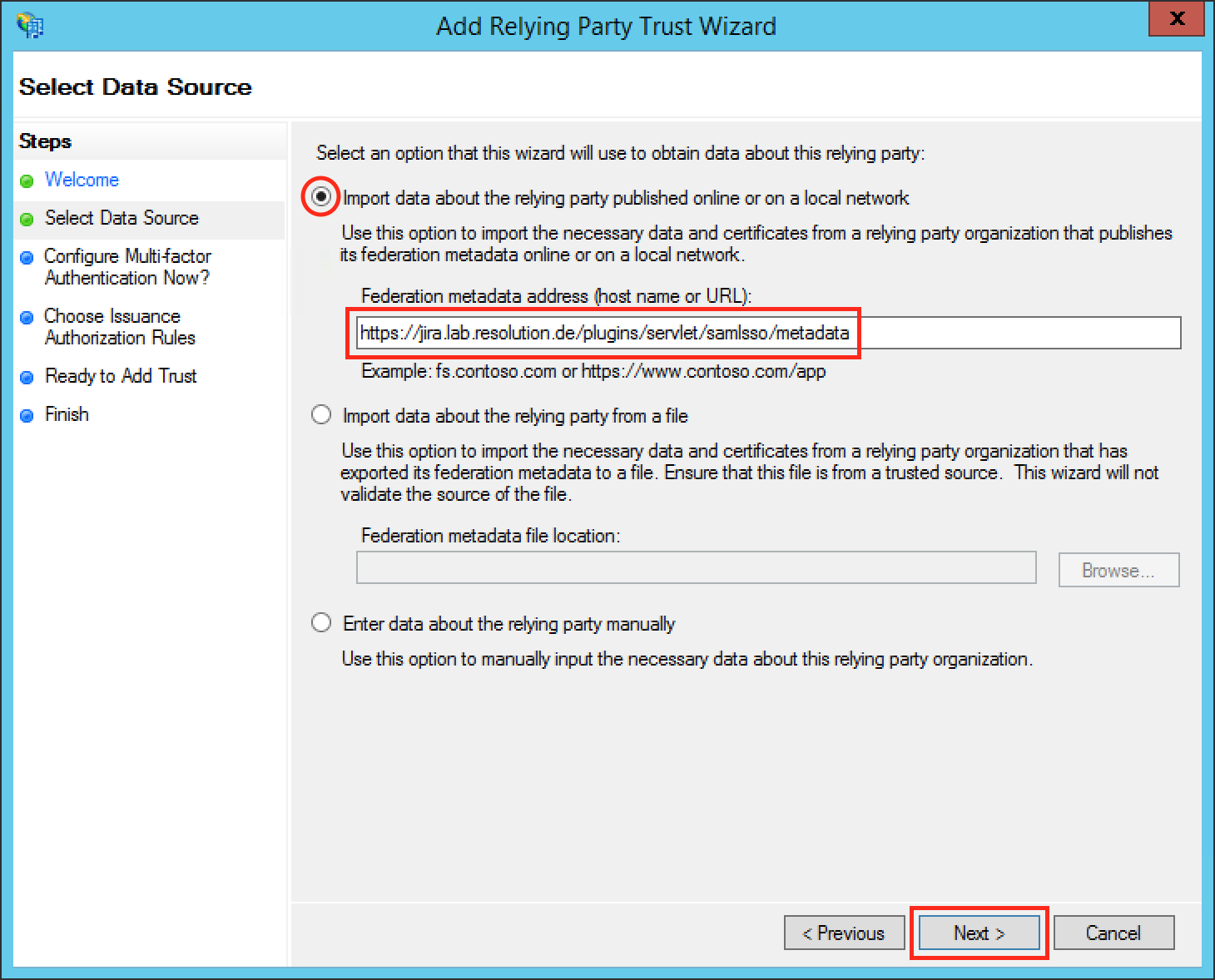
If an error is appeared after clicking on Next button, check the connection from ADFS to the JIRA instance. If you can't build up a connection, start a new wizard and begin with Step A2.
Substep C2:
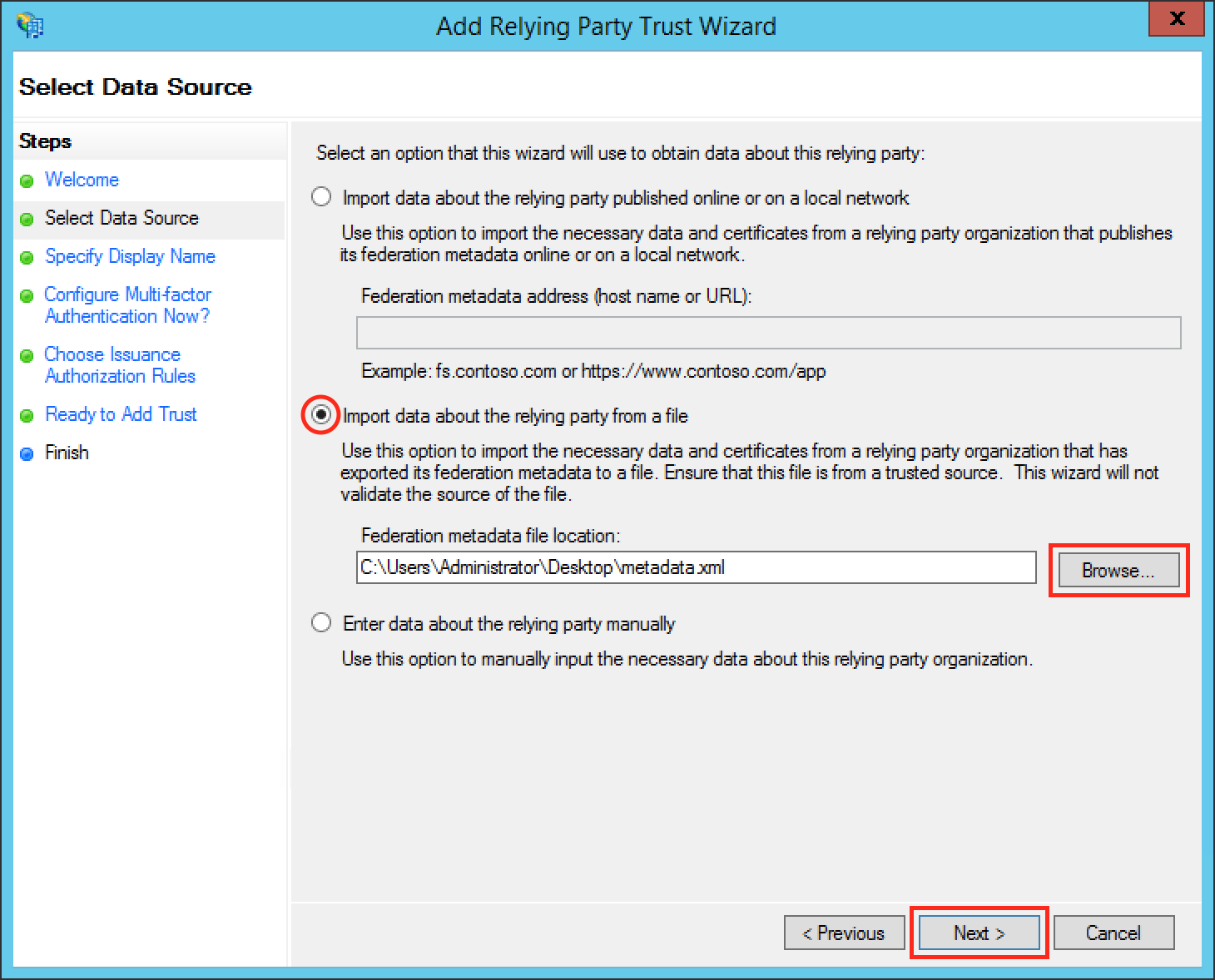
Select Import data about the relying party from file and browse to your metadata.xml location with the Browse... button or fill in your location directly.
Click Next.
Finish the Add Relying Party Trust Wizard
Fill the field Display name with a name of your choice.
Click Next.
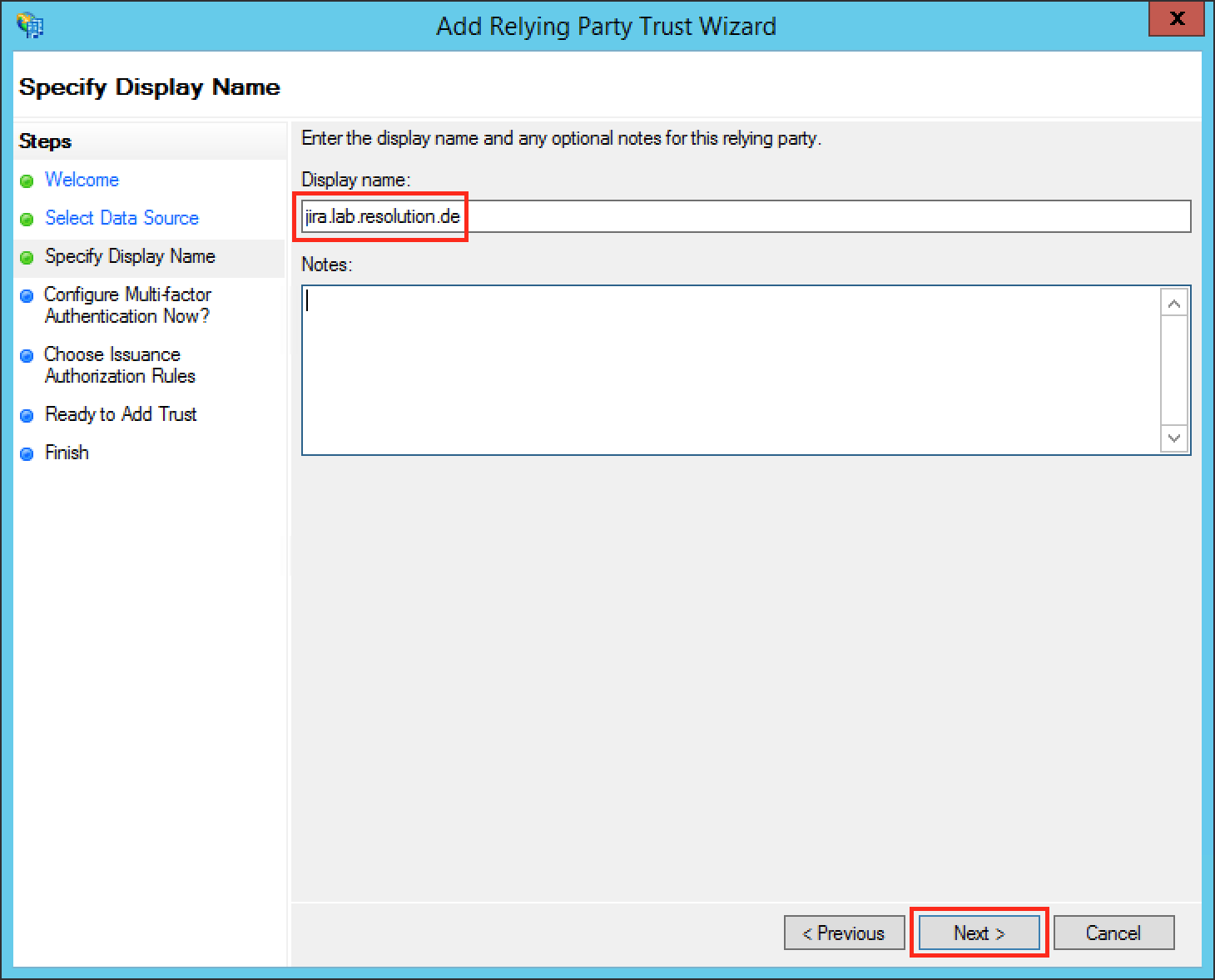
Select I do not want to configure multi-factor authentication settings for this relying party trust at this time.
Click Next.
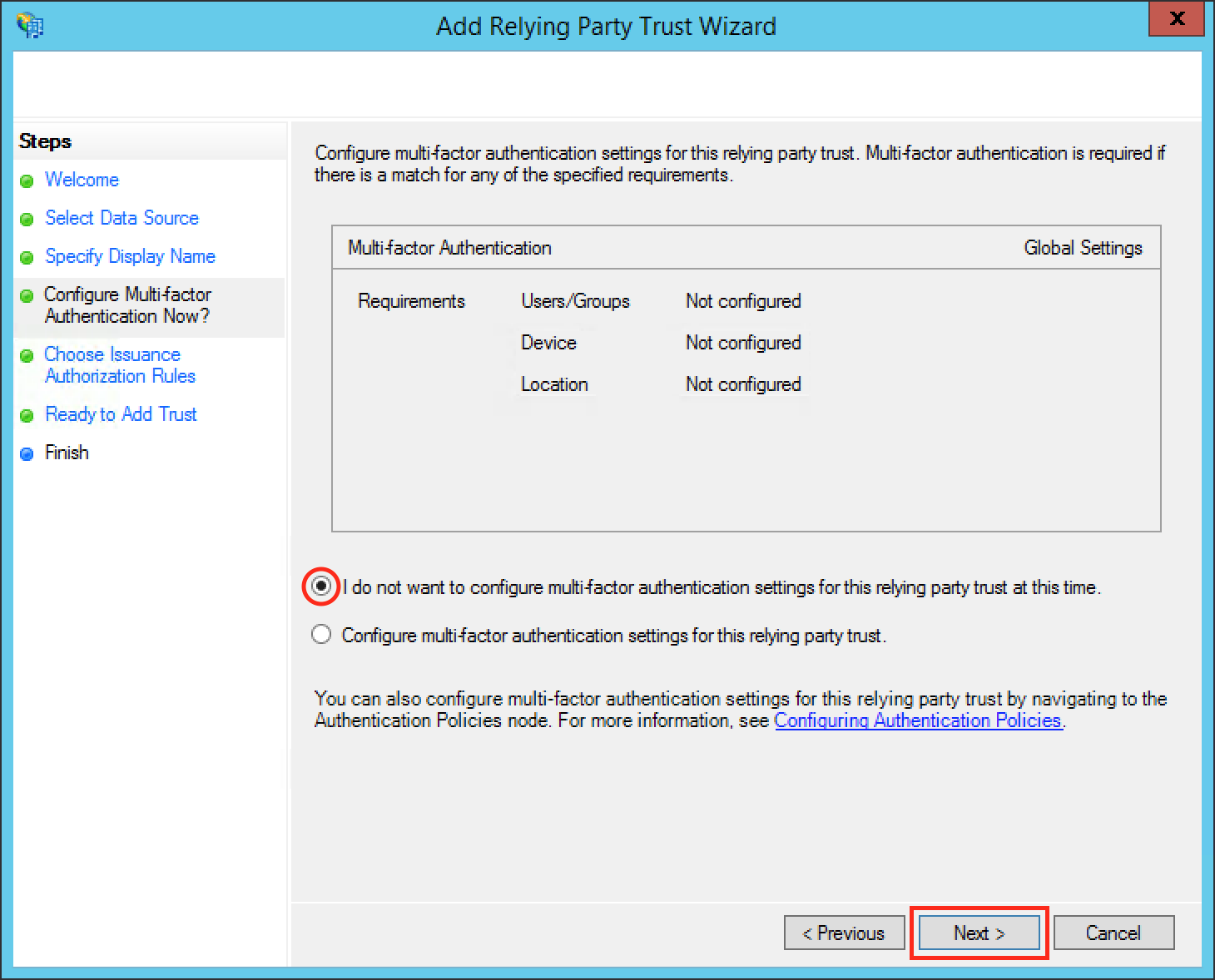
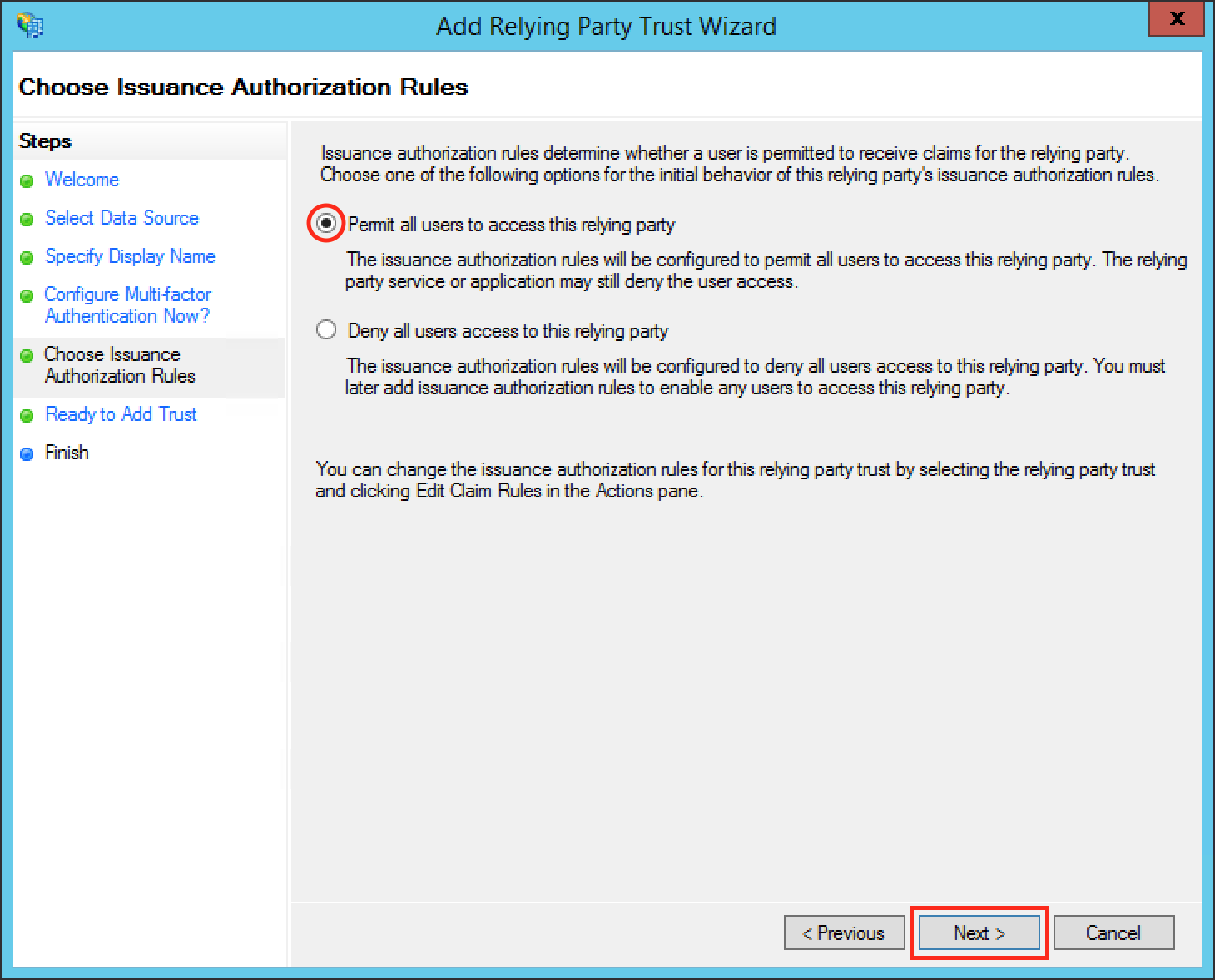
Select Permit all users to access this relying party.
Click Next.
Click Next.
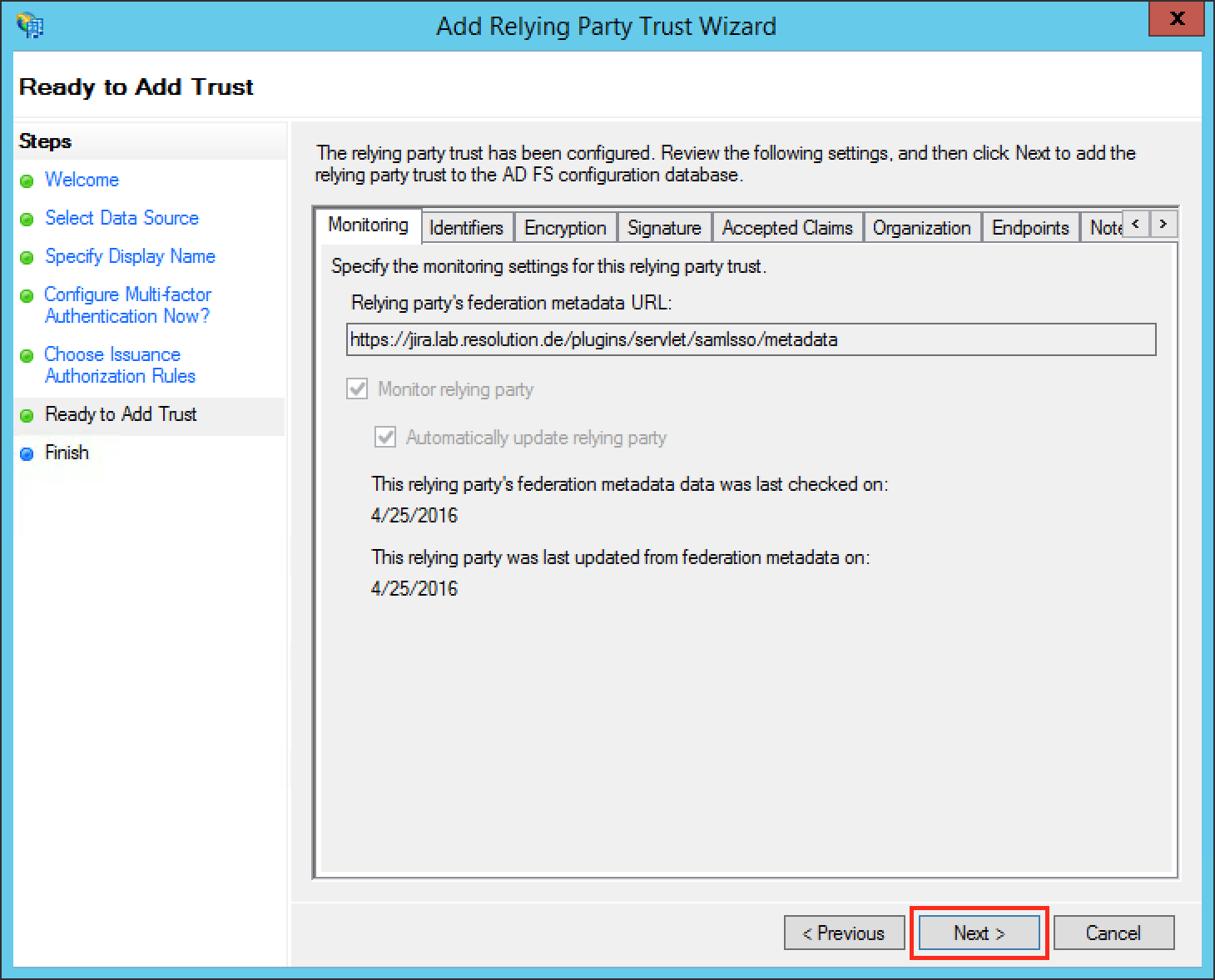
If an error is appeared after clicking on Next button, check if you have added the same relying party already.
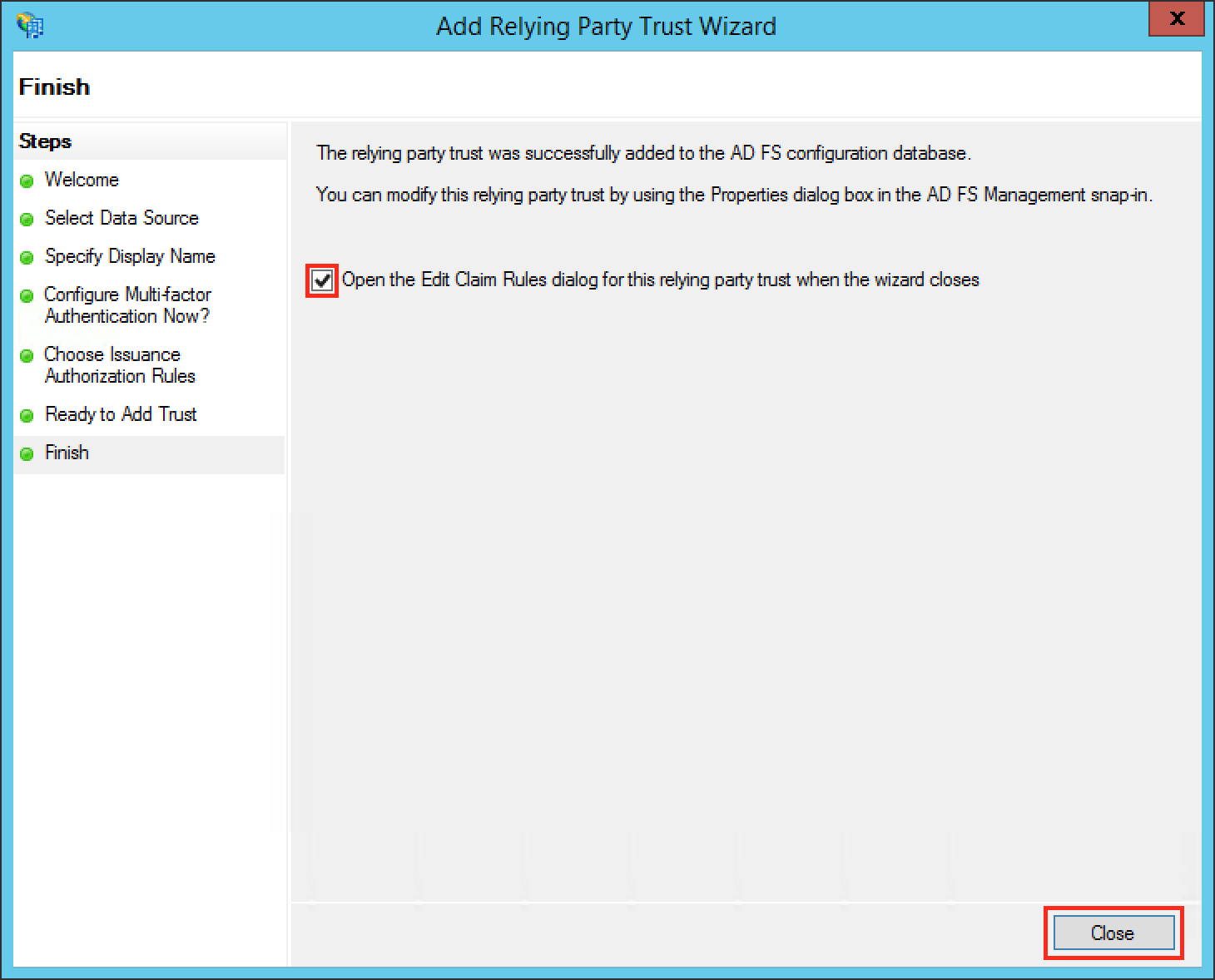
Check the Open the Edit Claim Rules dialog for this relying party trust then the wizard closes checkbox to open the Edit Claim Rules dialog after closing the wizard.
Click Close to finish the Add Relying Party Trust Wizard.

Add Name ID as Claim Rule
JIRA needs a Name ID (on the normal case) from the SAML Response to authenticate users. So we need to add a claim rule on ADFS, which add the Name ID in every SAML Response from ADFS.
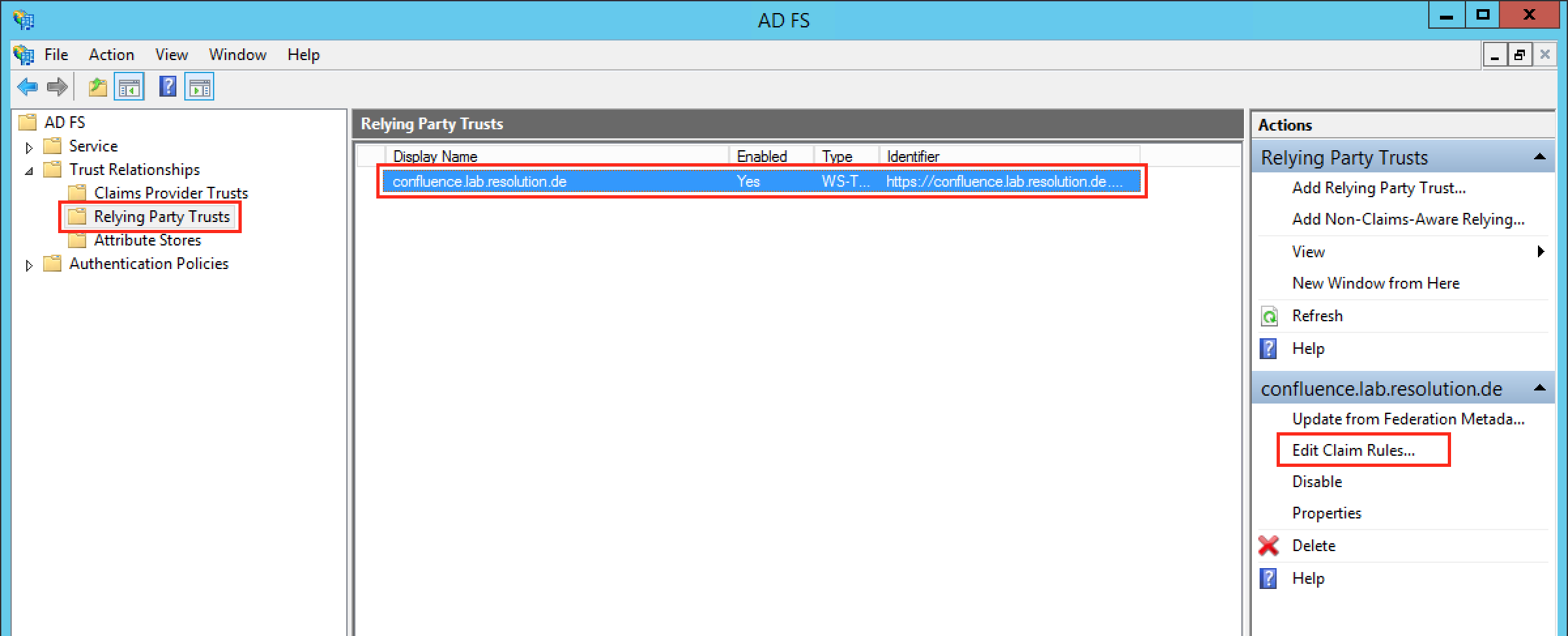
Navigate to ADFS → Trust Relationships → Relying Party Trusts on the left Navigation panel.
Select your Relying Party Trust.
Click on Edit Claim Rules... on the right Actions panel.
Otherwise, continue from below.
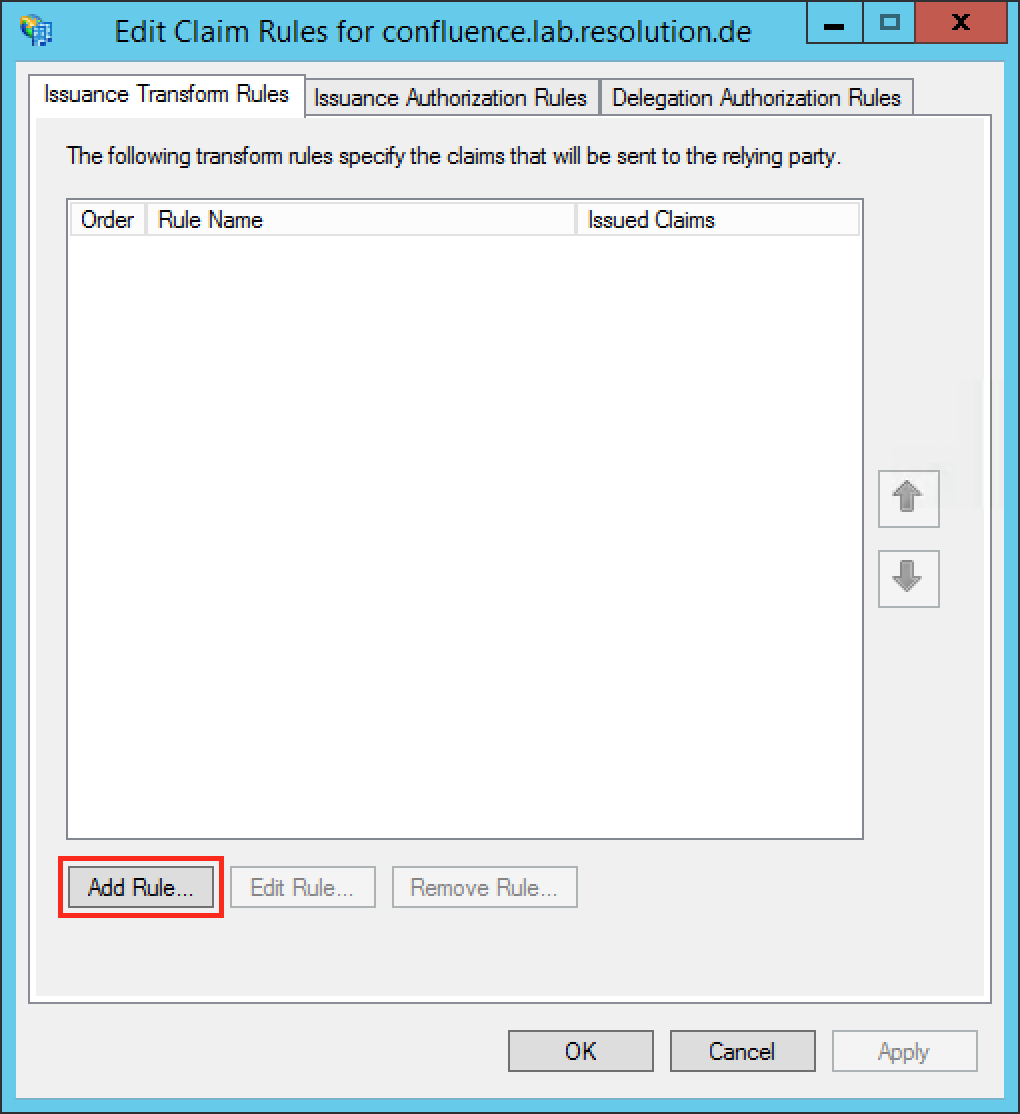
Click the Add Rule... Button to open the Add Transform Claim Rule Wizard.
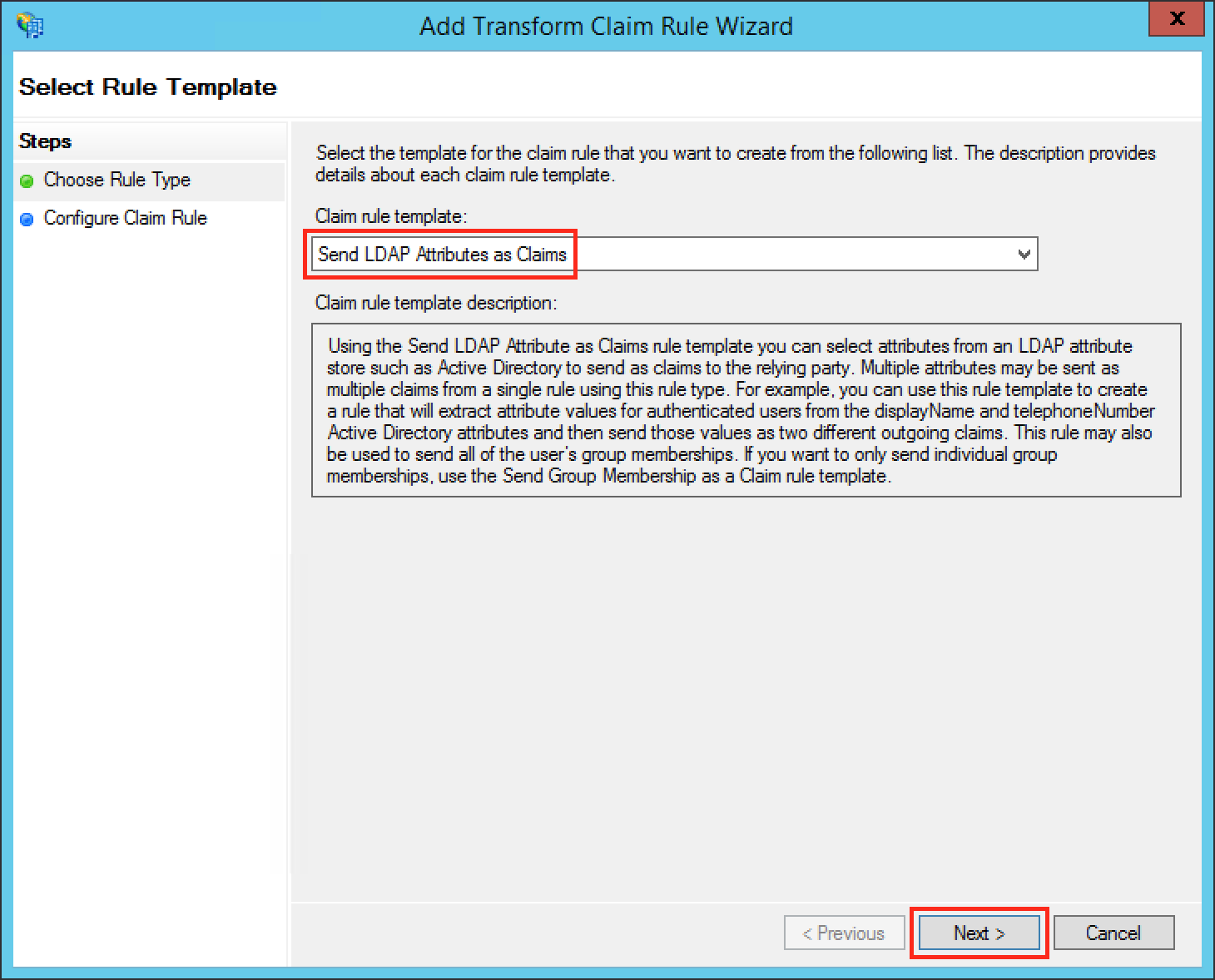
Select Send LDAP Attributes as Claims in the Claim rule template drop-down list.
Click Next.
Fill the field Claim rule name with a name your choice.
Select Active Directory in the Attribute store drop-down list.
Select your appropriate LDAP Attribute in the first drop-down field from LDAP Attribute (Select or type to add more). In this example we are using the Windows login name attribute SAM-Account-Name as Name ID.
Select Name ID in the first drop-down field from Outgoing Claim Type (Select or type to add more).
Click Finish to complete the Add Transform Claim Rule Wizard.
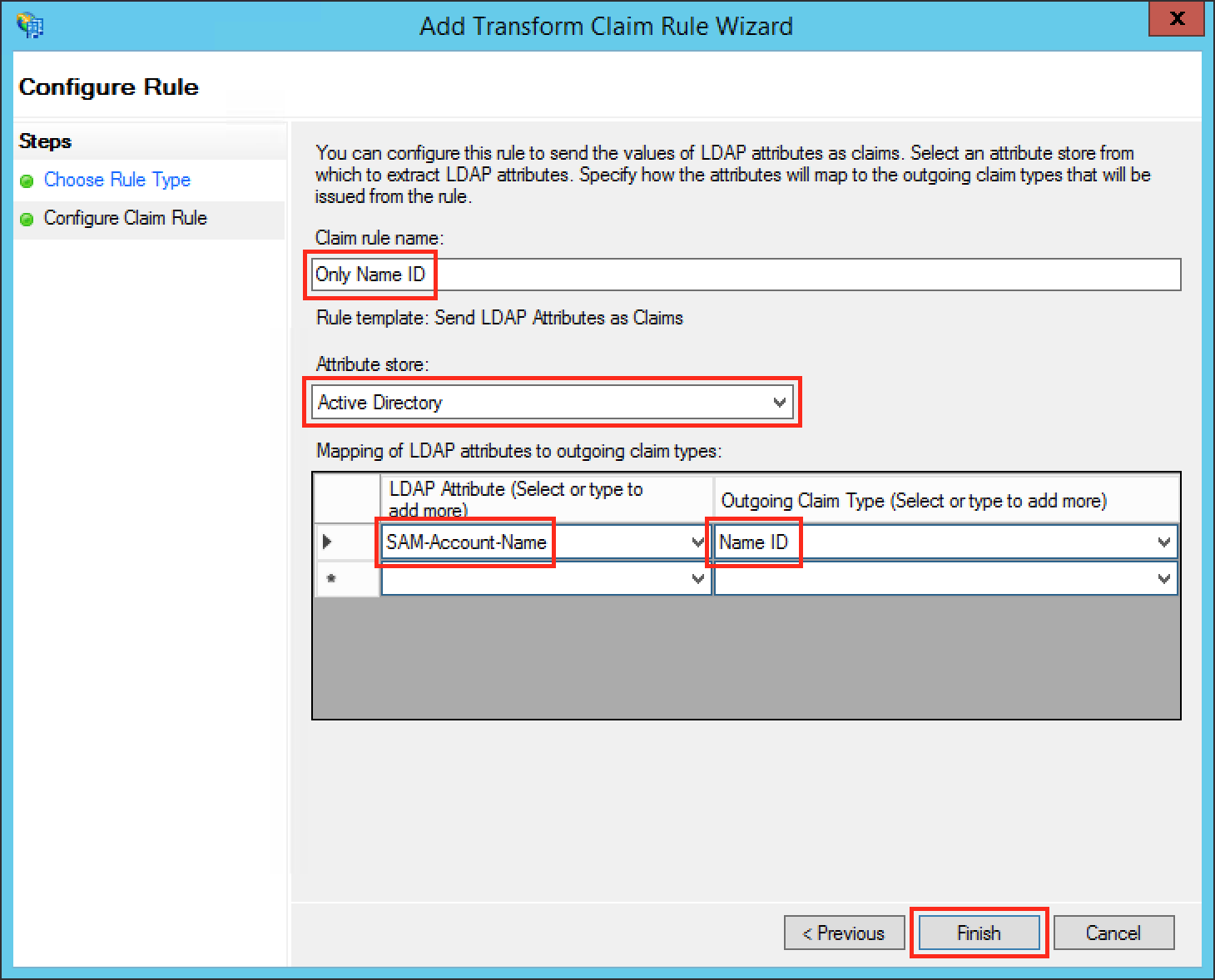
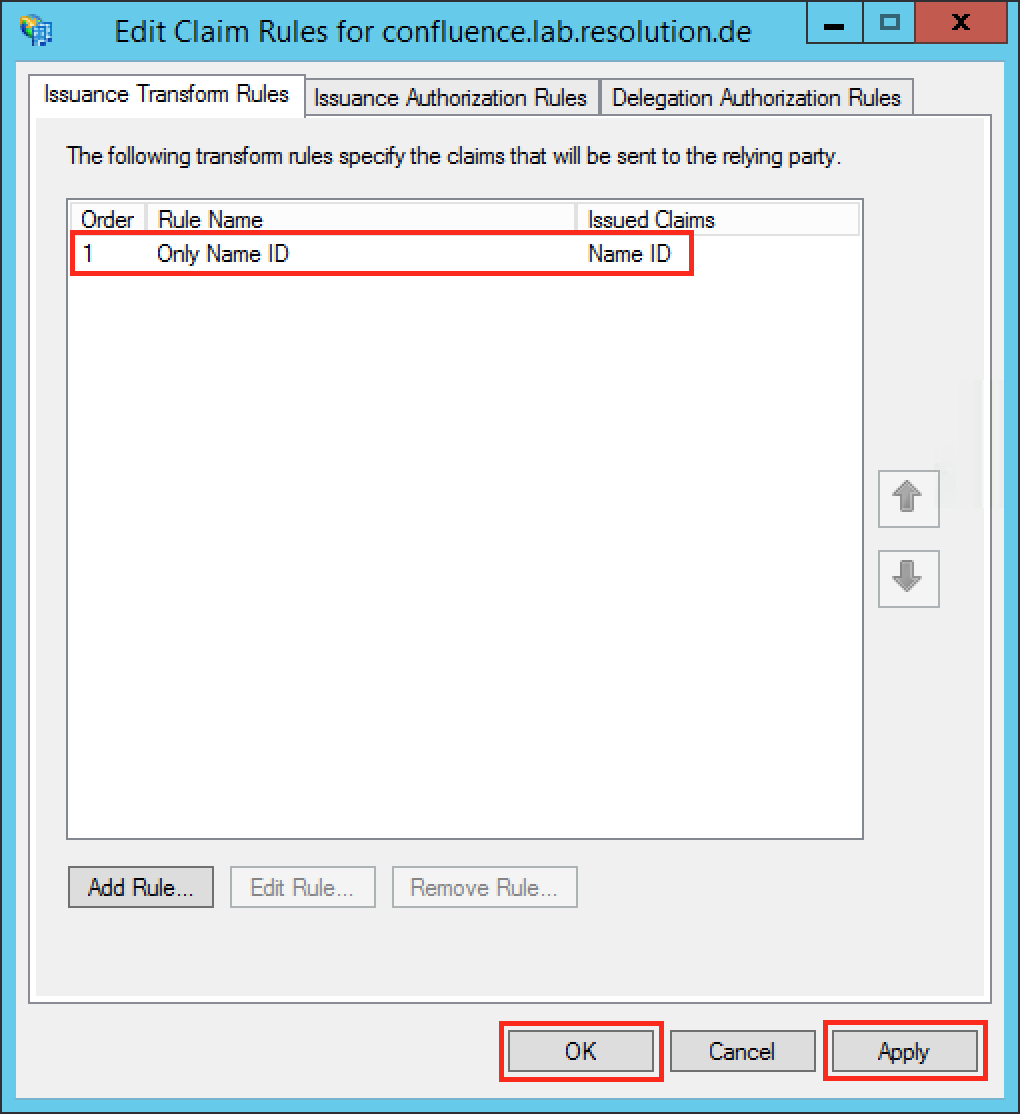
Check if your new rule has been added to the Edit Claim Rules dialog. Try again Step E if it has failed.
Click Apply to save your settings.
Click OK to finish.
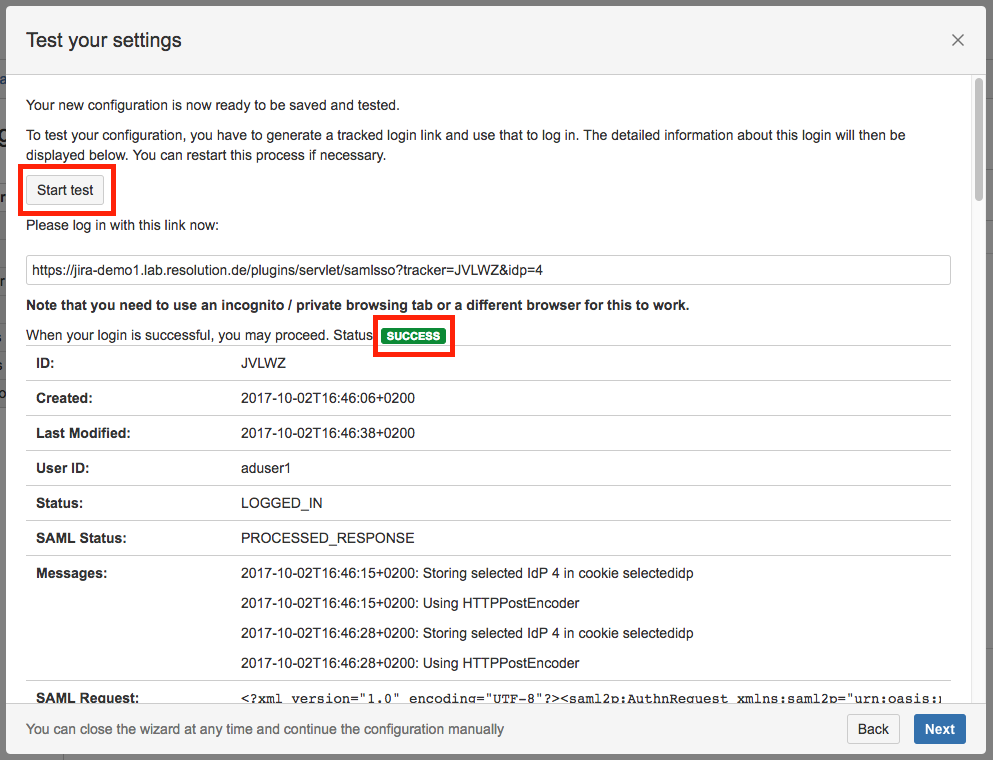
Test the Login with the Authentication Tracker
You are now able to perform a test with an authentication tracker, to see if your configuration is working as intended. To start the test, click on the Start test button, copy the displayed link, paste it into a new incognito / private browsing window, and execute a login with Identity Provider. The status of the authentication process is permanently update in the wizard.
Enable Redirection
If the authentication test was successful, it is now safe to activate the redirection on login.
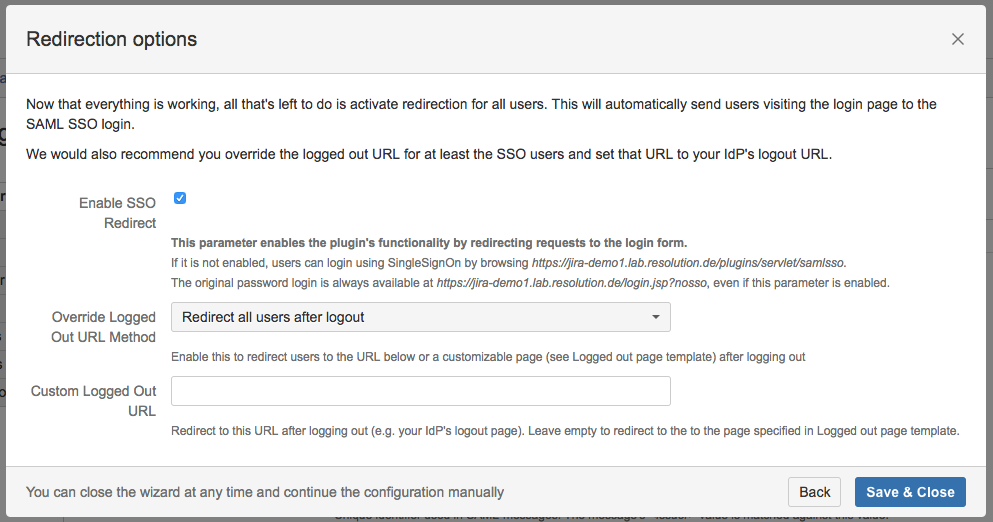
Click on Save & Close. The Add-on is now configured and ready to use.