

Board Integration
Common questions about connecting Jira boards to NASA meeting streams and configuring issue filters.
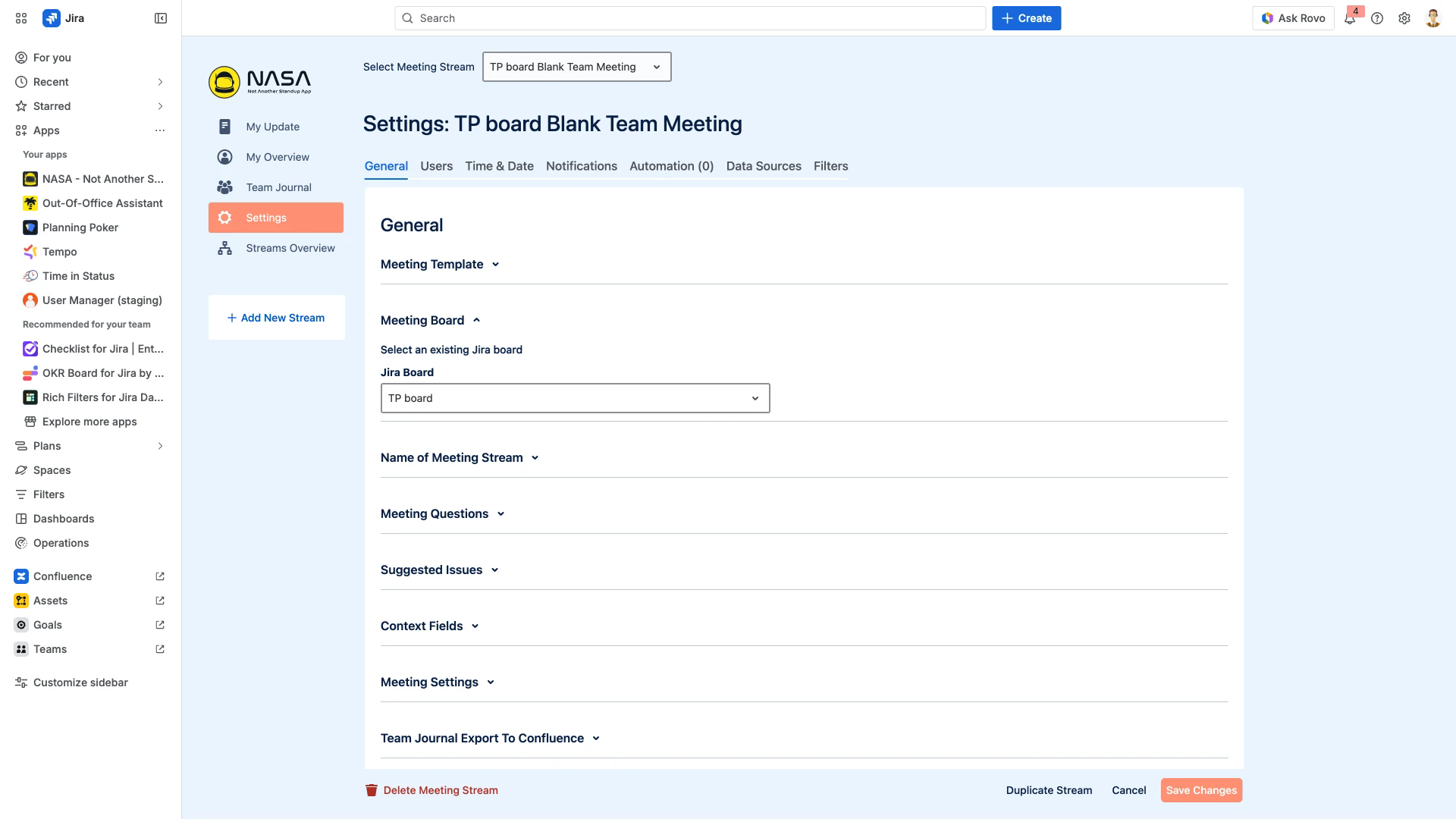
The General settings page includes a Meeting Board section where you select the Jira board for each stream.
Connecting Boards
Can I use my existing Jira boards with NASA?
Yes. When setting up a meeting stream, you select from your existing Jira boards. There is no need to create new boards for NASA.
How do I select a board during stream setup?
During the first step of the stream creation wizard, a dropdown lets you choose any Jira board you have access to. See Setup & Installation for a walkthrough.
How do I change the board for an existing stream?
Open Settings > General for the stream, expand the Meeting Board section, and select a different board from the Jira Board dropdown.
Can I connect multiple boards to one stream?
No. Each meeting stream is linked to exactly one Jira board. To cover multiple boards, create separate streams for each board.
Are all Jira board types compatible?
Yes. All Jira Cloud board types (Scrum, Kanban, and business boards) work with NASA.
Filters and Suggested Issues
Can I filter which issues appear in a meeting?
Yes. The Suggested Jira Issue Selection settings let you filter issues by priority, status, issue type, or a custom Jira issue filter. You can also write a JQL query for full control.
Can I filter by priority, status, or issue type?
Yes. Open the Suggested Issues section in Settings > General and choose Priority, Status, or Issue Type filters. See Filters for details on each filter type.
Does NASA support custom JQL queries?
Yes. Configure a JQL-based filter in the Suggested Jira Issue Selection settings to define exactly which issues appear as suggestions.
Do filter changes in Jira update automatically in NASA?
Yes. If you modify a Jira filter that is used by a meeting stream, NASA picks up the changes automatically. No manual refresh is needed.
Can I add issues from outside the linked board?
Yes. Use the search feature inside the meeting update view to find and add any Jira issue, regardless of which board it belongs to.
JSM Boards
How do I set up a stream for a JSM board?
The setup is the same as for any other board: select the JSM board from the dropdown during stream creation. See JSM Board for the full guide.
Are there license requirements for JSM integration?
Yes. Licensed access to both Jira Service Management (JSM) and Jira Software (JSW) is required for the integration to work.
Can I use JSM-specific issue types and queues?
JSM issues appear in the meeting stream like any other Jira issue. Use the Filters settings to narrow down which JSM issue types are shown.
Multi-Project Setup
Can I include issues from multiple projects?
A stream is linked to one board, but you can use a JQL-based filter in the Suggested Jira Issue Selection settings to pull issues from multiple projects. You can also use the search feature to add individual issues from any project.
Can different streams have different views?
Yes. Each stream has its own Meeting Settings including board selection, filters, questions, and display options. This lets different teams customize their meeting experience independently.
Can I use NASA with boards where I am not an admin?
Yes, as long as the Jira project admin creates a meeting stream for that board. You do not need board admin permissions to participate in meetings.
Performance and Compatibility
Does the board integration affect Jira performance?
No. NASA reads data from the board without modifying it. There is no impact on Jira performance or board functionality.
Are there notifications for board integration events?
No. NASA does not send notifications when boards are connected or disconnected. Board changes are managed through the stream settings.
What should I do if the board integration fails?
Verify that the board exists and that you have access to it. Review the Setup & Installation guide for the correct setup steps. If the problem persists, contact resolution support.