

Issue Tracking
Common questions about working with Jira issues in NASA - finding, adding, creating, and tracking issues during meetings.
Finding & Adding Issues
How can I find Jira issues that are not shown in the Suggested Issues section?
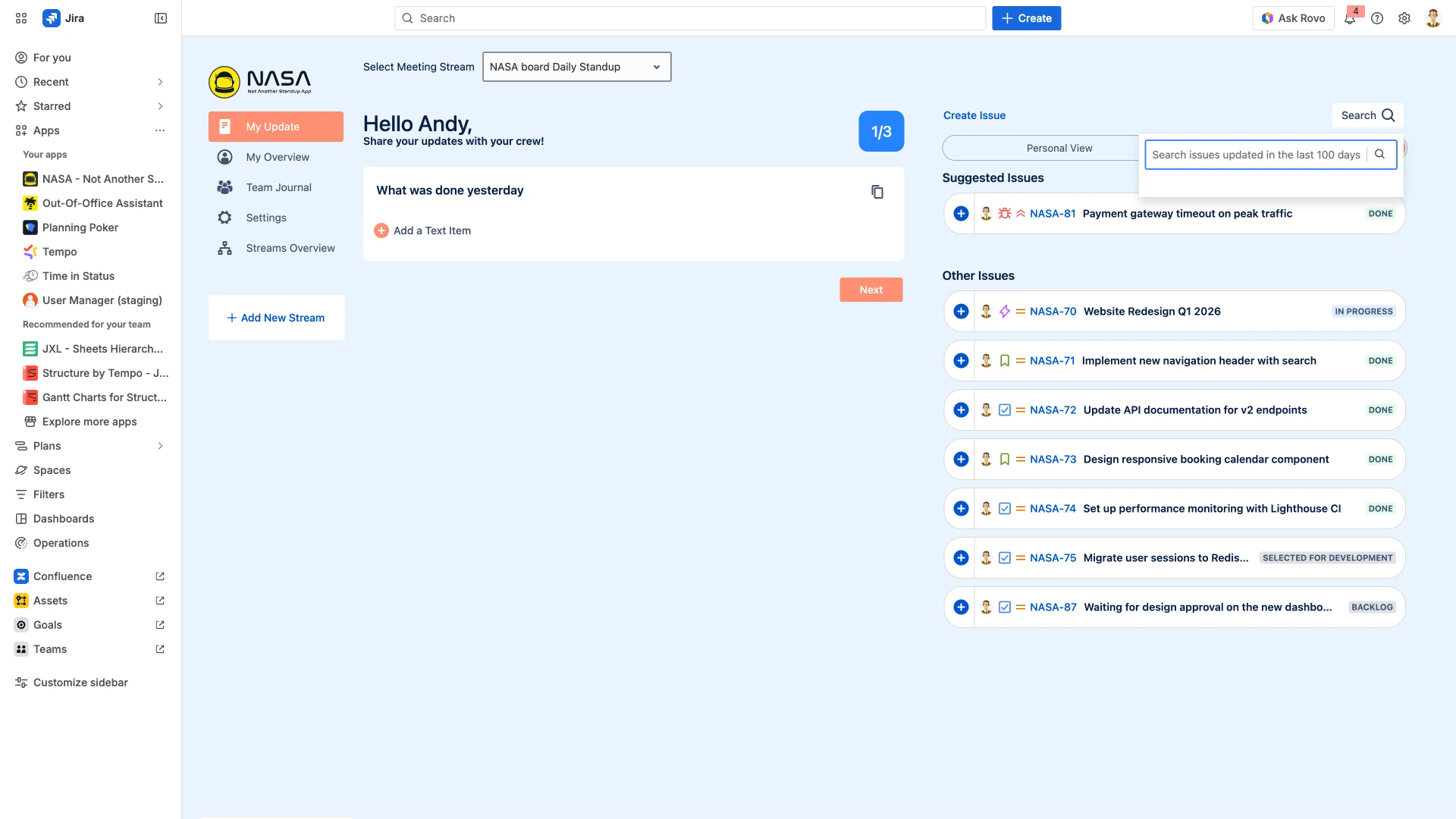
Click the Search button in the right-hand panel during preparation. Type the issue key or summary to find it, then click the Plus button next to the issue to add it to your update.
What does the Search button in the right panel do?
The Search button opens a search field that queries issues updated in the last 100 days. You can search by issue key or summary text, and results appear in a dropdown for quick selection.
How do I add a Jira issue to my update?
Click the Plus button next to any issue in the Suggested Issues or Other Issues list. The issue moves into your current update section (e.g., "What was done yesterday" or "What is blocking you").
How are Suggested Issues configured?
Suggested Issues are configured per meeting stream under Settings. You can filter by Priority, Issue Type, Status, or use a Jira Issue Filter (JQL-based). See Suggested Jira Issue Selection for details.
Creating Issues
Can I create a new Jira issue directly from NASA?
Yes. Click the Create Issue button in the right-hand panel. The new issue is created in Jira and can immediately be added to your update.
Can I convert a text item into a Jira issue after creation?
No. Text items and Jira issues are separate item types. As a workaround, copy the text item content, create a new Jira issue with that content, and add the issue to your update.
During Live Meetings
How do I flag an issue for follow-up during a live meeting?
Click the flag icon next to any issue or item in a participant's update. Flagged items appear in the Follow-up Issues tab for the team to discuss after individual updates.
Can I open and review a Jira issue during the live meeting?
Yes. Click the issue key (e.g., NASA-81) during the live meeting to open it as a pop-up. You can view details, add comments, or make changes, then close the pop-up to continue.
Can I assign or reassign issues during a meeting?
Yes. Open the Jira issue pop-up during the meeting and edit the assignee field directly. Changes are saved to Jira immediately.
Can I transition an issue's status during a meeting?
Yes. Open the Jira issue pop-up and change the status using the workflow transition buttons. The status update is reflected in Jira in real time.
Filtering & Prioritization
How do I configure which issues appear as Suggested Issues?
Go to Meeting Settings for your stream and configure the Suggested Jira Issues section. Choose from Priority, Issue Type, Status, or a saved Jira Issue Filter. See Filters for filter configuration details.
Can NASA display issues sorted by priority?
Yes. When configuring Suggested Issues, select Priority as the filter criterion. Issues are then displayed in priority order (Highest first). See Suggested Jira Issue Selection for configuration steps.
How can I hide sensitive issues from appearing in the meeting?
Create a Jira Issue Filter that excludes sensitive issues (e.g., by label or component) and select it in the Suggested Jira Issues configuration. Set the filter's Viewers to My organization so all participants can access it. See Filters for details on sharing filters.
Tracking & History
What happens when I flag an issue for follow-up?
Flagging creates a discussion marker for the current meeting only - it does not create a Jira ticket or sub-task. The flag ensures the issue is reviewed during the Follow-up Issues phase of the live meeting.
Where can I see an overview of resolved issues?
Team Journal shows resolved Suggested Issues across recent meetings. It provides a summary of which issues were completed and when.
How far back can I view meeting history?
Team Journal retains meeting data for up to 30 days. You can review past updates, discussed items, and follow-up outcomes within that window.