

Meeting Management
Common questions about scheduling, running, and managing meetings in NASA.
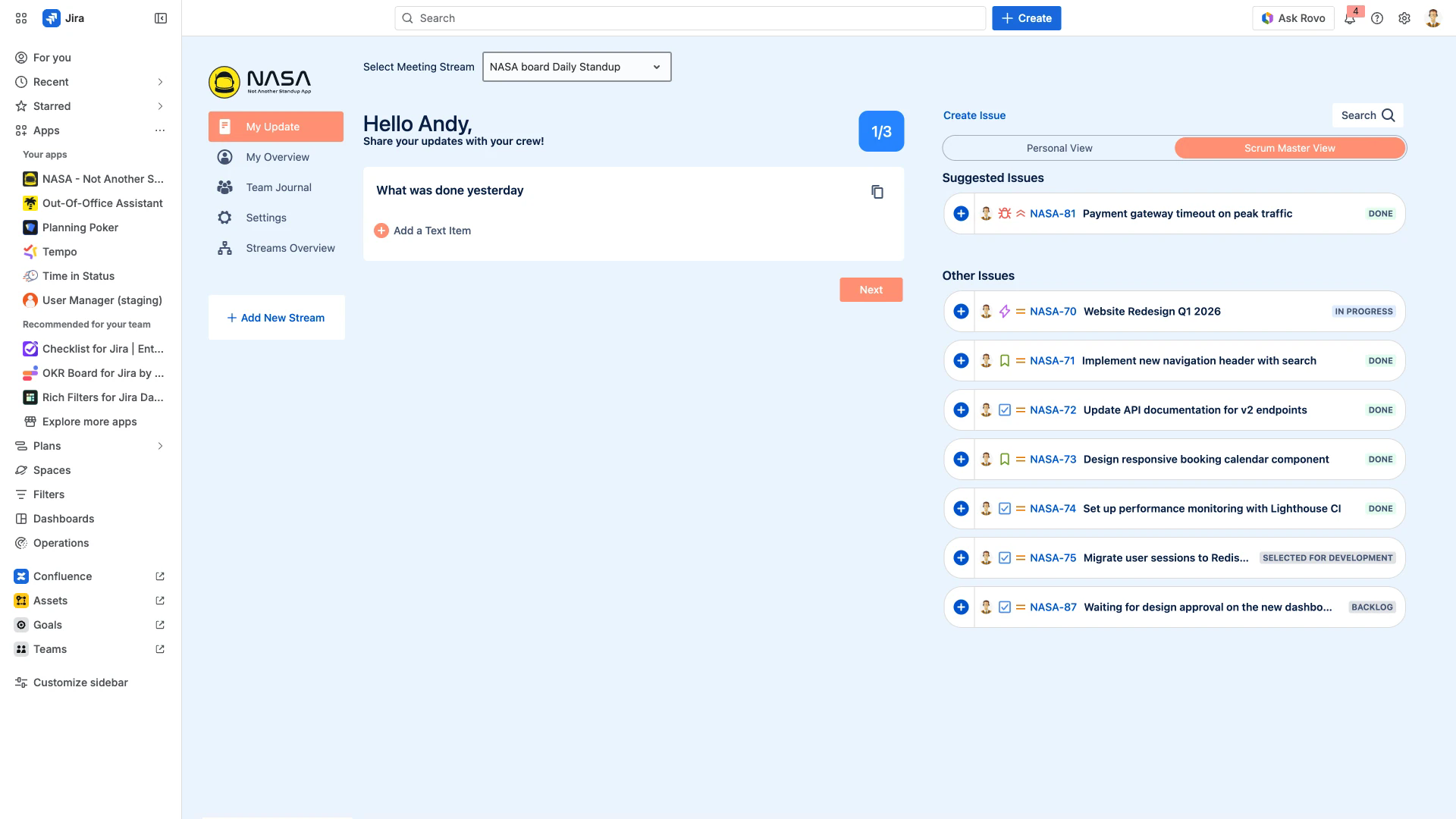
The screenshot below shows the preparation view where each participant enters their updates before the meeting starts.
Starting & Running Meetings
How do I start a live meeting?
From the meeting lobby, the Scrum Master or designated Coverer clicks Start Meeting. All participants who have completed their preparation will be included. See Active Standup Meeting in Jira or Active Team Meeting for details on the live meeting flow.
Who can start or end a meeting?
Only the Scrum Master or Coverer can start and end meetings. These roles are assigned per meeting stream. Other participants cannot initiate or stop a meeting.
Can participants join after the meeting has started?
Yes. Late participants can join an ongoing meeting by clicking the Live Now button that appears when a meeting is in progress.
What happens if the Scrum Master loses connection?
The Coverer can immediately take over and continue running the meeting. Once the Scrum Master regains their connection, they can rejoin the session.
Can I start a meeting outside the regular schedule?
Yes. The Scrum Master or Coverer can start an ad hoc meeting at any time from the meeting lobby, regardless of the configured schedule.
Scheduling & Duration
How do I configure meeting days and times?
Go to the Time & Date settings for your meeting stream. You can set the days of the week, starting times, and time zones for your meetings.
How is meeting duration configured?
In the Time & Date settings, you can set duration based on a fixed amount of time per meeting or a specific amount of time per participant. Choose per-participant timing to scale meeting length with team size.
Can I change the meeting frequency or cadence?
Yes. The meeting cadence is configured in the Time & Date section. You can adjust how often meetings occur to match your project needs.
Can I edit the schedule after initial setup?
Yes. All scheduling settings can be changed at any time from the Time & Date section within your stream settings.
Meeting Features
Is there a timer for each participant?
Yes. During a live meeting, each participant has a visible timer showing how much time remains for their update. This helps keep meetings concise. See Live Meeting Features for more details.
Can participants react with emojis during a meeting?
Yes. Participants can use the emoji button to react to issues being discussed during the live meeting. See Live Meeting Features.
How do I flag items for follow-up?
During a live meeting, items can be flagged for follow-up to ensure they are addressed after the meeting.
Can I add a video meeting link?
Yes. You can configure a meeting link (e.g., Zoom or Google Meet) in the Meeting Settings section. This link is shared via Slack notifications so participants can join the video call alongside the NASA meeting.
How do I copy settings from one stream to another?
Use Duplicate Streams to copy an existing stream's configuration to a new stream. This copies questions, time allocations, and other settings. You can then adjust the copy as needed.
Meeting Records
Where are past meetings recorded?
All meetings are automatically recorded in the Team Journal. Each entry includes participant updates, discussed issues, and flagged items.
How long is meeting history available?
Meeting records are stored in the Team Journal for up to 30 days before being automatically removed.
Does NASA generate meeting minutes automatically?
NASA does not generate separate meeting minutes. All meeting data is available in the Team Journal. You can also export meeting data to Confluence using the Team Journal Export feature in your stream settings.
Can I export meeting data to Confluence?
Yes. The Team Journal Export to Confluence feature allows you to push meeting records to a Confluence page. Configure this in the General settings section of your stream.
Tips & Best Practices
Our meetings exceed 15 minutes. What can we do?
Consider these approaches:
Enable per-participant timers in Time & Date to enforce time limits.
Use the flag for follow-up feature to defer detailed discussions to after the standup.
Reduce the number of meeting questions to focus on essentials.
For topics requiring deeper discussion, use a Team Meeting format instead.
How should we handle absent team members?
Absent participants are automatically skipped during the live meeting. Their preparation updates (if submitted) are still visible in the Team Journal after the meeting.
How do meeting notifications work?
NASA can send preparation reminders and meeting start notifications via Slack. Configure notification channels and timing in the Notifications settings for each stream.