

Setup & Installation
Common questions about installing NASA and creating your first meeting stream.
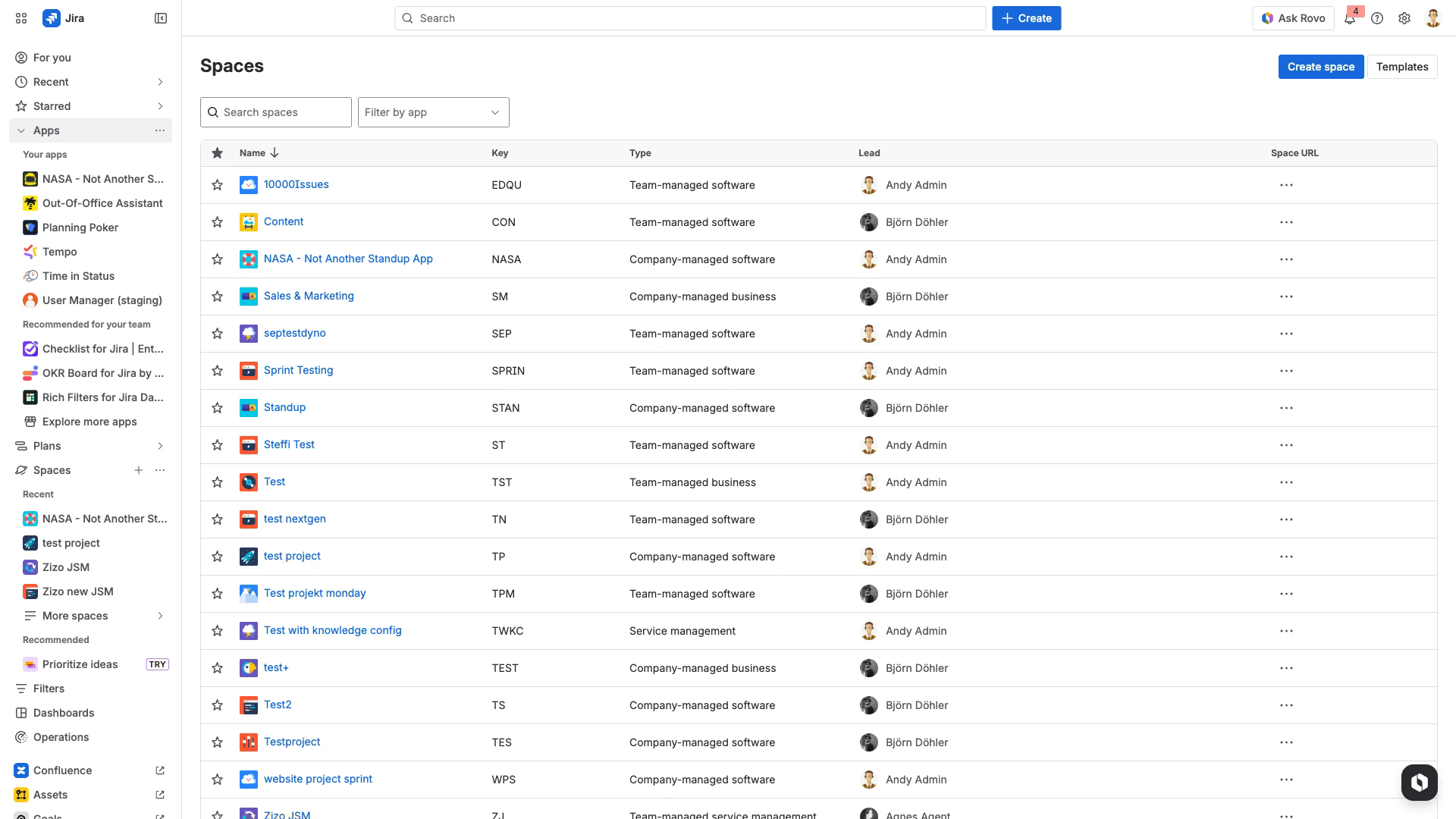
The Jira Apps menu in the sidebar shows all installed Forge and Connect apps, including NASA.
Installation
How do I install NASA?
Install NASA directly from the Atlassian Marketplace. Search for "NASA - Not Another Standup App" or visit the listing page. Click Get it free (for the 30-day trial) or Buy now, then select the Jira Cloud site where you want to install it. No restart or downtime is required.
What permissions are needed to install NASA?
You must be a Jira administrator (site admin or org admin) to install Marketplace apps. Regular project administrators cannot install apps.
Does NASA work on Jira Server or Data Center?
No. NASA is a Jira Cloud-only app built on the Atlassian Forge platform. It is not available for Jira Server or Jira Data Center.
Is there a free trial?
Yes. Atlassian Marketplace offers a 30-day free trial for all paid apps, including NASA. After the trial ends, you need an active subscription to continue using the app.
Will installing NASA cause any downtime?
No. Installing or updating NASA does not require a restart and does not interrupt your Jira instance.
How do I verify that NASA is installed?
After installation, expand the Apps section in the Jira left sidebar. NASA appears under "Your apps." You can also check Jira Settings > Apps > Manage apps in your Atlassian administration.
First-Time Setup
What are the initial steps after installing NASA?
Open NASA from the Jira left sidebar under Apps.
Accept the required scope permissions when prompted.
Create your first meeting stream by selecting a Jira board and configuring basic settings.
For a step-by-step walkthrough, see the Getting Started guide.
What are scope permissions, and why does NASA need them?
Scope permissions allow NASA to access Jira data (boards, issues, users) that it needs to run meetings. You accept these once during first-time setup. NASA only requests the minimum permissions required to function.
How do I select the correct Jira board when creating a meeting stream?
Use the Jira Board dropdown in the stream creation wizard. The dropdown lists all boards you have access to. Select the board whose issues you want to discuss in your standup meetings.
Can I adjust the meeting duration?
Yes. In the stream settings, you can set either a fixed total time for the meeting or a per-participant time limit. Both options are available under Time & Date settings.
How do I navigate to settings after initial setup?
Click the Settings icon in the NASA left sidebar menu to access stream configuration. From there you can modify the board, users, schedule, and other options.
JSM Board Setup
Can I use NASA with a Jira Service Management (JSM) board?
Yes. NASA supports JSM boards. You need licensed access to both Jira Service Management and Jira Software on the same Jira Cloud site.
How do I create a standup stream for a JSM board?
Create a new meeting stream in NASA and select your JSM board from the board dropdown. The setup process is the same as for Jira Software boards. See the JSM Board guide for details.
Are there additional license requirements for JSM boards?
Yes. The user creating the stream must hold active licenses for both JSM and Jira Software. Users who only have a JSM license cannot create or manage NASA streams that reference Jira Software boards, and vice versa.
Stream Management
Can I use Meeting Templates to create streams faster?
Yes. Meeting Templates let you save a stream configuration as a reusable template. When creating a new stream, select an existing template to pre-fill settings like board selection, meeting duration, and participant configuration. See the Meeting Templates page for details.
Can I duplicate an existing stream?
Yes. The Duplicate Streams feature creates a copy of an existing stream with all its settings. This is useful when you need similar streams for different teams or projects. See the Duplicate Streams page for details.
Can I customize stream settings per project?
Yes. Each meeting stream is tied to a specific Jira board (and therefore a project). You can create multiple streams with different configurations for different projects.
Can I pre-configure a stream before adding users?
Yes. You can set up the board, meeting schedule, and all other settings before inviting participants. Users can be added at any time from the Users settings page.
Uninstalling
How do I uninstall NASA?
Go to Jira Settings > Apps > Manage apps in your Atlassian administration. Find NASA in the list of installed apps and select Uninstall. Alternatively, manage apps through the Atlassian administration portal at admin.atlassian.com.
Uninstalling NASA removes the app and its configuration data. This action cannot be undone. If you want to keep your data, export your meeting history before uninstalling. You can also watch the NASA Tutorial video for a walkthrough of the setup and uninstall process.