

Integration Features
NASA connects with Jira, Confluence, Slack, and video meeting tools. Each integration extends different phases of the meeting lifecycle - preparation, live meetings, and post-meeting documentation.
Jira Integration
NASA runs on the Jira platform and provides direct access to Jira issues throughout the meeting lifecycle.
Preparation
During the My Update phase, participants can work with Jira issues in several ways:
Suggested Issues - NASA surfaces relevant Jira issues based on the stream's filter configuration (priority, status, issue type, or saved Jira filter)
Issue Search - Find any Jira issue by key or title, including issues outside the stream's board
Create Issues - Create new Jira issues directly from the preparation view
Issue Details - View status, assignee, priority, and story points without leaving NASA
Live Meetings
During a running meeting, participants and the Scrum Master can interact with Jira issues:
Open Issues - Click any issue key to view full issue details in a pop-up
Edit Issues - Modify status, assignee, priority, or other fields from within the meeting
Add Comments - Add comments that can optionally sync back to the Jira issue
Create Issues - In Team Meetings, the Scrum Master can create new issues during the meeting
Comment Sync
NASA supports two types of comments on items:
NASA-only comments - Visible within NASA and the Team Journal, but not written to Jira
Synced comments - Written back to the Jira issue as a comment, visible in both NASA and Jira
Comment sync behavior depends on stream settings and Post-Meeting Automation rules.
Real-Time Updates
Changes made to Jira issues outside NASA (status transitions, reassignments, new comments) appear in NASA when the page is refreshed or the meeting view updates.
Confluence Integration
NASA can pull Confluence pages into meeting agendas and export meeting records to Confluence.
Adding Confluence Pages as Agenda Items
In Team Meetings, you can add Confluence pages as agenda items:
Open your My Update for the stream
Click Add Confluence Page
Search for the page by title
The page appears as an item that participants can reference during the meeting
A Confluence connection must be established at the site level before adding pages. See Data Sources for setup.
Team Journal Export to Confluence
NASA can export Team Journal entries to a Confluence page, creating a permanent record outside the 30-day retention window:
Manual export - Export individual journal entries on demand from the Team Journal view
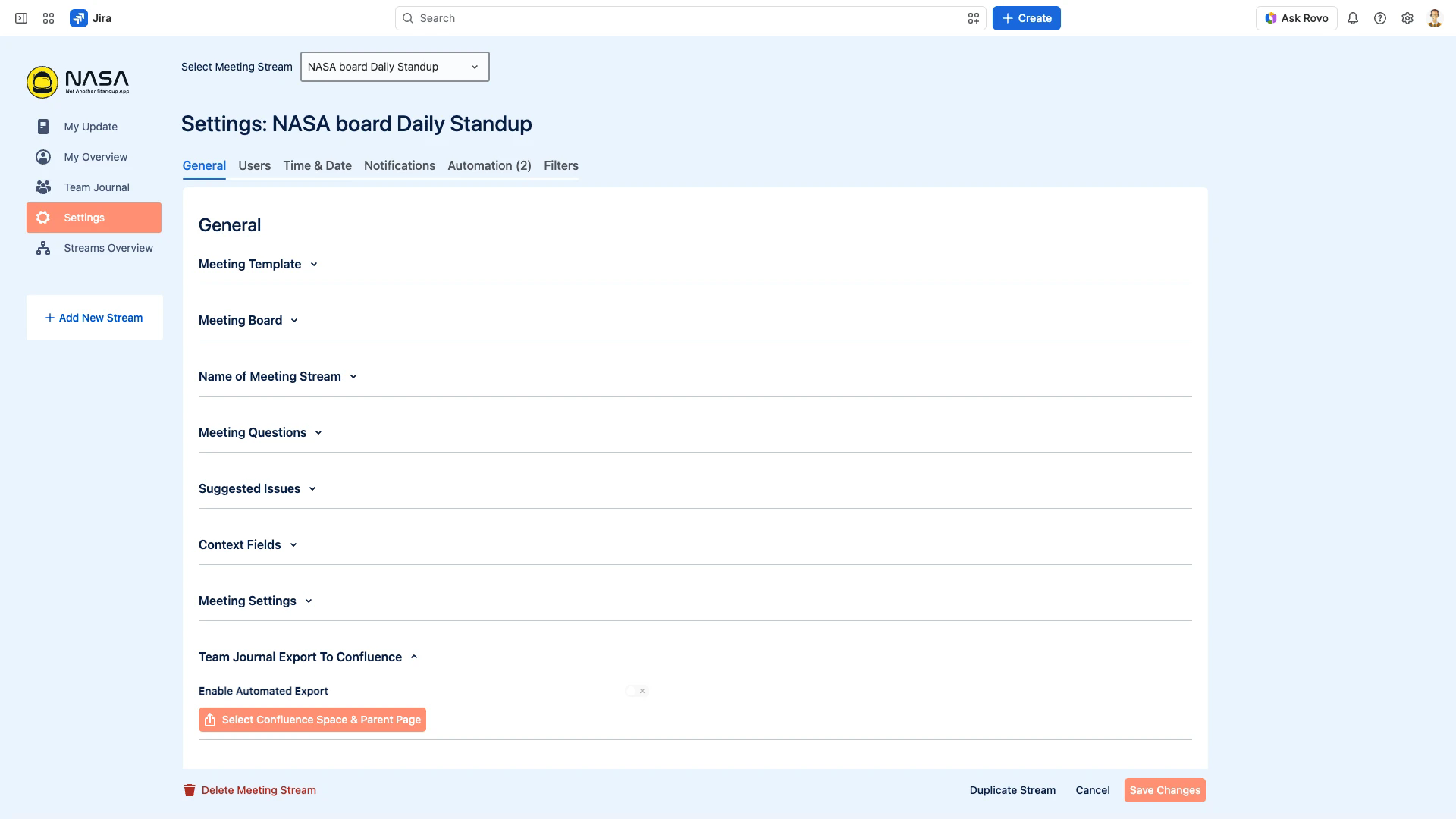
Automatic export - Configure automatic export after each meeting in Settings > General > Team Journal Export to Confluence
The export creates or updates a Confluence page with the meeting record, including participants, items discussed, comments, and follow-up items.
NASA connects to the Confluence product on the same Atlassian site as Jira. See Data Sources for how to connect and configure the export destination.
Slack Integration
NASA sends notifications to a Slack channel configured per stream.
NASA supports Slack notifications only - email notifications are not available.
Available Notifications
Update Reminder - Reminds participants to prepare their My Update before the meeting. Configure the timing (for example, 30 minutes before) in Settings > Notifications
Meeting Reminder - Notifies participants when the meeting is about to start. Configure the timing and message content in Settings > Notifications
Setting Up Slack Notifications
Go to Settings > Notifications
Select Slack as the notification channel
Choose or create a Slack channel for the stream
Configure reminder timing and message content
Click Save Changes
Copy the Command to Slack
For detailed notification configuration including reminder timing and message templates, see Notifications.
Video Meeting Integration
NASA supports linking to external video meeting tools from the Meeting Lobby. Supported tools include Zoom, Google Meet, and Microsoft Teams.
To configure a video meeting link:
Go to Settings > General > Meeting Settings
Expand the Meeting Settings section
Enter the video meeting URL in the Meeting Link field
Click Save Changes
When participants enter the Meeting Lobby, they see the video meeting link and can join the call directly.
Related Pages
Meeting Settings - Configure all stream settings including integrations
Data Sources - Set up the Confluence connection
Notifications - Configure Slack notifications and reminders
Post-Meeting Automation - Automate Jira comment sync and issue creation after meetings
Preparation Features - Jira issue selection and My Update preparation