

Stream-Based Workflow
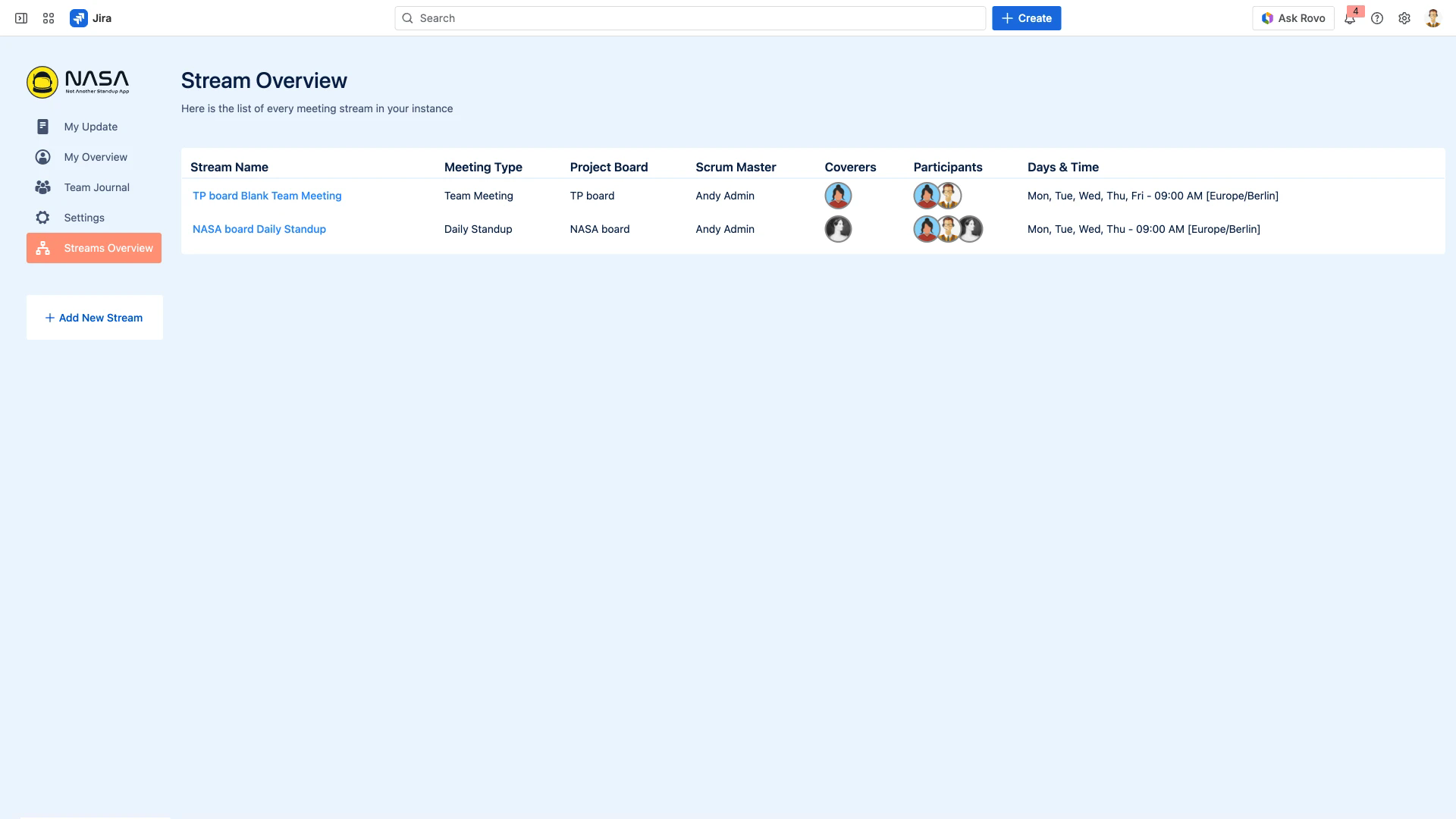
A Stream is the core organizational unit in NASA. Each stream represents a recurring meeting tied to a specific Jira board, with its own participants, schedule, questions, and settings.
Prerequisites
NASA app installed on your Jira Cloud instance
Jira board (Scrum or Kanban) for the stream
Scrum Master or Jira Administrator role to create streams
What Is a Stream?
A stream defines everything about a recurring meeting:
Jira board - Which board's issues are available during preparation
Meeting type - Standup (per-person updates) or Team Meeting (per-topic agenda)
Participants - Who attends, with assigned roles (Scrum Master, Coverer, Participant)
Schedule - Which days and times the meeting occurs
Questions - The agenda structure participants follow when preparing updates
Settings - Timer mode, notifications, suggested issue filters, automation rules
Each stream operates independently. Changing settings in one stream does not affect others.
Create a New Stream
Open NASA from the Jira sidebar (under Apps)
Click Create Stream from the Streams Overview
Select a Meeting Templates or start with a blank configuration
Choose your Jira board from the dropdown
Set the meeting type (Standup or Team Meeting)
Configure the meeting questions and time allocations
Add participants and assign roles
Set the meeting schedule under Time & Date
Click Save to create the stream
After creation, participants can start preparing their updates for the next scheduled meeting.
Switch Between Streams
If you belong to multiple streams, use the stream dropdown at the top of the NASA interface to switch between them. Each stream shows its own My Update, Team Journal, and Settings independently.
Duplicate a Stream
You can create a new stream based on an existing one. Open the stream, navigate to Settings > General, and click Duplicate Stream. For the full duplication workflow, see Duplicate Streams.
Stream Privacy
By default, all streams are visible to all NASA users in the Streams Overview. You can restrict visibility so only assigned participants see a stream. For configuration details, see Stream Privacy.
Archive or Delete a Stream
To remove a stream you no longer need:
Go to Settings > General
Scroll to the bottom and click Delete Stream
Confirm the deletion
Deleting a stream permanently removes all its settings, Team Journal entries, and meeting history. This action cannot be undone.
Related Pages
Getting Started - First-time setup and orientation
Meeting Settings - Configure all stream settings in detail
Meeting Templates - Pre-built question sets for common ceremonies
Duplicate Streams - Full guide to stream duplication
Stream Privacy - Control stream visibility
User Roles and Permissions - Scrum Master, Coverer, and Participant roles