

Active Standup Meeting in Jira
The live standup meeting brings the team together to share updates and identify blockers in real time. This page covers entering the lobby, starting a meeting, presenting updates, using meeting controls, and ending the session.
Meeting Lobby
After completing your Standup for Jira Meeting Preparation (My Update), click Enter Meeting Lobby to signal that you are ready. The lobby shows participant avatars so the Scrum Master can see who has joined.

Participants whose avatars appear clearly have completed their preparation. Greyed-out avatars indicate participants who have not yet joined.
Starting the Meeting
The Scrum Master or Coverer clicks Start Meeting in the lobby.
The meeting begins immediately and the first participant's update is displayed.
A meeting timer starts at the top of the screen, showing elapsed time against the configured duration.
Only Scrum Masters and Coverers can start and end meetings. Participants can join the lobby and present their updates but cannot control the meeting flow. See User Roles & Permissions for details.
Late Joining
If a participant misses the lobby, they can still join an active meeting. After completing their preparation, a Live Now button appears instead of the lobby. Click it to join the meeting in progress.
During the Meeting
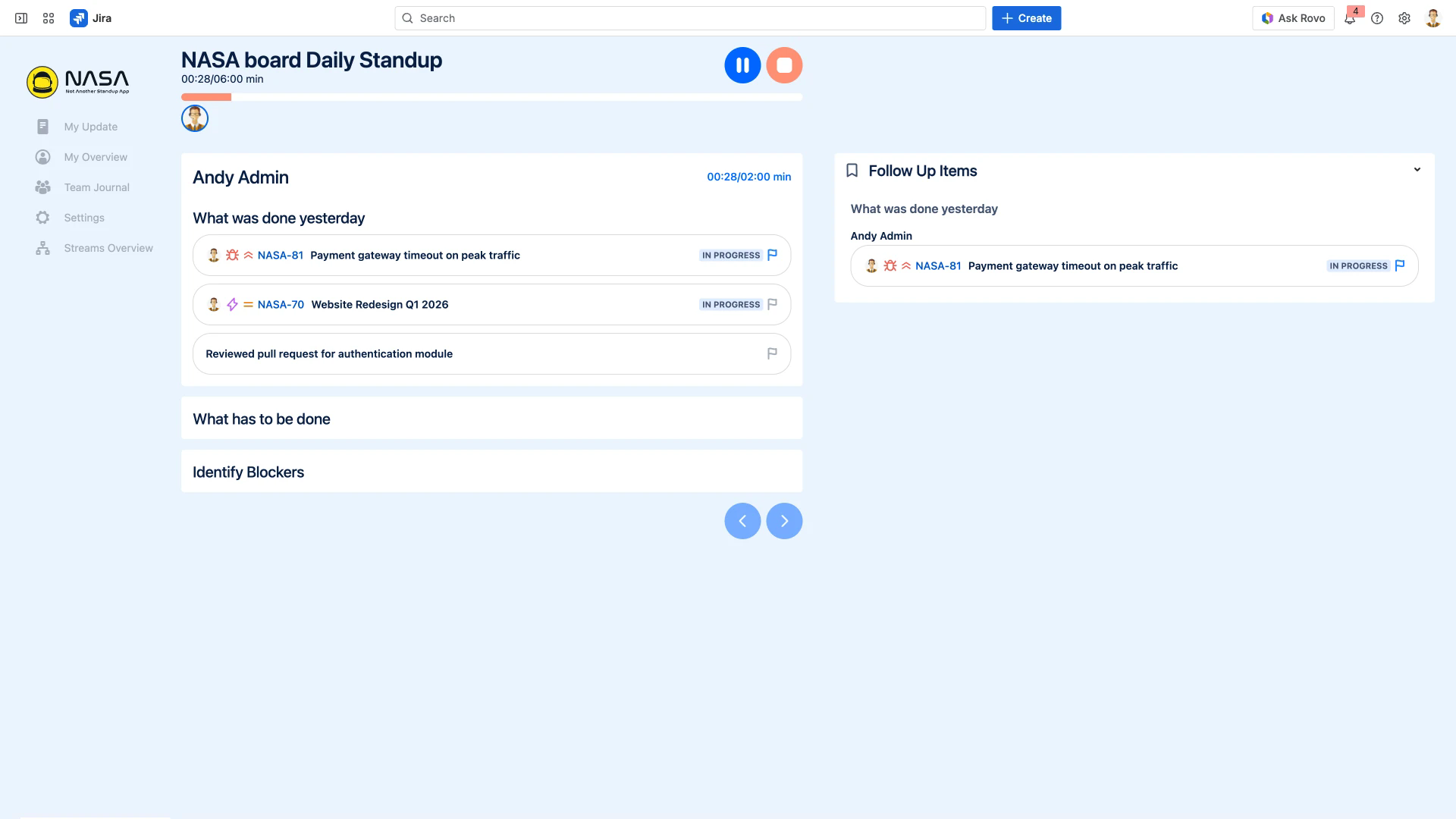
Each participant's update is displayed one at a time, organized by the configured standup questions (for example: "What was done yesterday", "What has to be done", "Identify Blockers"). The Scrum Master navigates between participants using the arrow buttons at the bottom.

Timers
Two timers are visible during the meeting:
Meeting timer (top) - total elapsed time against the scheduled meeting duration.
Participant timer (per user) - time spent on the current participant's update. The per-user time limit is configured in Time & Date.
Timers turn red when the allocated time is exceeded but do not stop the meeting automatically.
Meeting Controls
Flagging Items
Click the flag icon next to any item to mark it for follow-up. Flagged items appear immediately in the Follow Up Items panel on the right side of the screen and are recorded in the Team Journal.
Emoji Reactions
Hover over an item and click the smiley icon to open the emoji picker. Select an emoji to react to the item. Reactions are visible to all meeting participants.

Opening Jira Issues
Click a Jira issue key (for example, NASA-81) to open the issue in a pop-up. You can review details, update the status, or add comments without leaving the meeting.
Scrum Master Controls
The Scrum Master and Coverer have additional controls during the meeting:
Pause - temporarily pause the meeting timer.
Stop - end the meeting and save results to the Team Journal.
Navigation arrows - move between participants.
Participants see the updates and can flag items or add emoji reactions, but cannot navigate between participants or stop the meeting.
Ending the Meeting
After all participants have presented, the Scrum Master or Coverer clicks the Stop button.
A post-meeting summary displays meeting statistics and any items flagged for follow-up.
The app saves the meeting results to the Team Journal automatically.
Click Team Journal to review the full meeting record.
