

Standup for Jira Meeting Preparation (My Update)
The My Update view is where you prepare items for your next standup meeting. Add Jira issues, text items, and headlines to each question, then enter the meeting lobby when ready.
Accessing My Update
Open the NASA app from the Jira top navigation bar under Apps. Select your meeting stream from the dropdown at the top of the page. The app opens on the My Update tab by default.
Answering Questions
The preparation screen walks you through each meeting question in sequence. A progress indicator (for example, 1/3) shows your current position. For a Daily Standup, the default questions are:
What was done yesterday?
What has to be done today?
What is blocking you?
The left side shows the current question with your added items. The right side shows Jira issues you can add to your answer.
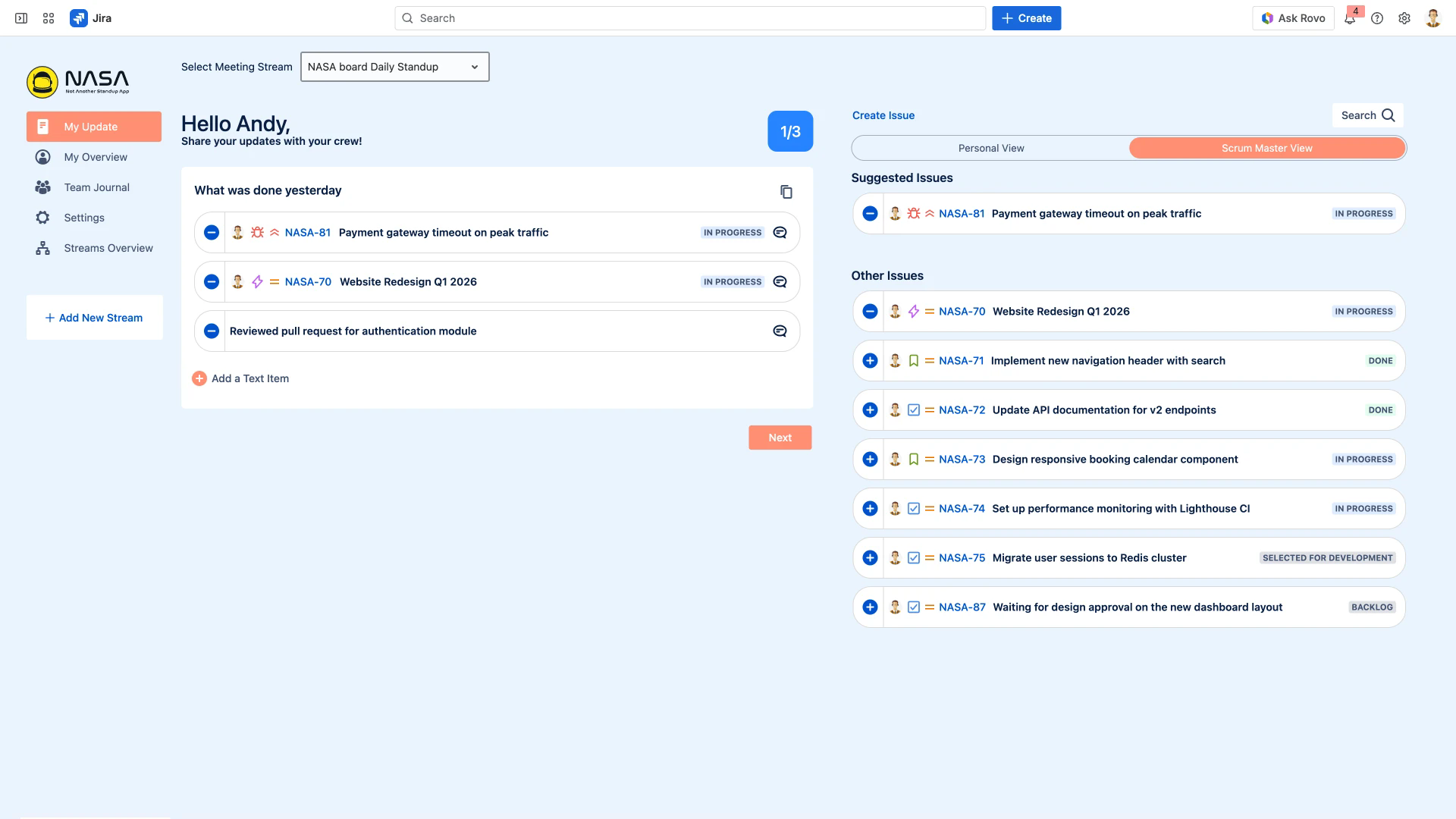
Click Next to advance to the next question. Click Back to return to a previous question. You can edit any answer at any time during preparation.
Adding Items
Adding Jira Issues
The right-hand panel displays Jira issues you can attach to your update. Click the + icon next to an issue to add it to the current question. The panel has two sections:
Suggested Issues – issues matching the filter criteria configured by the Scrum Master in the stream’s filter settings
Other Issues – your recently updated Jira assignments that are not already in Suggested Issues
To find issues not shown in either list, click Search in the top-right of the panel. Type a Jira issue key or keyword to locate the issue, then click the + icon to add it.
Click Create Issue to create a new Jira issue directly from the preparation screen without leaving the app.
Adding Text Items
Click Add a Text Item below the current question to enter a free-text update. Type your text, then click the checkmark to save. You can optionally convert a text item into a Jira issue or mark it as a headline.

Adding Comments to Issues
After adding a Jira issue to your update, click the speech bubble icon to add a comment. Select Add comment to Jira Issue to post the comment on the Jira issue as well.
Suggested Issues
The right-hand panel shows issues based on the stream’s filter configuration. Toggle between Personal View (your own filters) and Scrum Master View (filters configured by the Scrum Master) using the buttons at the top of the panel.

For details on configuring filters, see Filters.
Item Clipboard
When you remove an item from a question, it moves to the Item Clipboard. Click the remove icon (minus button) next to any item to move it to the clipboard. You can retrieve items from the clipboard and add them back to your update at any time during preparation.
Copying Previous Updates
Click the Copy Items From Last Meeting icon next to the question title to reuse items from your previous standup. This saves time when tasks span multiple days.
For the full workflow, see Copy and Paste Previous Standup Updates.
My Update Summary
After answering all questions, the summary screen shows your complete update. Review your answers across all questions. Click Set Your Mood to share how you are feeling – mood indicators are visible to other participants during the live meeting.

Lobby Entry Requirement
You must add at least one item to each required agenda topic before you can enter the meeting lobby.
Entering the Meeting Lobby
When your update is ready, click Enter Meeting Lobby on the summary screen. In the lobby, participant avatars show who has joined and who is still preparing. The Scrum Master or Coverer clicks Start Meeting to begin the live standup.

Type a Jira issue key directly in the search field to add it quickly. Use the Copy Items From Last Meeting button to reuse items from your previous standup.