

Active Team Meeting
The Active Team Meeting view is where the team discusses agenda topics in real time. The Scrum Master navigates between topics, manages the agenda, and controls the meeting flow. This page covers all aspects of running a live Team Meeting.
Meeting Lobby
After completing your preparation in My Update, click Enter Meeting Lobby to signal that you are ready for the meeting. The lobby shows the stream name, participant avatars, and a Start Meeting button.
Participants who have entered the lobby appear with visible profile images. Wait until all expected participants have joined before starting.

Starting the Meeting
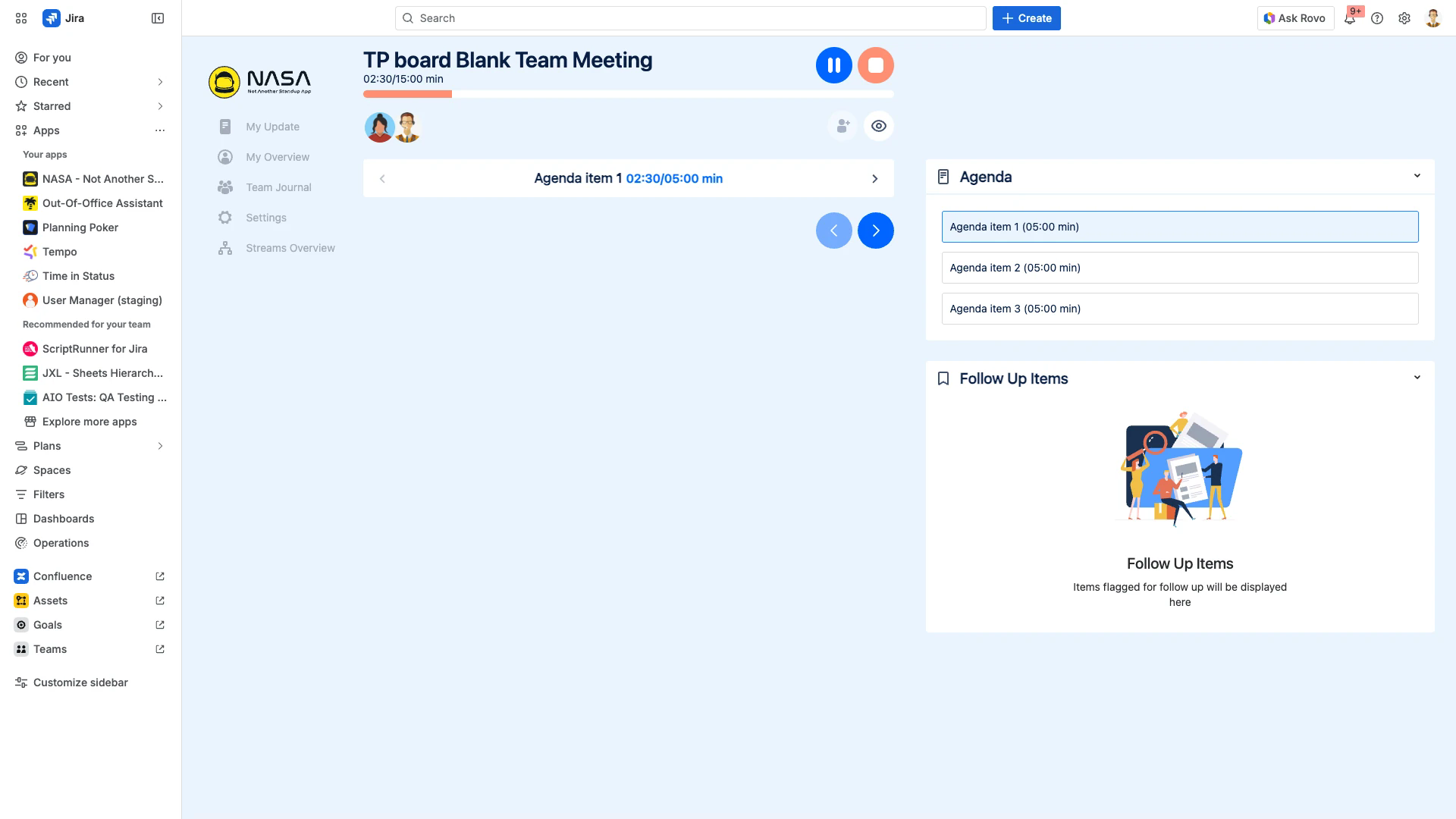
The Scrum Master or Coverer clicks Start Meeting to begin. Once started, the live meeting view opens with the first agenda topic, a per-topic timer, and the participant list.
Only Scrum Masters and Coverers can start and end meetings. See User Roles & Permissions for role details.
Loading Non-Joiners
When a participant does not join the live session, Scrum Masters and Coverers can load their prepared items into the meeting agenda. This feature is unique to Team Meetings.
During the live meeting, click the Load Non-Joiners button in the meeting controls area.
A dialog opens listing all participants who have not joined.
Select one or more absent participants and confirm.
Their prepared items from My Update are added to the live agenda.

After loading, the non-joiner's items appear under the relevant agenda topics alongside items from participants who joined directly.
Navigating the Agenda
Team Meetings use a topic-based agenda. Each agenda topic has its own timer, configured in the meeting settings. Navigate between topics using the Agenda sidebar or the arrow buttons at the bottom of the content area.
The per-topic timer helps keep discussions within the allocated time. Monitor the timer display above each topic to avoid running over.
Meeting Controls
Adding Items During the Meeting
Scrum Masters and Coverers can add new text items or search for Jira issues during a live Team Meeting. Click Add New Item to create a text item, or click the search icon to find and add a Jira issue.
Comments
Add comments to any item by clicking the comment icon next to it. The comment text area supports up to 2,000 characters and automatically resizes as you type. Comments can optionally be synced to the corresponding Jira issue.
Keyboard shortcut: Press Cmd+Enter (macOS) or Ctrl+Enter (Windows) to submit a comment. A shortcut hint appears below the text input field.

Flagging Items for Follow-Up
Items that need further discussion can be flagged during the meeting. Click the flag icon next to any item to mark it for follow-up. Flagged items appear in the Follow Up Items sidebar and are saved to the Team Journal after the meeting ends.

Emoji Reactions
All participants can react to items with emojis by clicking the reaction icon. Reactions provide quick non-verbal feedback without interrupting the discussion.
Searching and Adding Jira Issues
Scrum Masters and Coverers can search for Jira issues during the meeting. Click the search icon, type keywords or an issue key, then select and add the issue to the current topic.
Planning Poker
Team Meetings include a built-in Planning Poker feature for estimation. The facilitator can initiate a poker round on any Jira issue during the meeting. See Planning Poker for details on the estimation workflow.
Pausing and Ending the Meeting
Use the Pause button (blue) to temporarily stop the per-topic timer during extended discussions. Click it again to resume.
When all topics have been covered, click the Stop button (orange) to end the meeting. A post-meeting summary displays the meeting duration, a comparison to the scheduled time, and any items flagged for follow-up.
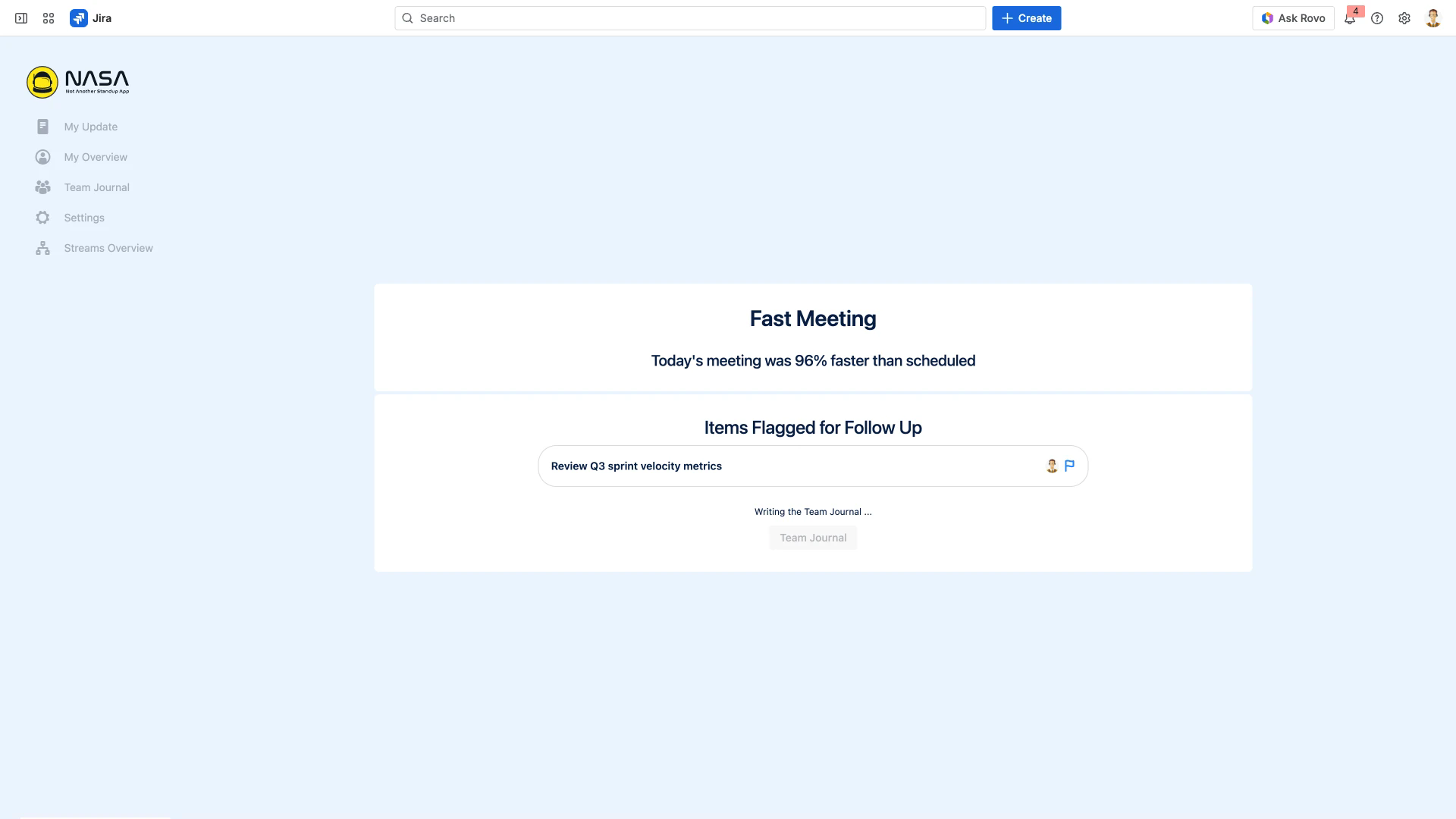
Meeting results are automatically saved to the Team Journal. Follow-up items are preserved for post-meeting action. You can also configure Post-Meeting Automation to trigger Jira workflows automatically after the meeting ends.
Only Scrum Masters and Coverers can add or remove items during live Team Meetings. Participants can react, comment, and flag items but cannot modify the agenda.