

Configuring Team Meetings
Configure a Team Meeting stream by selecting a template, linking a Jira board, and defining agenda questions. This page covers the initial setup and key settings specific to Team Meetings.
Creating a Team Meeting Stream
To create a new Team Meeting stream, follow these steps:
Open the NASA app from the Jira sidebar and click Streams Overview.
Click Add New Stream (or the "+" button).
Select a Team Meeting template. NASA offers 10 Team Meeting templates (plus 1 Standup template). Each template pre-fills agenda questions and time limits that you can customize later.
The template dropdown lists all available templates with a short description of each.

Link a Jira board. The board determines which project's issues appear as suggested items during meeting preparation.
Select an existing Jira board from the dropdown in the Meeting Board section.

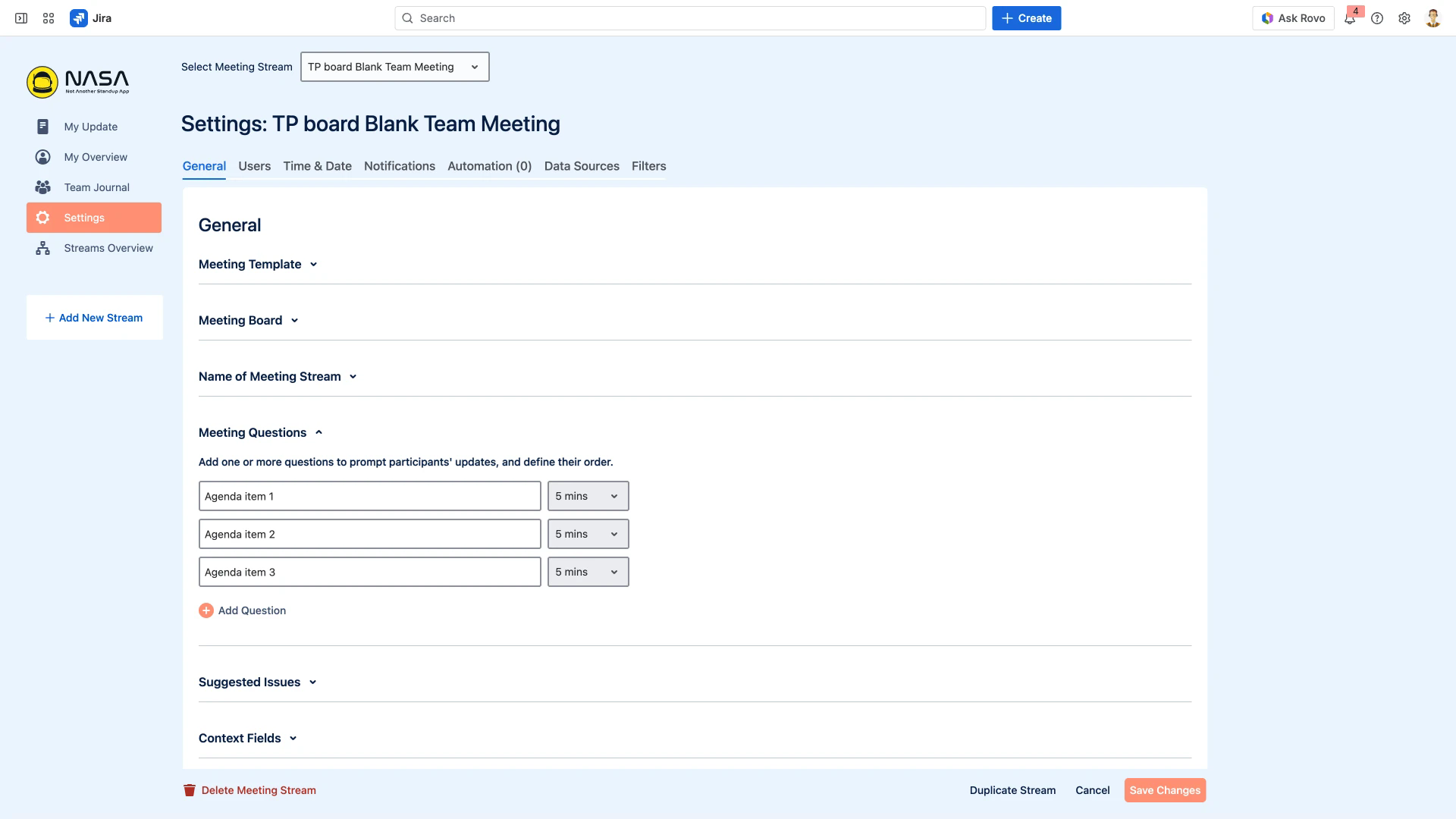
Configure the stream name and agenda questions. Each question represents one agenda topic with its own configurable time limit.
Click Save Changes.
Agenda Questions
Agenda questions define the topics participants prepare for and discuss during the meeting. Each question has a configurable per-topic time limit (default: 5 minutes). You can add, remove, or reorder questions at any time.
Key Team Meeting Settings
The Meeting Settings section in the General tab contains options specific to Team Meetings. Expand the accordion to view and configure them.
Who Can Make Updates During a Meeting
Controls which roles can add items during a live Team Meeting. By default, only Scrum Masters and Coverers can create items on the fly. Participants prepare their updates before the meeting starts.
Enable Preview in My Update
When enabled, participants can see what other team members have prepared before the meeting begins. This is a Team Meeting-exclusive feature not available for Standups.
Make Stream Private
Hides the stream from non-participants in the Streams Overview. Only team members (Scrum Masters, Coverers, and Participants) will see the stream listed.
Meeting Link
Add an optional video meeting URL (Zoom, Google Meet, or similar). This link is displayed in the meeting lobby before the session starts.

Changing the Template
You can change the template on an existing stream at any time. Go to Settings > General > Meeting Template and select a new template from the dropdown. Changing the template updates the default questions but preserves your existing meeting data and history.
You cannot convert a Team Meeting stream to a Standup or vice versa. To switch meeting types, create a new stream with the desired type. See Meeting Types for details.
Remember to click Save Changes after updating any settings.