

Interface Tour and Navigation Guide
Out of Office Assistant is a single app page in Jira. Four tabs are there for everyone, a fifth, Administration, only for Jira admins, and a Help button at the top right of the page holds the support links. This guide names each tab, says what it holds and links to the page that documents it in full.
Open the app
Open Apps in the Jira navigation.
Select Out of Office Assistant.
The app opens on Team Availability. The tab bar stays in place on every tab.
What each tab is for
Tab | What you do there |
|---|---|
Team Availability | See who is out, and open one person's rules, templates and integrations. |
My Rules | Create, edit and prioritise your own out of office rules. |
My Templates | Keep reusable rule definitions that integrations turn into rules. |
My Integrations | Connect Outlook, Google Calendar and Slack, configure Tempo, manage API tokens. |
Administration | Configure the app for the whole instance. Jira admins only. |
Everyone sees four tabs. Administration appears only for Jira admins. Out of Office Admins manage other people's rules from Team Availability but cannot open it - see Permissions and Access Requirements.
Coming from the Connect version? Every tab was renamed and the separate admin screens are now sections of Administration. Migrating from Connect to Forge maps old names to new.
The Help menu
The Help button at the top right of the app page opens the same menu on every tab:
Need Help? - opens the resolution support portal.
Book a Free Meeting - books a call with the resolution team.
Documentation - opens this documentation.
Our Website - resolution's other apps and integrations.
Installation ID - the ID of your installation, with a copy button.
Jira admins also see Support tools. It asks for a code from resolution support and then opens a Support tools section under Administration.
Team Availability
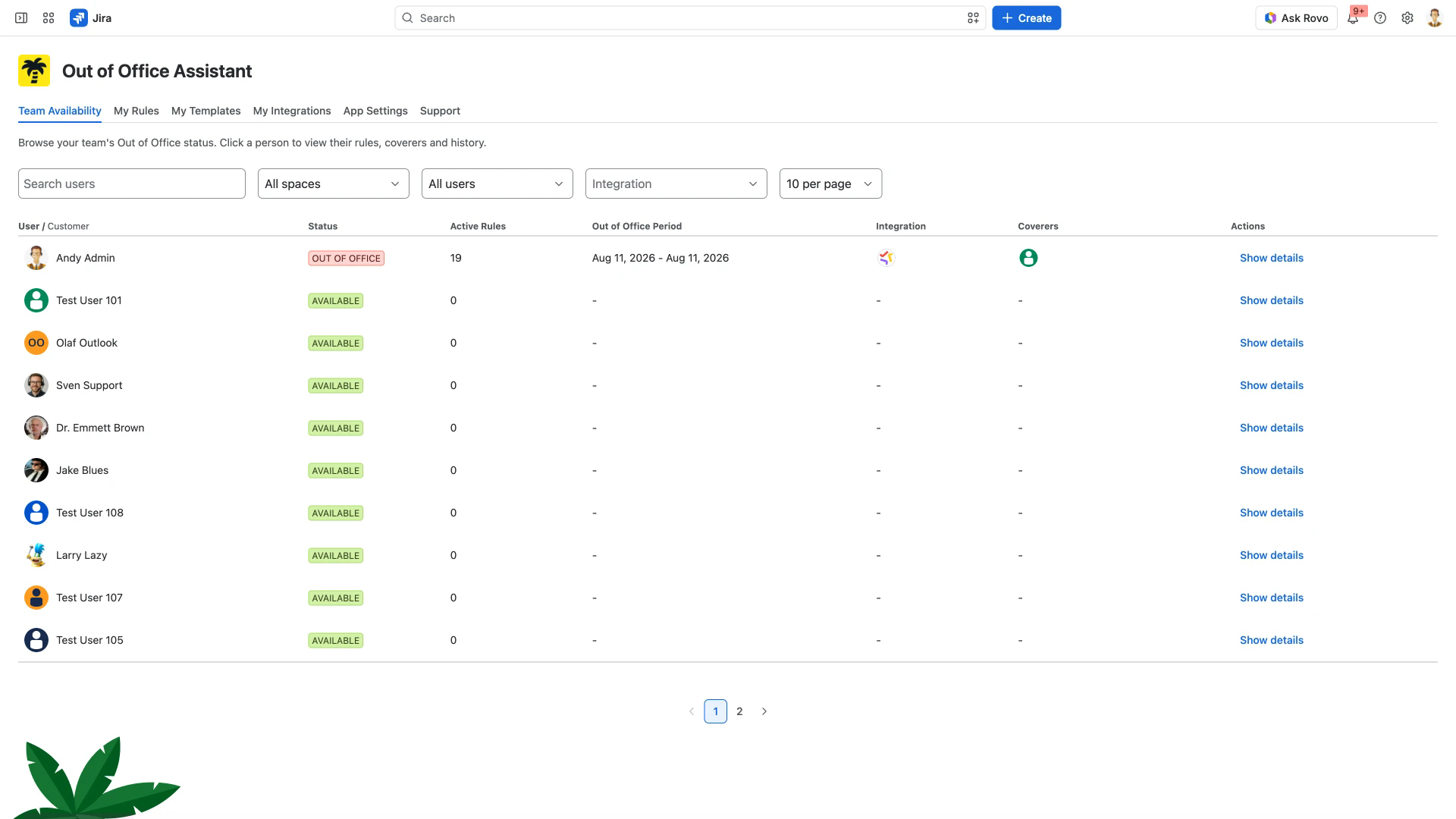
The default tab lists the people you are allowed to see, one row each. Status reads AVAILABLE when no rule is running, LEAVING SOON when a rule is scheduled but has not started, and OUT OF OFFICE while one is running. A search box and filters for space, user state and integration narrow the list, which pages at ten rows until you raise the page size.
When Allow customers to have out of office rules is on, Jira admins and Out of Office Admins see Users and Customers buttons at the top right of the tab. Select Customers to list Jira Service Management customers and their rules; each view keeps its own search and paging. See Creating Out of Office Rules for JSM Customers.
Show details in the Actions column opens a full page for that person, with their own Rules, Templates and Integrations sub-tabs. This is where an administrator works on someone's behalf; Back to users at the top left returns you to the list. See Out of Office User View.
My Rules
Your own rules sit in three tables: Current rules, Expired rules and Past integration rules. The Creator column is the only place that tells you where a rule came from - an avatar of the person, or the logo of the integration that created it. The List of Out of Office Rules documents the list column by column.
Three actions sit above the tables:
Reload re-reads the rules your integrations create, without reloading the browser tab.
Change priority decides which source wins when two rules apply at once - see Rule Priority and Conflict Resolution.
Add rule for myself opens the rule form as a full page - see Rule Configuration Guide.
My Templates
A template is a rule without dates that an integration turns into a rule. Create your own here with Create new template or edit an existing one. To attach a template to an integration, open that integration's Configure page and use Add template from library. Templates for Out of Office Rules covers both routes.
A rule created from a template keeps a reference to it. Editing that rule clears the reference: the rule keeps its values but is no longer tied to the template.
My Integrations
Under Explore integrations there is one card per integration: Tempo Planner, Office 365 (Outlook), Google Calendar, Slack and REST API. Configure is the gear in the card's top right corner; one click opens that integration's own page. The REST API card has Manage Tokens instead, and a card you connected yourself also shows Disconnect. Reload above the cards re-checks them all. To set an integration up, start at Integrations. A warning triangle beside the My Integrations tab means one of your integrations needs attention.
Administration
Administration is the only tab with a second level of navigation, and only Jira admins see it. Its five sections are listed down the left side, and the one you pick fills the rest of the page. A warning triangle beside the tab means Permissions or a global integration needs attention.
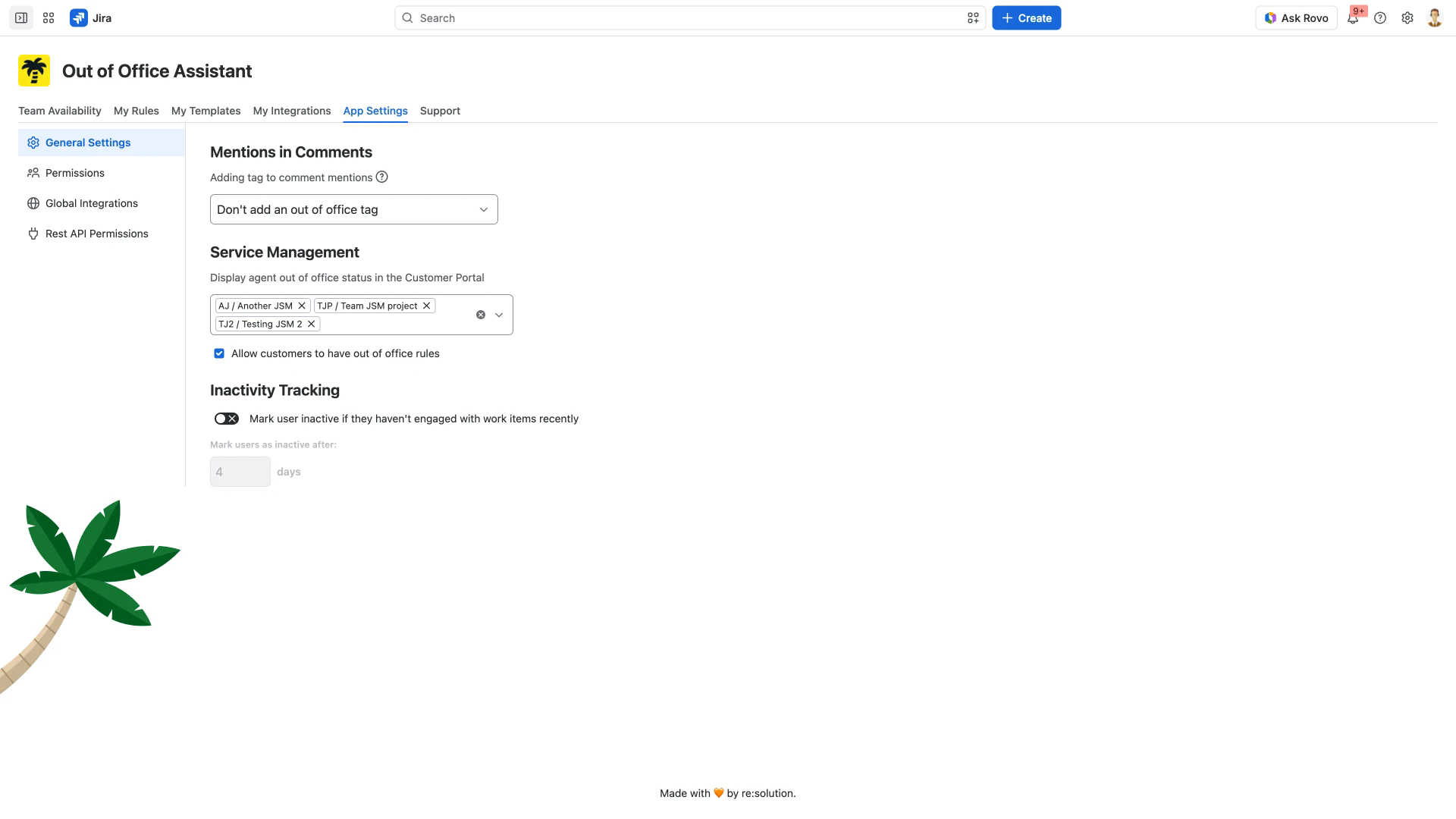
General Settings - the default mention tag option for new rules and templates, which spaces show agent availability in the customer portal, whether customers may have out of office rules, and how long (in days, hours or minutes) without work item activity marks someone inactive.
Permissions - the spaces whose space admins may manage rules for their members, and the users and groups who become Out of Office admins.
Global Integrations - integrations configured for the whole instance, with their status and an Enabled toggle.
Personal Integrations - which personal integrations users can set up: Google Workspace, Outlook and Slack. Turning one off hides it for everyone who has not set it up yet; people who already use it keep it.
Rest API Permissions - who may create API tokens, the tokens created so far, and the Legacy tokens imported from the Connect app, which can be revoked but not regenerated. See REST API Endpoints Documentation.
A sixth section, Support tools, appears only after a code from resolution support has been entered through the Help menu. It disappears again when the page is reloaded.
Outside the app page
Two Out of Office sections sit in Jira rather than in the app: one in a work item's Details column, reporting the assignee's availability, and one on a Jira Service Management portal request, showing the assigned agent's status to the customer.