

Jira Admin Quick Reference Guide
As a Jira administrator you have full access to Out of Office Assistant automatically, and are never added to a list inside the app. Only Jira admins see the Administration tab; this page covers what is on it.
Open the app from the Jira sidebar under Apps and select the Administration tab. Its left side navigation has five sections.
Section | What you set there |
|---|---|
General Settings | Site-wide behaviour: comment mention tagging, customer portal visibility, inactivity tracking |
Permissions | Who administers the app besides you: Space Admins per space, Out of Office Admins for all users |
Global Integrations | The integrations that serve other people: Tempo, and Microsoft 365 through + Add Microsoft 365 |
Personal Integrations | Which personal integrations users can set up: Google Workspace, Outlook and Slack |
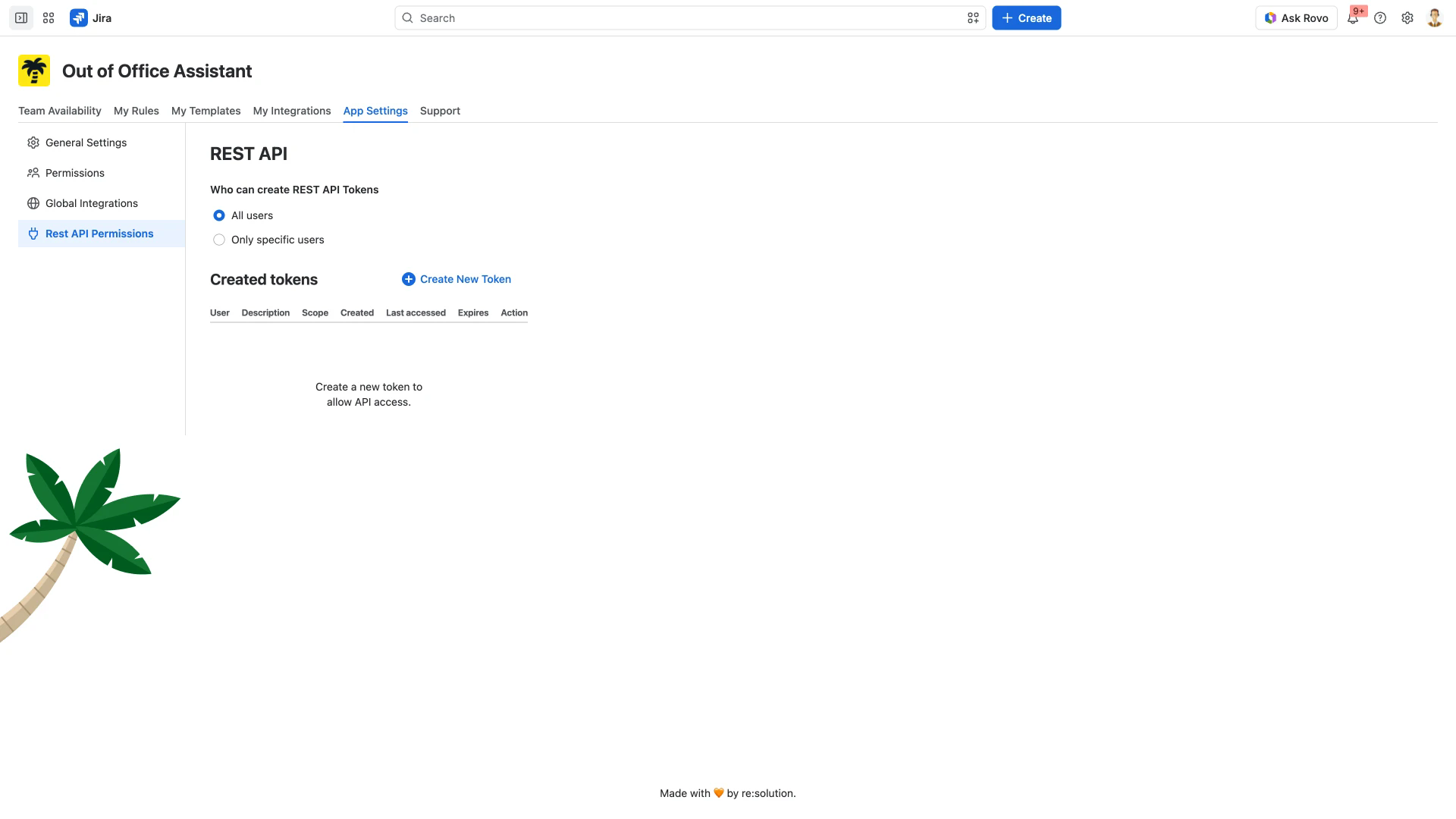
Rest API Permissions | Who may create REST API tokens, and the tokens that exist |
+ Add Microsoft 365 is how you connect an integration on other people's behalf. It adds one row: a connection you name, scoped to the email domains you list, carrying the templates it applies, so people in those domains get rules from their Outlook automatic replies without connecting an account themselves - the steps are on Microsoft Outlook Integration. Anyone can instead connect their own from the Office 365 (Outlook) card under My Integrations, which is the only route for Google Calendar and Slack.
Jira admins also see Support tools in the Help menu at the top right of the app page. It asks for a code from resolution support and then opens a Support tools section under Administration.
Delegate administration
Two roles are granted under Administration > Permissions, and neither requires Jira administrator rights.
Out of Office Admins manage rules, templates and integration settings for all users, and can create ADMIN-scope REST API tokens. They cannot open Administration. Grant it with the Users and Groups pickers; a group grant follows membership through joiners and leavers.
Space Admins manage rules, templates and integration settings for members of the spaces you select. Use this for team leads who should not run the whole app.
Space Admin takes two grants, not one. Selecting a space under Administration > Permissions > Space Admins gives Out of Office rights to that space's Jira space administrators. The person also has to be a space administrator in the space itself, under Space settings > Access; being Space Owner is not enough. Neither grant works alone, so a delegation that looks complete in the app can still fail.
Who each role can see is set out in Permissions and Access Requirements.
Control who can create REST API tokens
Open Administration > Rest API Permissions. Who can create REST API Tokens is a pair of options: All users, the default, or Only specific users, which reveals pickers for the users and the groups you want to allow. There is no save button - Saved appears beside the heading once a change is stored.
Below that, Created tokens lists existing tokens and Create New Token issues one.
Token scopes and the endpoints are covered in REST API Endpoints Documentation.
Set site-wide behaviour
Administration > General Settings holds three groups, all applying to everyone.
Mentions in Comments - Adding tag to comment mentions sets the default for new rules and templates: no tag, a tag while the person is out of office, or a tag from four days before the absence.
Service Management - pick the service management spaces that show agent out of office status in the customer portal, and set whether customers may have rules of their own with Allow customers to have out of office rules.
Inactivity Tracking - turn on Mark user inactive if they haven't engaged with work items recently, then set Mark users as inactive after in days; the day count stays disabled until it is on.