

Time & Date
Time & Date Settings
The Time & Date tab controls when meetings take place, how long they last, and how meeting cadence aligns with your project workflow.
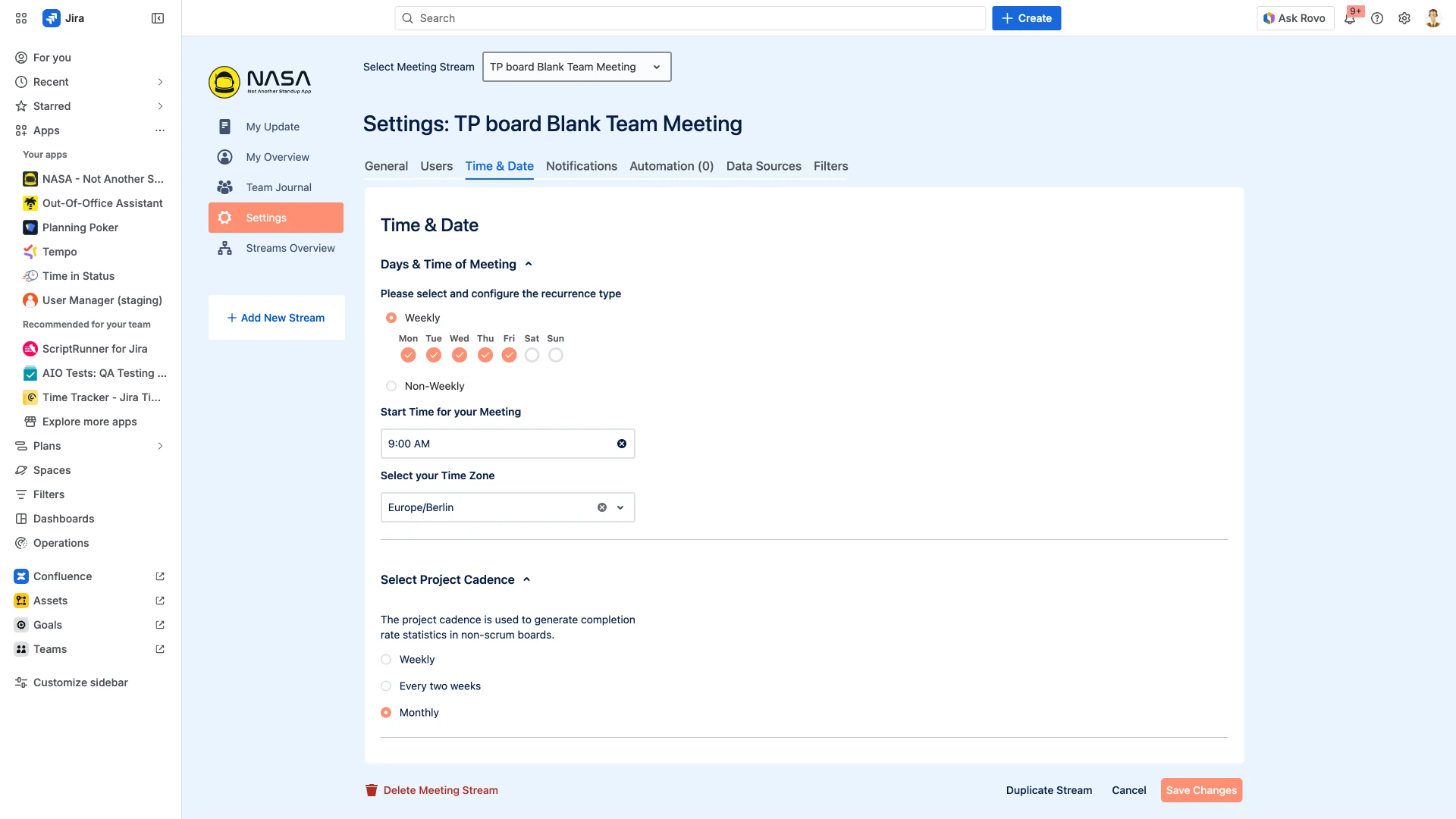
The Time & Date settings showing meeting schedule, duration, and cadence options
Days & Time of Meeting
Configure which days and at what time your meetings occur:
Recurrence Type: Choose Weekly (select specific days Mon–Sun) or Non-Weekly (for custom schedules).
Start Time: Set the meeting start time. This time is used for Slack reminders and the meeting lobby.
Time Zone: Select the timezone for the meeting schedule. All participants see the meeting time converted to their local timezone.
Duration
Set how long your meetings should last. Two modes are available:
Per Meeting: A fixed total duration (e.g., 15 minutes for the entire standup). The timer counts down for the whole meeting.
Per User: A time allocation per participant (e.g., 2 minutes each). The timer resets for each person. Total meeting time = per-user time × number of participants.
The timer is displayed during live meetings. When time expires, it does not end the meeting automatically — the Scrum Master decides when to proceed.
Meeting Link
Paste a link to your virtual meeting room (Zoom, Google Meet, Microsoft Teams, etc.). This link appears in:
The Meeting Lobby, so participants can quickly join the video call.
The Meeting Reminder Slack notification, if configured in the Notifications tab.
Project Cadence
The project cadence controls how NASA calculates completion rate statistics in My Overview. Choose from:
Weekly: Statistics are calculated per week.
Every two weeks: Aligns with two-week sprint cycles.
Monthly: For teams using monthly cadences.
This setting is primarily relevant for non-Scrum boards. Scrum boards automatically derive cadence from the active sprint.
Remember to save
Click Save Changes at the bottom of the page to apply your updates.